Note: ALL AI Image Effects requires:
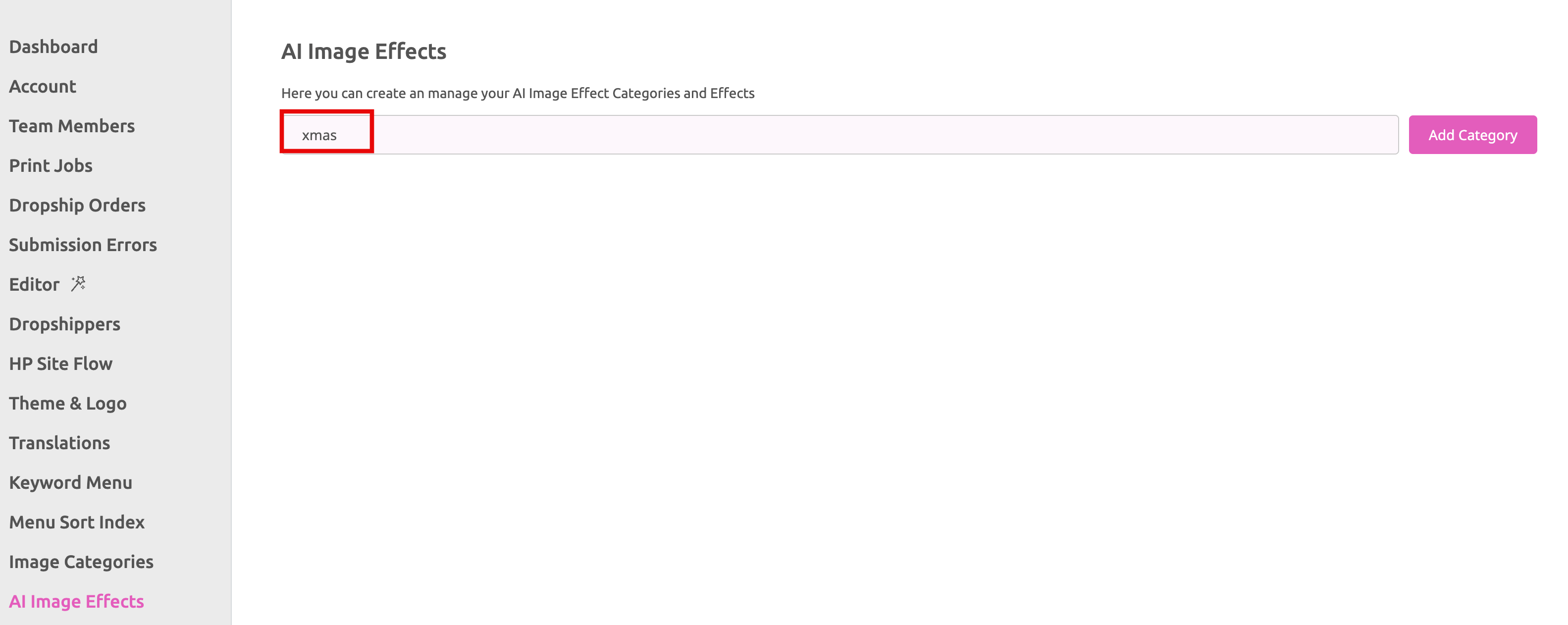
Here you create and manage your AI Image Effects. At the beginning this list is empty. If you would like to add an Effect type in a name of a new Category and press Add Category.
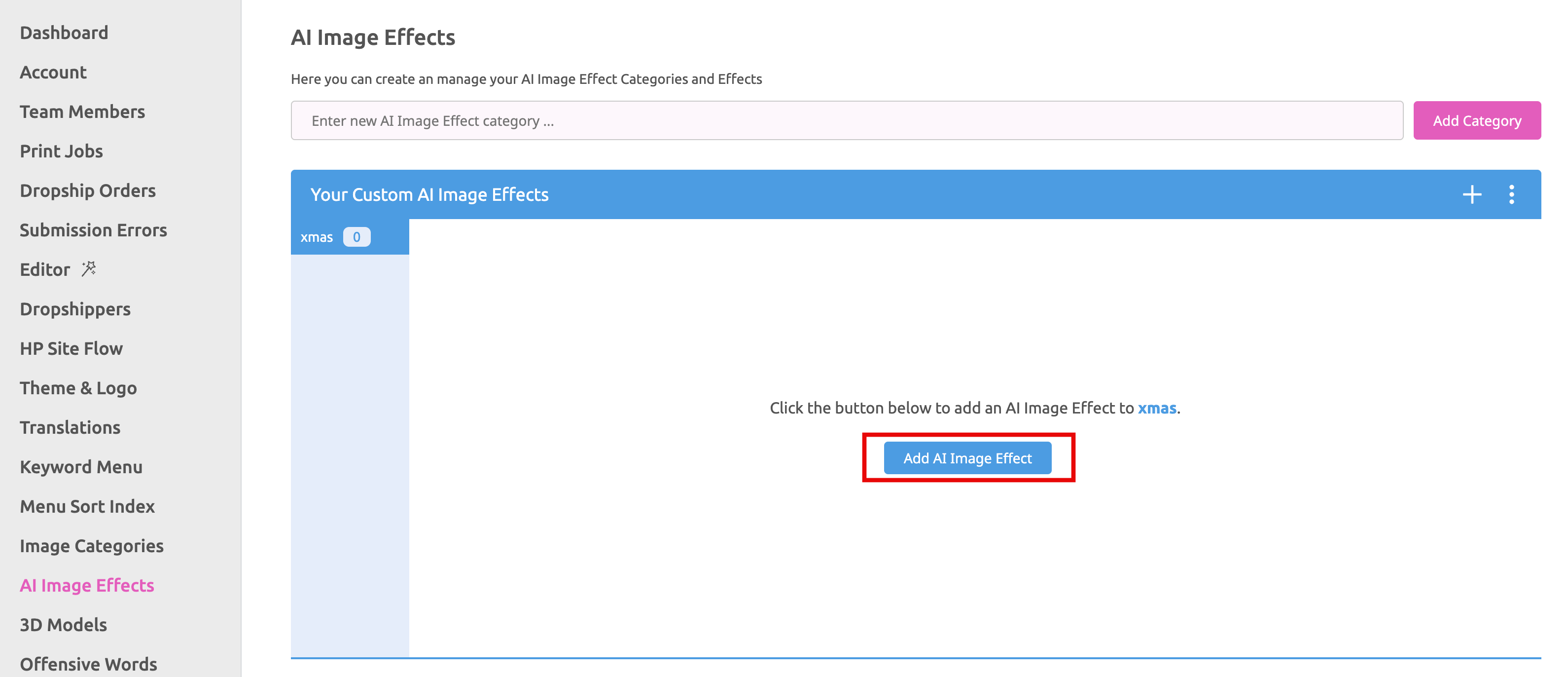
Now press the Add AI Image Effect button.
A separate window is open where you can define the settings for the Effect.
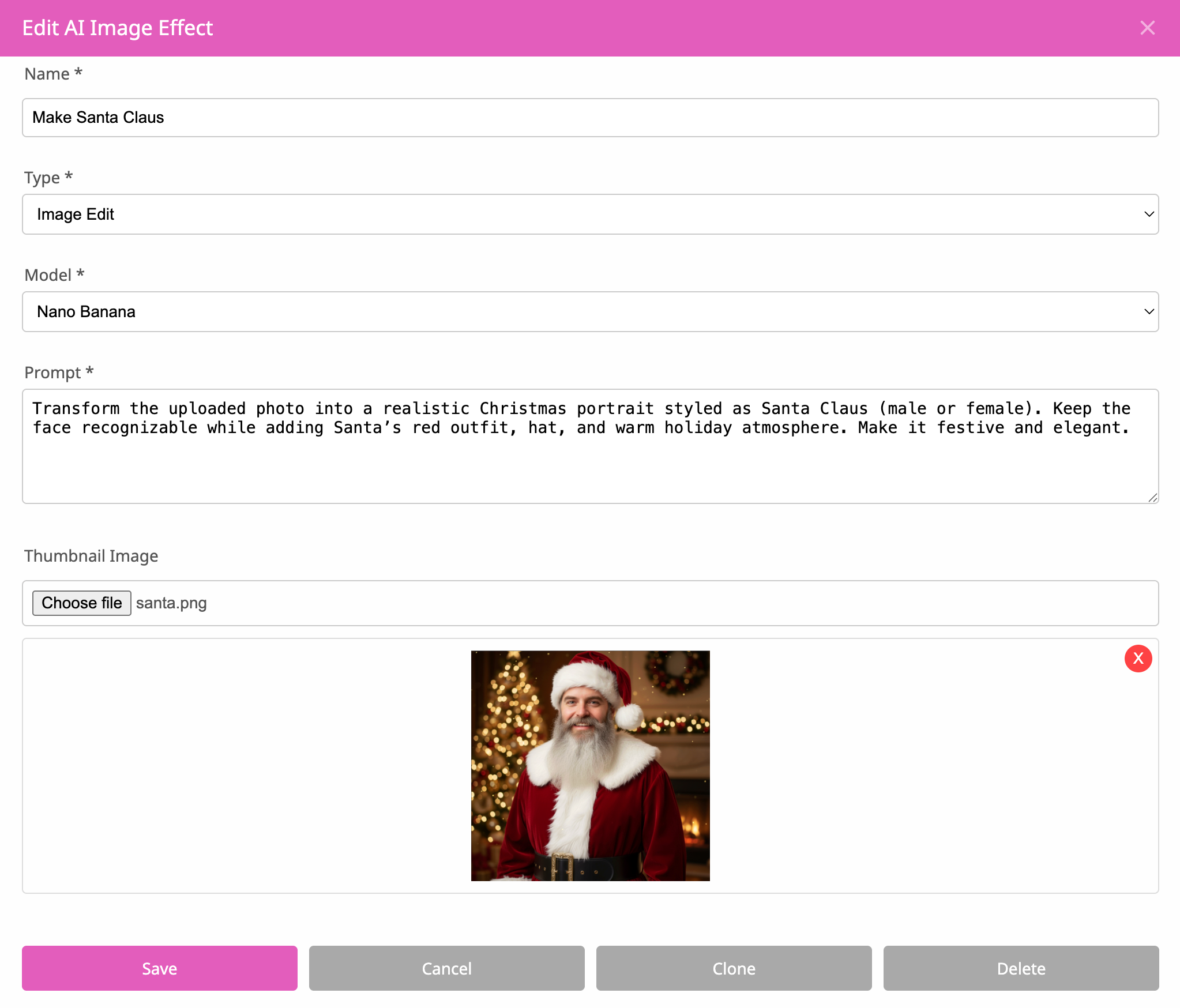
Name:
Type in a name for this Effect.
Type:
Currently there is only the type Image Edit available. May be in the future more option will turn up here in a selct list.
Model
Currently you can choose from two different AI Models here:
Prompt
Type in your prompt here to define the expected result.
Choose file
Click this button to upload a Thumbnail for this Effect. It will be displayed at the Buyer Side to illustrate this AI Image Effect.
Save
To save the settings of the AI Image Effect.
Cancel
To close the window without saving any changes.
Clone
To copy current the AI Image Effect. A new window will automatically open with a new name for this AI Image Effect.
Delete To delete the current AI Image Effect from this Category.
Any AI Image Effect can be assigned to a Printess Template through the Buyer View Appearance Settings. Just press the “a” key in the Printess Editor to open that dialog and go to the “Image Settings” Tab.
Learn where to assign an AI Image Effect to your Printess Template here