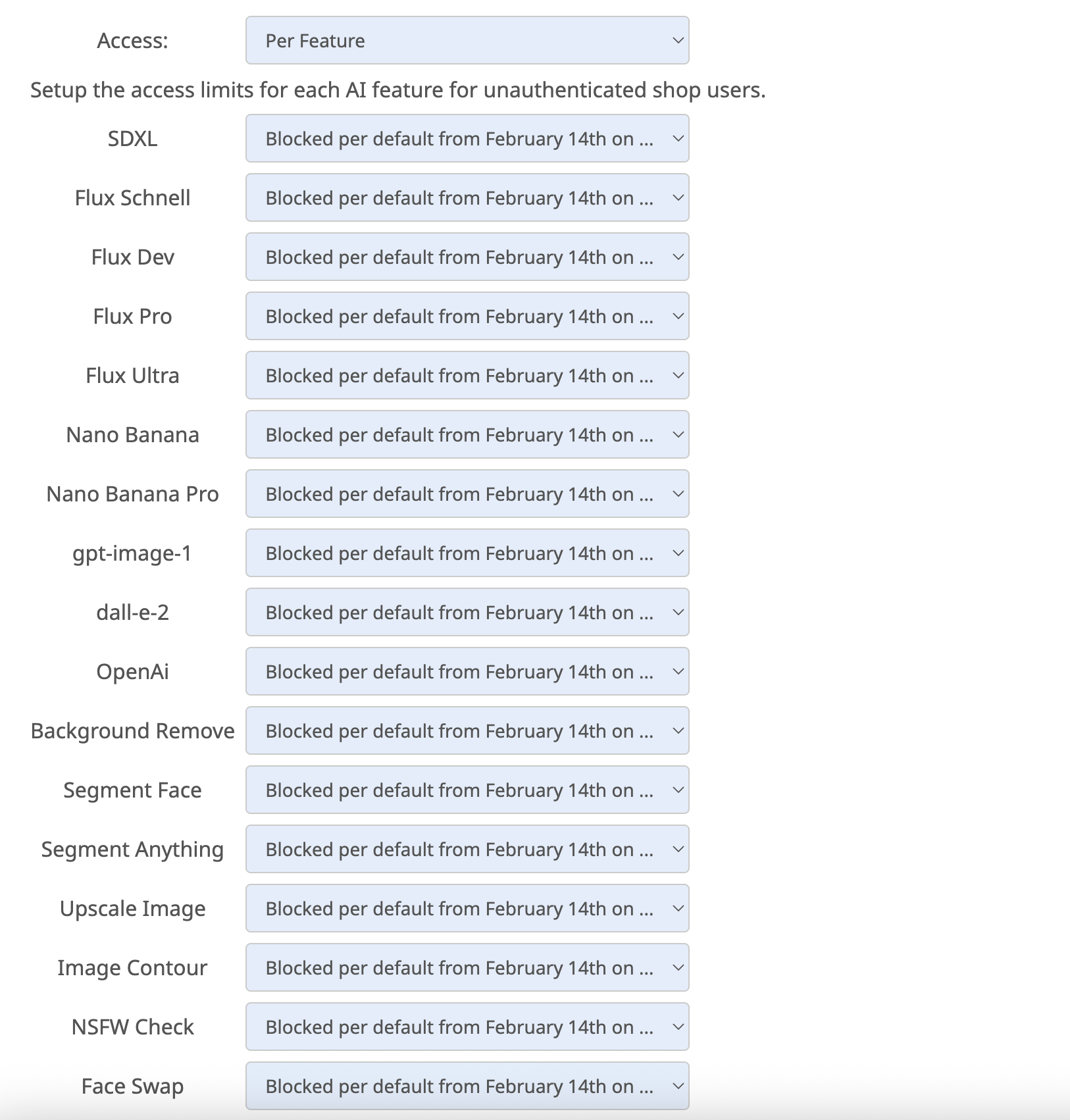
Here you can setup the unauthenticated AI usage limits for your account. For authenticated access you need to get an authorization token via our api. To get an AI authorization token you need to call our api endpoint method “ai/auth/create” with your service token.
The default setting is Blocked per default from February 14th on. You can choose from three additional modes:
Blocked: To actively decide for a general blocking.
Unrestricted: to not block any of the AI features for unauthenticated AI Access.
Per Feature: to define a blocking for specific AI features only. If you choose this option a list of all available AI features will be displayed.
Now you can define for each single feature if it should be blocked, unrestricted or if you would like to define a limited access.

To save your changes you have to press the Save AI Settings.
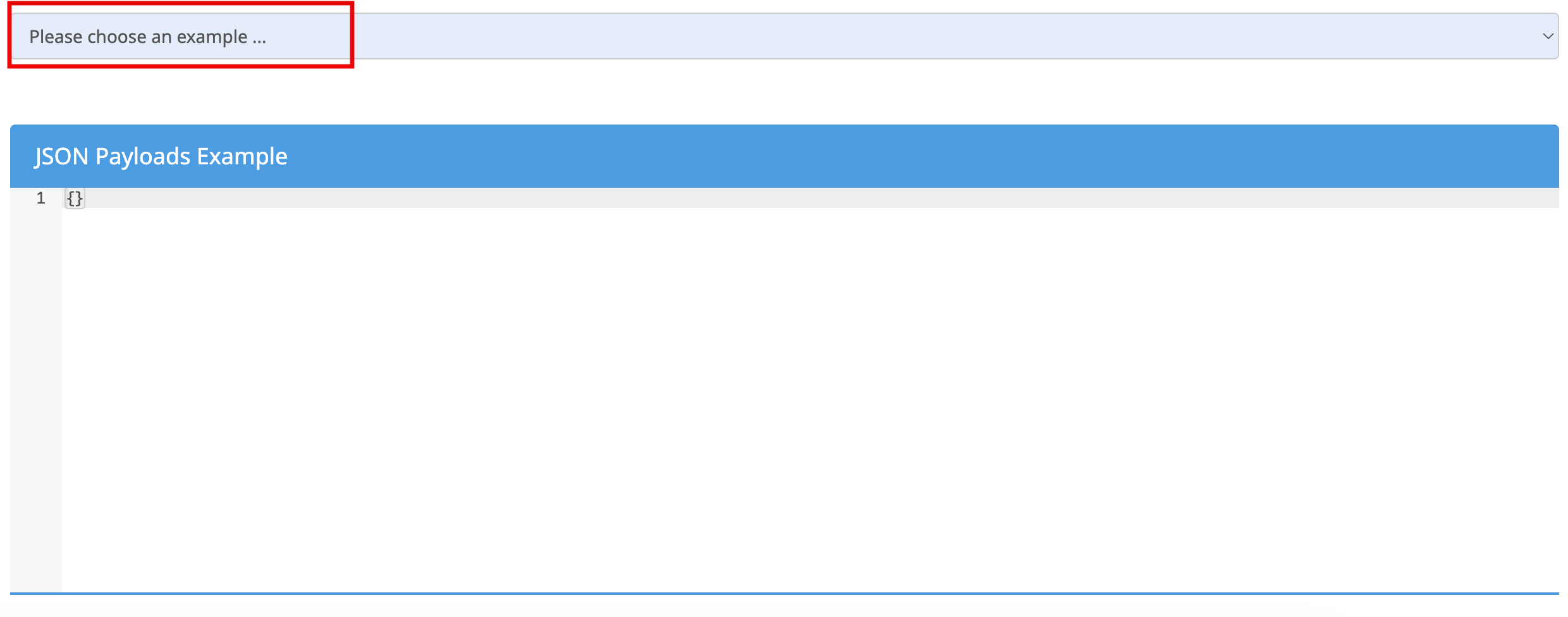
For the Authenticated AI Access you need Authentication Token. In the Account Portal we provide you with a JSON generator and some example cases to granularly generate a payload to the AI Auth Token creation endpoint.
Payload JSON generatorHere you can select different example codes to copy and edit them:
The result is a JSON code:
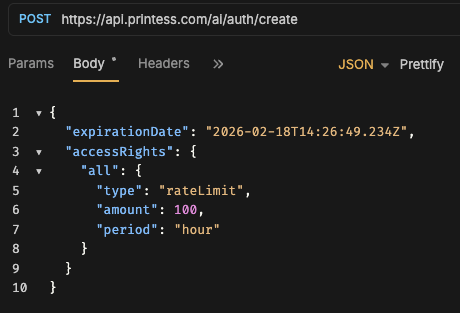
POST the payload you built to https://api.printess.com/ai/auth/create with your service token as bearer token to get back an ai auth token. This auth token needs to be set in the Printess attach parameters via “aiAuthToken”: “YOUR_AUTH_TOKEN”.
You can find your service token in your Account Portal
You can generate multiple AI Auth tokens with different settings. This way you can have varying presets for different integrations.