Slim UI
Note: The Slim UI is only available from the Printess Medium Plan. In Medium Plan an additional license is needed. In the Large Plan it is included.
The Slim UI makes personalization fast and effortless. Perfect for simple, one-page products like greeting cards or mugs, it runs directly on your product page — without loading the full Printess Editor.
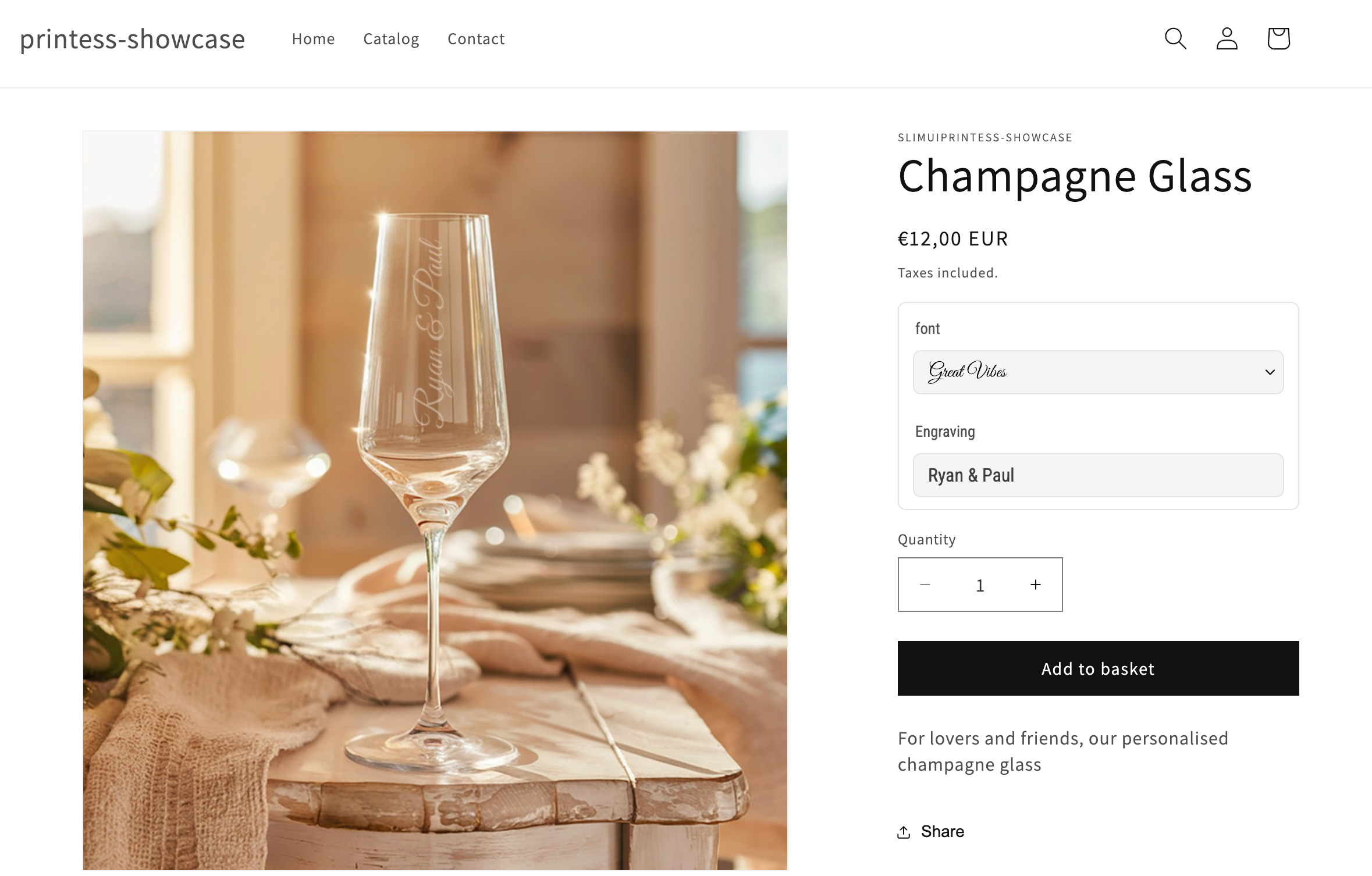
You can test the Slim UI here.
This means quicker setups, smoother shopping, and a better customer experience. Therefore it does not support all Printess features.
Supported Features
The Slim UI supports:
- Any type of Form Fields as long as their are Template Form Fields.
- Single Image Upload. So if you got more than one image frame placed the Buyer has to upload them step by step.
- Layout Snippets: You can display Layout Snippets for the Buyer to choose from.
- Keyword Menu: You can assign a Keyword Menu to sort and filter the Layout Snippets at the Buyer Side.
- Merge of ONE Layout Snippet while loading the Template - using its ID.
- Assignment of Layout Snippet Tags while loading the Template.
- AI Image-Edit Assign Action is supported.
- Adjustment of the display order for the the cluster of Form Fields, Layout Snippets, Frame Properties and Background Properties. read more here
- DocSize change through the Form Field.
- Photobook Themes could be loaded through an Attach Parameter.
Some features are not supported in the Slim UI - for example:
- Sticker Snippets.
- Merge of Printess Templates.
- Color Reflection to simulate refinement.
Slim UI Previews
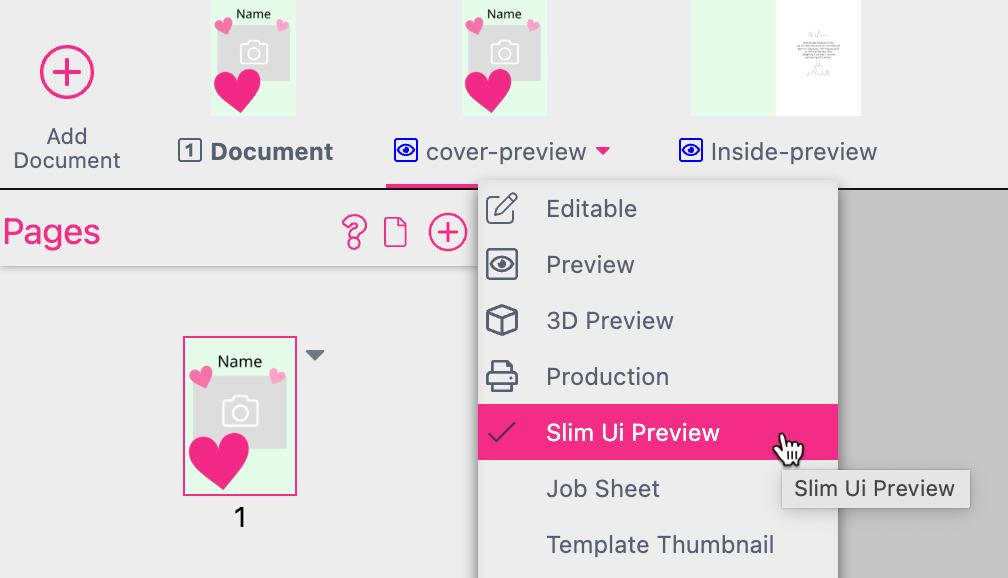
For the Slim UI you can define dedicated Previews. Especially if you would like to display different Preview Documents. The Buyer can then toggle through the different Preview Documents.
Go to the Document Context Menu and set the Documents to Slim Ui Preview.
Shop Integration
Printess offers a ready-to-use Shopify integration, and you can connect it to other shop systems as well.
More informations about the Slim Ui integration here
To use the Slim UI you have to:
- save the Printess Template first - even pre-existing Templates.
- publish the Layout Snippet first - even pre-existing Layout Snippets.
Then you can also generate a test link.
Learn how to generate a Test-Link