We are currently overhauling this part of the documentation to bring it up to date and also make it more understandable. If you have any trouble understanding something or following along, please reach out to our support team!
This document describes the steps to integrate the Printess Editor into your shopify theme. Dawn, Sense and Spotlight are the 3 Standerd Shopify themes that are officially supported by us. Our integration already comes preconfigured for these 3 themes and the integration can be done by everyone even without basic web development technologies (HTML, CSS, Javascript) by using the Shopify graphical theme editor. Most available Shopify themes are not meant for being customised on cart line item level which complicates the integration of personalised thumbnails in your shopping cart page or overlay cart views / notifications. In case you need to integrate in other themes as the ones mentioned above, or you want to use the overlay cart features, some basic HTML / CSS knowledge is required as minor theme source code changes are required to get them displaying the correct thumbnails. Our solution tries to integrate as undestructive as possible to keep your shop and installed plugins running as it is running without our integration. We heavily depends on the themes own “Add to basket button”. So do not remove it proactivly. The Printess Integration will hide it automatically. To keep your shop modifications running, the integration does not create its own cart line items. Instead, it will add additional values to the product form on the product page and simulates a click to the themes own “Add to basket” button. The following chapters will guide you through the integration and configuration.
To prevent unnecessary reintegrations, make sure that the theme is the final decision and check that the theme has the most recent version.
In this chapter we will show you how to integrate Printess into your shopify store. If you use one of the themes Dawn, Sense and Spotlight, the Printess app for shopify will take care of most things, which is the easiest approach.
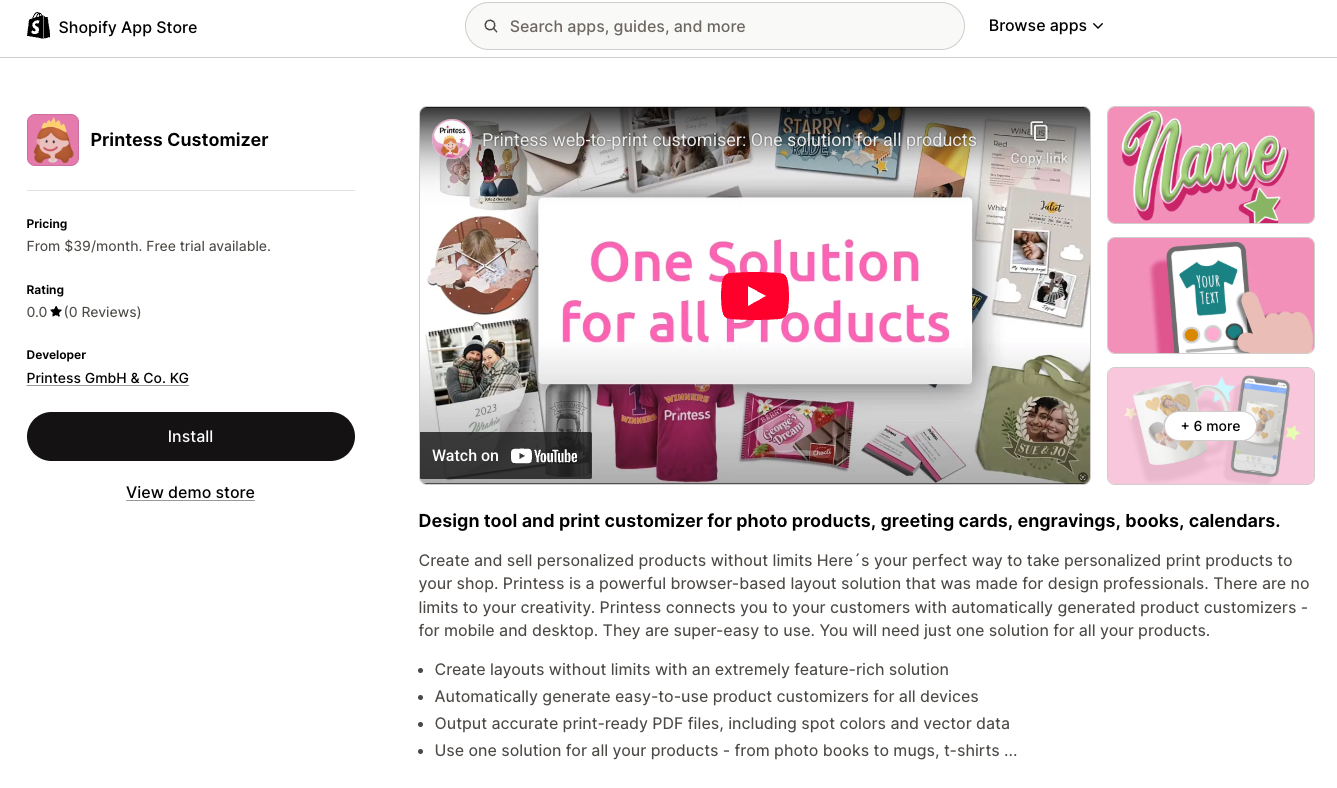
You can get to our App with the link below, and installing it is the first step.
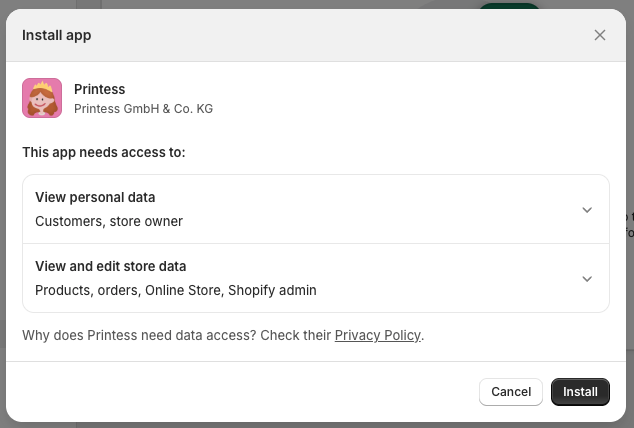
Printess App on the shopify App storeOn this page, simply click the Install button and after confirming your intent on the next page, the installer will take care of the rest.
After installing you will be redirected to your Printess Account Portal, ready to inspect and further configure your shopify integration.
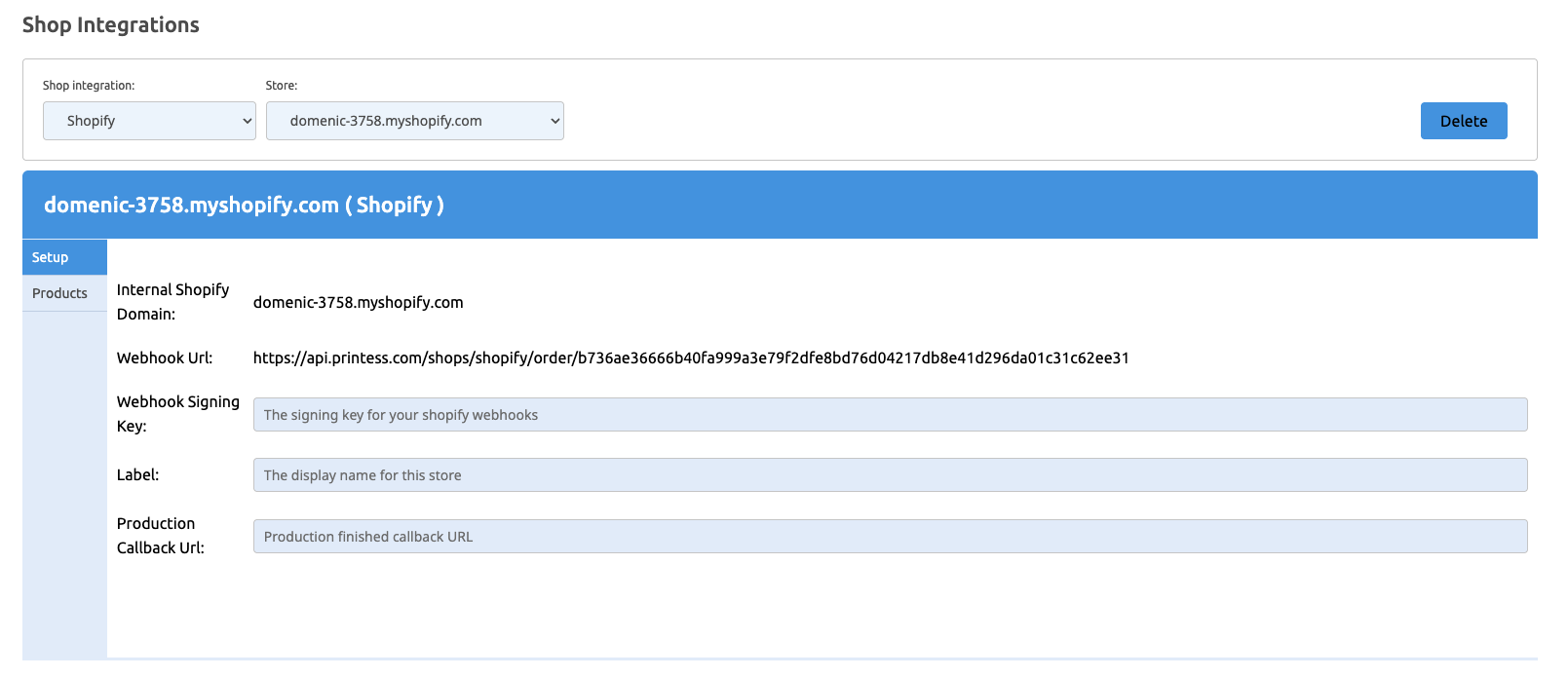
This page will show you the general setup for your shop as well as the products listed in it, but more on that later.
For now, return to your shopify store to finish the basic Printess integration.
You have chosen one of the shopify store themes Dawn, Sense and Spotlight for your shop and want to use Printess with it. That is easily done in a few steps.
In your shopify admin Panel, navigate to the setting of your store:
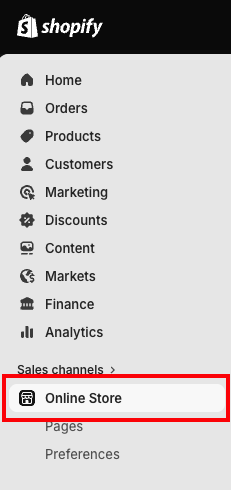
Here you will see your store and its current theme. Click the Edit Theme button.

You will see a preview of your store and on the left side, there is a panel showing you all section of the current page, which should be the landing page. In this panel, you will need to add a new section and select Printess Configuration from Apps.
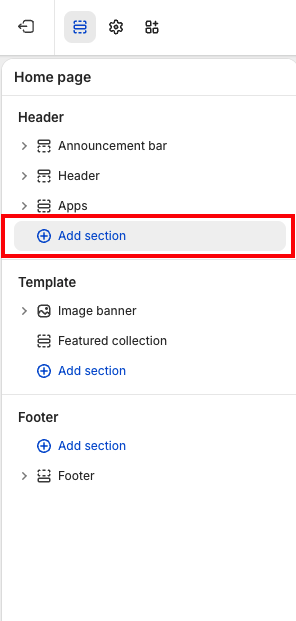
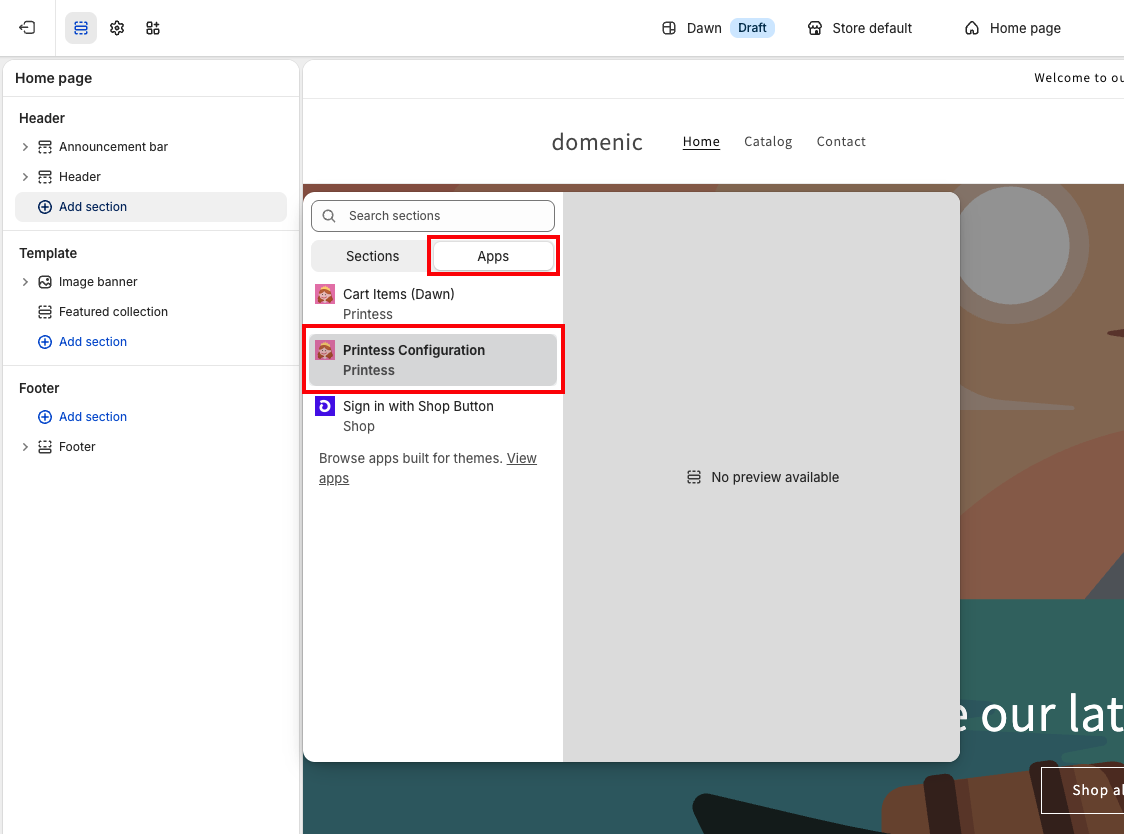
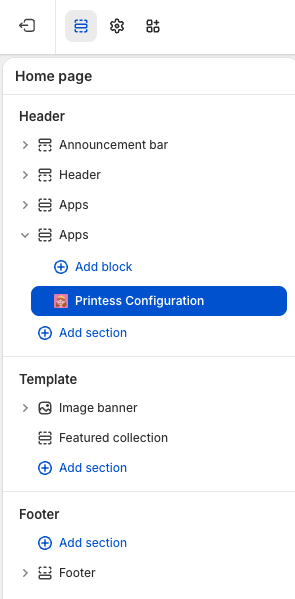
Now you should see the Printess section in the left panel:
Lastly, you will need to edit the shopping cart view of your store. Navigate to the shopping cart view of your store with the button in the top right:

In this view, you can see the Template section contains an item called “Items”, with an eye icon next to it. Click this icon in order to hide the default cart items (the eye will be crossed out), as we will replace it with a Printess cart items section.
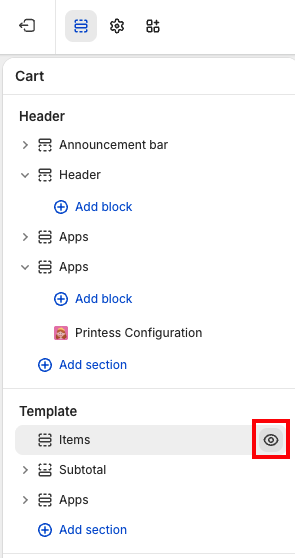
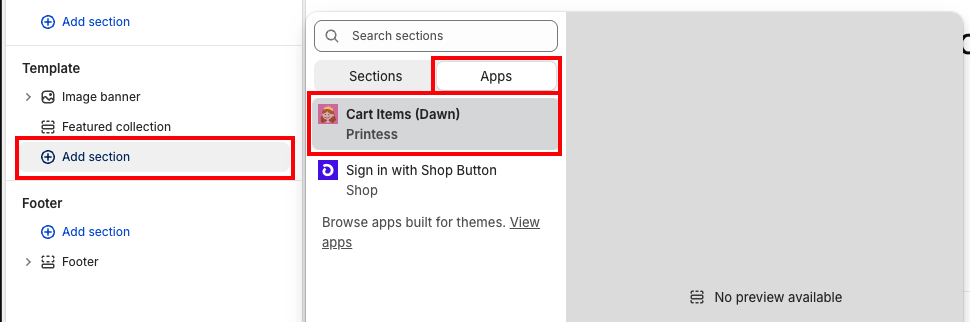
Then, click Add section in the Template section and, in the Apps tab, select Cart Items from Printess.
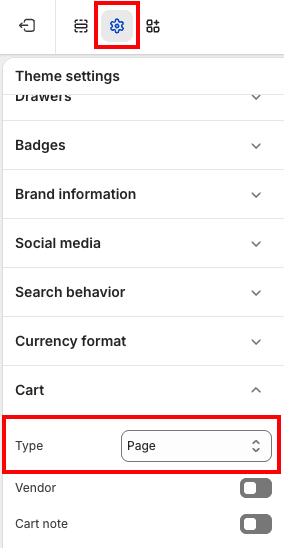
Lastly, you will need to make sure your shopping cart will be displayed as a page only. For this, switch to the theme settings of your theme by clicking the cogwheel at the top of your page, find the menu entry Cart and change the Type to page.
After adding these two sections and changing the setting, you need to save your theme!
To continue the process, skip the next chapter and jump directly to Dawn, Sense & Spotlight cart drawer und cart popup support
In your shopify admin Panel, navigate to the setting of your store:
Here you will see your store and its current theme. Click the Edit Theme button.

You will see a preview of your store and on the left side, there is a panel showing you all section of the current page, which should be the landing page. In this panel, you will need to add a new section and select Printess Configuration from Apps.
Now you should see the Printess section in the left panel:
After adding this section, you need to save your theme!
The Printess Editor is accessible in shopify through adding buttons that lead to the customisation of your products. For themes other than the ones above, this is done through the shopify theme. In order for this to work, you will need to download a file from our
github page for the shopify integration.The file in question is printess-cart.liquid.
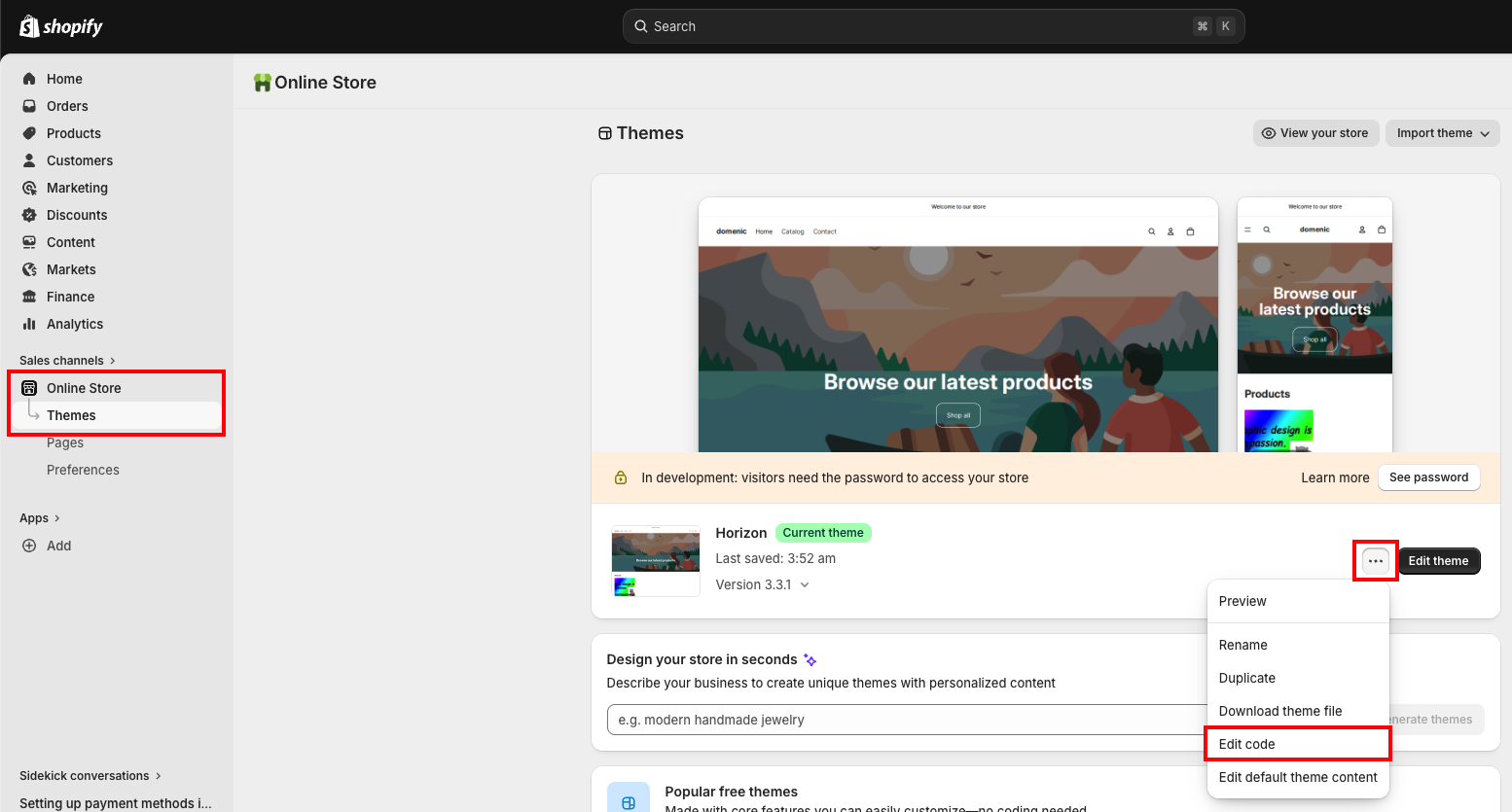
Once you have grabbed file, navigate to the shopify Theme editor, by going to your shopify dashboard, selecting Online Store -> Themes. On the very top you can see your current theme, in our example it’s shopify’s default theme “Dawn”. Here you have to click the button with 3 dots, which opens a context menu where you can click Edit Code.
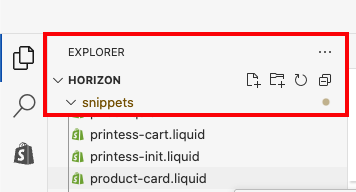
On the left hand side of the editor window you will see a directory structure. Find the directory snippets and copy the downloaded file into it, by dragging & dropping it from your PCs file explorer.
In order to be able to edit a product after it was put into the shopping cart, we need to add a button that will take the item back into the Printess editor.
You will need to find the liquid file which defines the cart view in your theme, which will generally be found in the snippets directory.
This file will include “cart” in its name (such as cart-products.liquid in Horizon or main-cart-items.liquid in Dawn).
Inside this file, you will need to find the code that renders the items of your cart, generally identified by looping through the items of the cart.
We generally place button directly underneath the preview image of the item, but with some knowledge in HTML and web development, you can place it virtually anywhere in your cart. You can find the preview image of an item by searching the liquid file for “img”, which will only be there once in most themes.
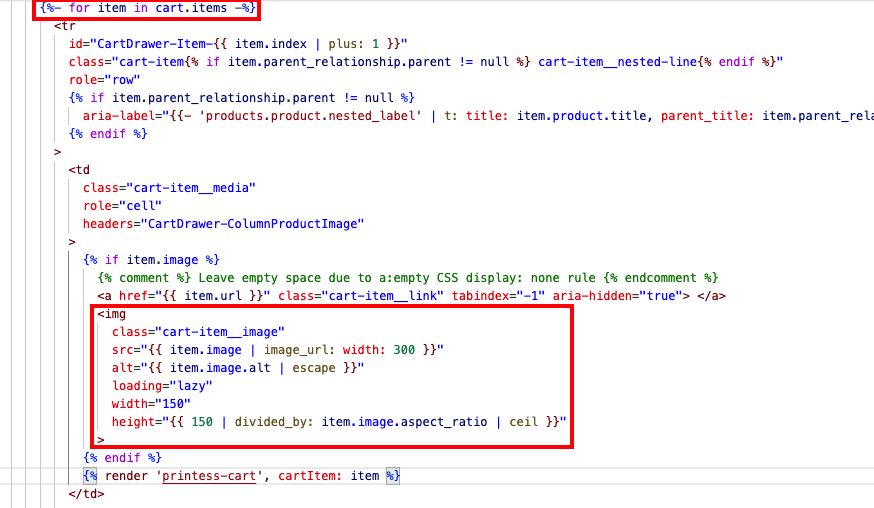
Should your cart file contain more than one instance of an <img> tag, you will need to do some more digging in order to find the correct one.
Once you have found the <img> tag (or other place you want to put the button), you can place the Printess button underneath.
If there is a {% if CONDITION %} {% endif %} surrounding your chosen block, you might want to place the block outside of it, as you see in our example, otherwise the button might not be rendered if the condition is not fulfilled.
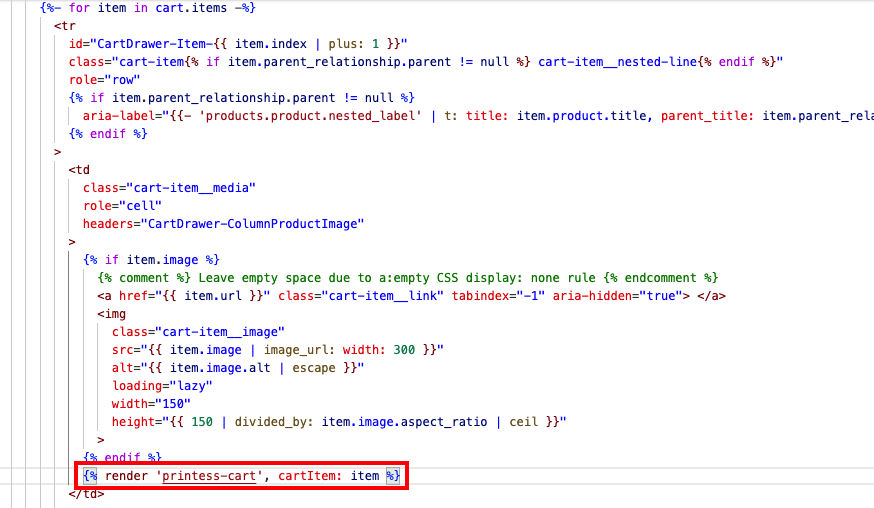
As you can see in the image above, all you need is to add the following code:
{% render 'printess-cart', cartItem: item %}
You need to pass the current shopping cart item to the button, but it may not be called item if you don’t use the default theme.
Look around for other usages of the item in order to find the correct name.
It will be the items the code loops through and contains preview images.
You need to have downloaded and added the Printess file from the chapter above to accomplish this.
For these themes, there are alternative ways to display the shopping cart, which need some extra care to integrate Printess.
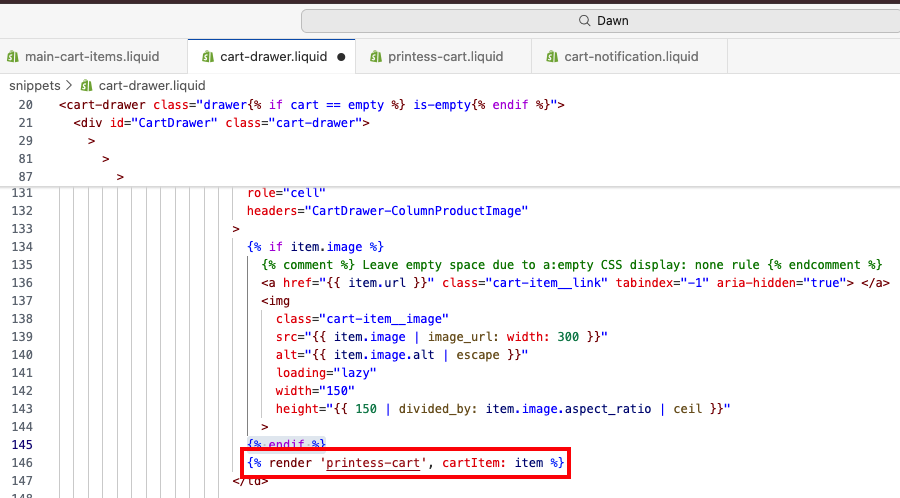
These alternatives are the cart drawer in cart-drawer.liquid and the cart notofication in cart-notification.liquid.
Navigate to these files through the file search up top and typing in their name.
If the search gives you multiple results for a file name, the one in “sections” will contain the code you want to modify.
In these files, as in the chapter above, you need to find the code that renders an individual item of your shopping cart, and add the following code to it:
{% render 'printess-cart', cartItem: item %}
To continue with the next necessary step, skip to Deactivate Accelerated Buy Buttons in Configuration
If you use one of the officially supported themes, all you need to do is activate the SlimUI for a product in your Printess Account portal. Otherwise, you will need to identify some CSS selectors in your theme so Printess knows where to render its UI elements
The SlimUI is a light weight version of the Printess Editor, but much more deeply integrated into your Shopify shop.
A product will use the SlimUI if you have activated it for the product in your account portal. In the account portal, go to Shop Integrations > Products and select a product. Here you can activate SlimUI:
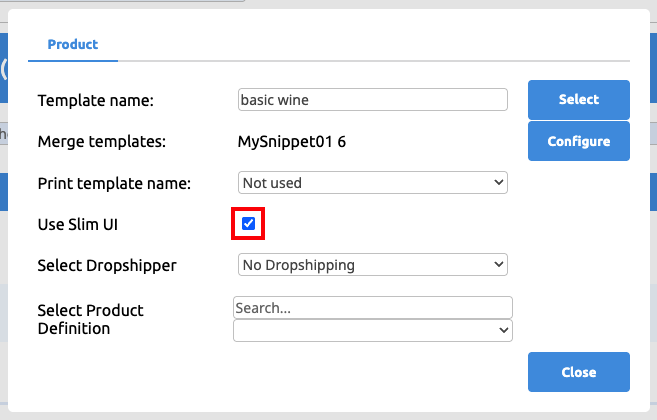
Any product you want to customize using the SlimUI needs to have at least one picture.
If you are using another theme, you will have to identify some HTML elements in your theme and fill matching CSS selectors into the Printess app section settings.
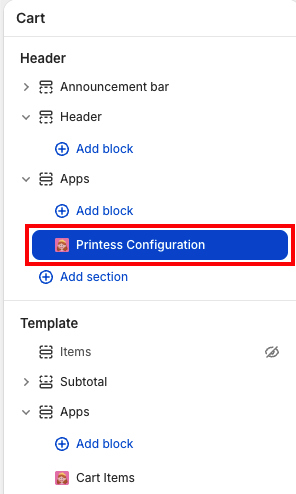
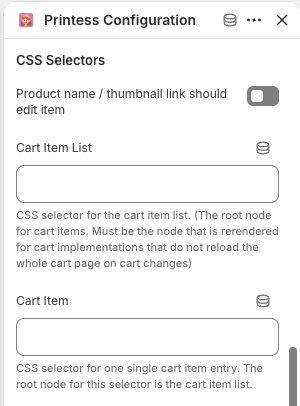
Each selector has a short description underneath its input, which should help you find the correct element.
You can configure how the SlimUI should look and behave in your Printess app section settings:
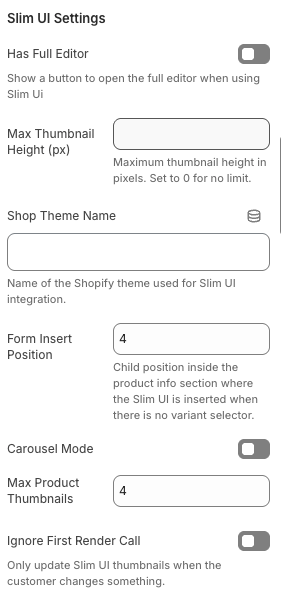
Activating Has Full Editor will render a button that allows users to switch to the full Printess Editor. There they can use some more advanced features which are not usable with SlimUI, if your template utilises these features.
If your customers need to save their work and return to it later, you need to activate “Show sign-in links” in your shop settings (Shop Settings > Customer accounts).
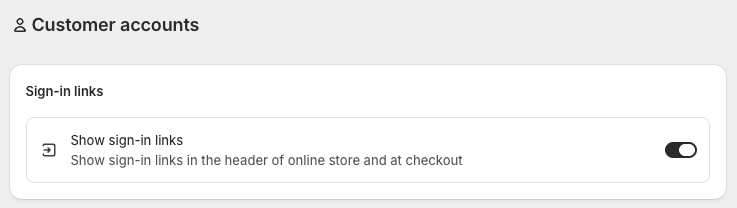
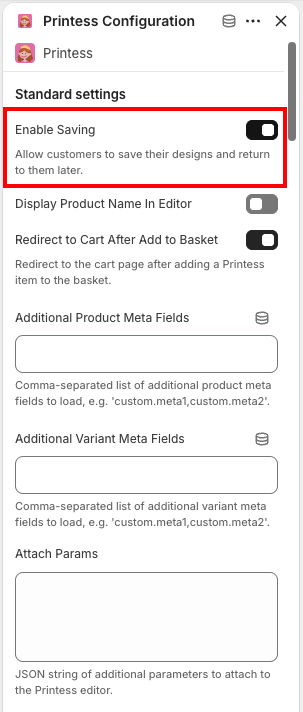
In your theme settings you can go to the Printess app section in the Header. Clicking it will open the settings on the right side of your screen.
There you can activate the save and load functionality.
If you have used our Liquid files to implement Printess in the theme code, you can alternatively change the printess-init code block.
In your theme code, inside the theme.liquid file, you need to add the line supportsSaving: true, to the Printess initialization:
{% render 'printess-init',
  supportsSaving: true,
  cssProductContainerSelector: "div.product",
  cssAddToBasketButtonSelector: 'button[type="submit"][name="add"]'
%}
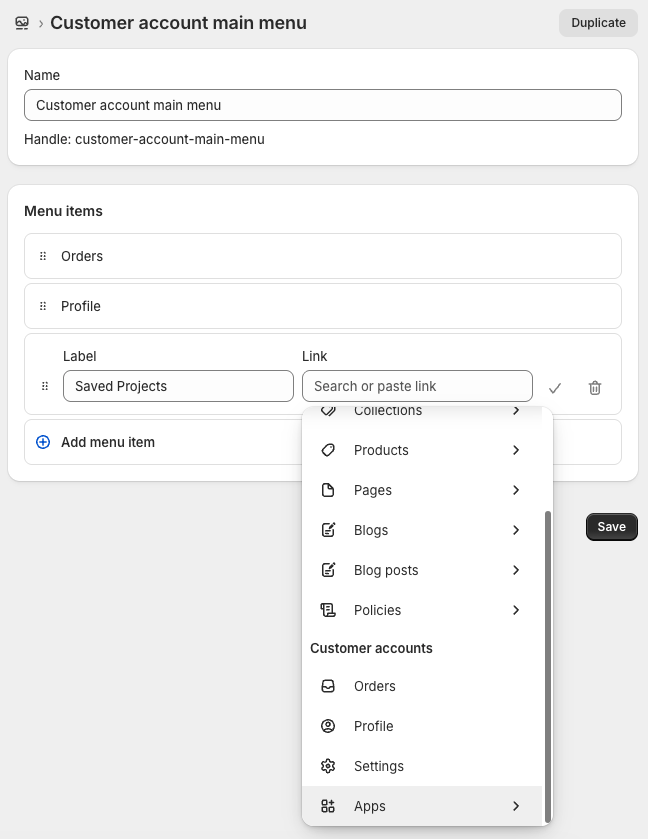
Then you need to add a menu to your customers user profile. In your shop admin page, navigate to Content > Menus and select the “Customer account main menu”. Here ypu can add a new entry and give it a name such as Saved Projects, and select a link. Inside there you can select apps, which includes the Printess app, and clicking it will configure the menu automatically.
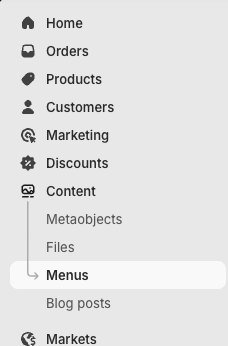
After doing this, you have to edit your store theme with the shopify theme editor. Inside the editor, you need to select Checkout and customer accounts in the top bar, and after that opens, in the new top bar, select Profile.
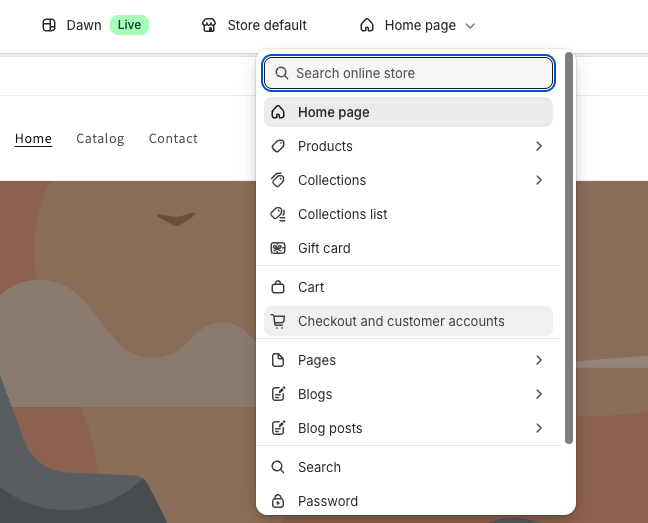
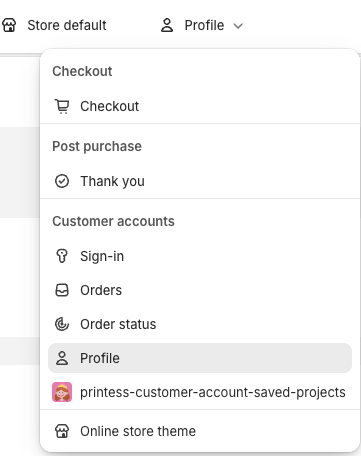
This opens a sidebar, in which you need to select the Sections view (marked in red), where the option Header should be highlighted, because it is missing a link.
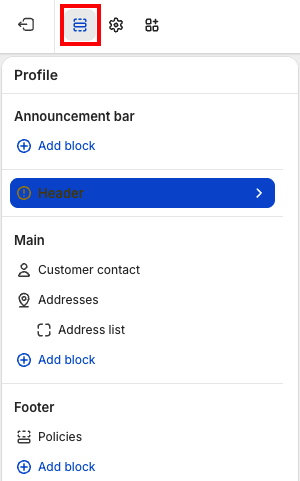
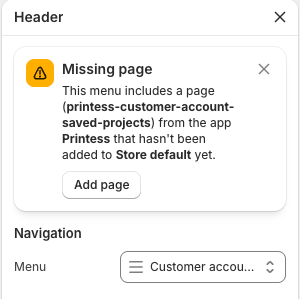
Click it to open another sidebar, in which you can add the missing link by clicking Add page.
Once this is enabled, your customers see a small preview image of their personalized design on their order page, and can click it to open a larger version.
This is a one-time setup for your shop, and it is required. Until you complete these steps the preview will not appear anywhere — and Shopify will not show you an error or a warning. If you have installed the Printess app and the preview is missing, this setup is almost always the reason.
In your Shopify admin, go to Settings → Checkout.
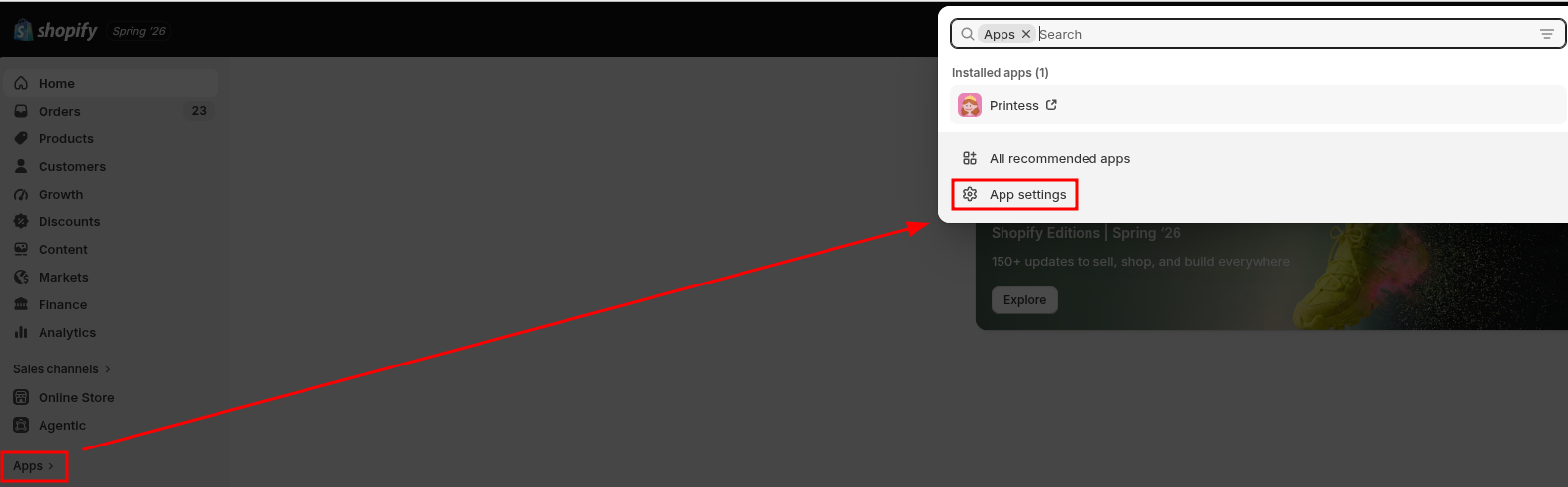
In the Configurations section, click Edit on the configuration that is currently published.
If you have more than one configuration, make sure you pick the published one. Changes made to a draft configuration have no effect on what your customers actually see.
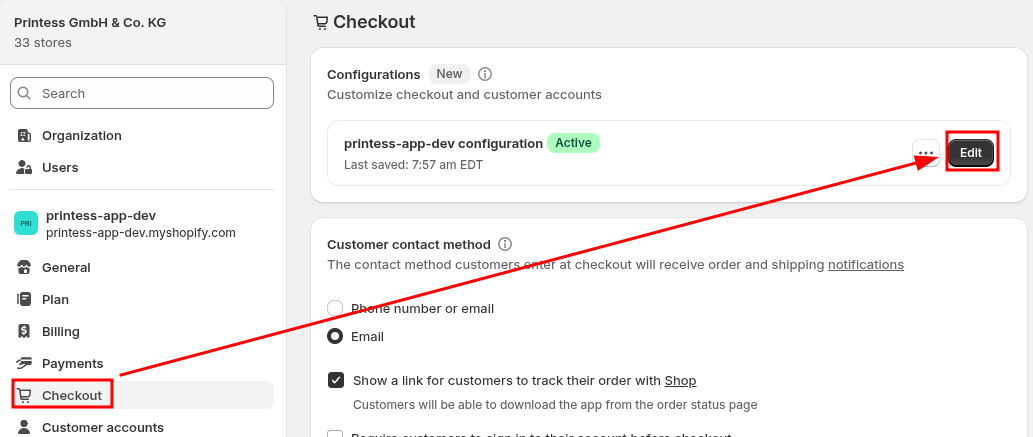
The checkout and accounts editor opens. Use the page selector at the top to choose Customer accounts → Order status.
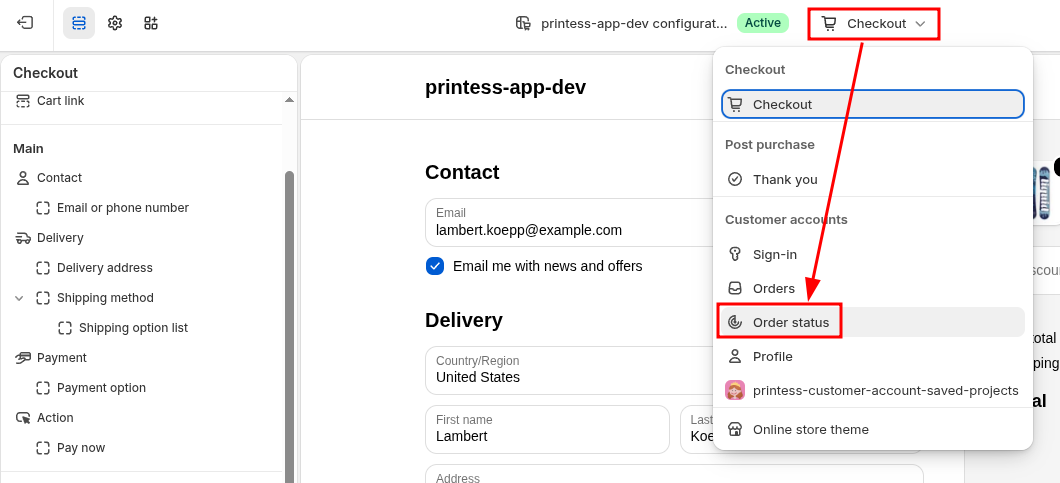
Click the Apps icon in the left sidebar. This lists the blocks you can add to this page.
In the sidebar, look for the app section called Printess. Inside it, find the block named exactly:
printess-order-thumbnail
Click the ⊕ symbol next to that block. When asked, choose the Order status page.
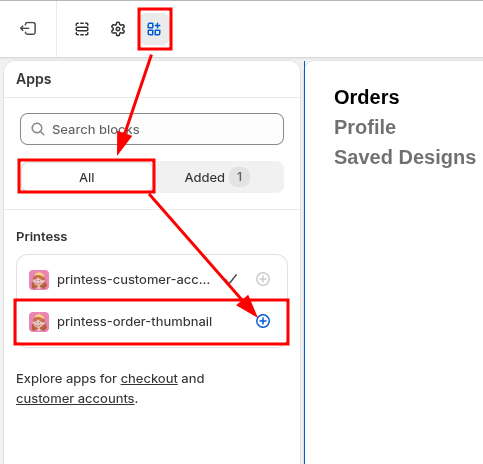
Click Save in the top right corner.

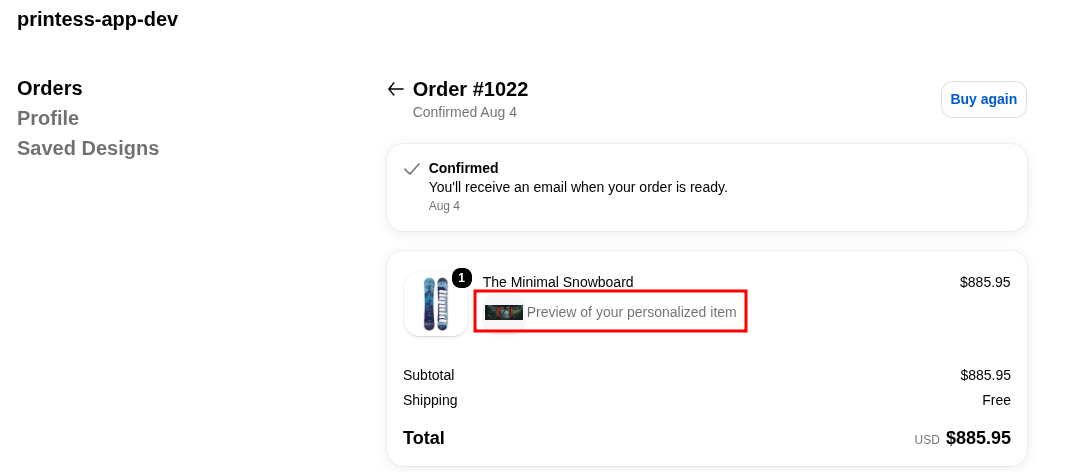
Open an order that contains a personalized item in your customer account view. The preview image appears in the Order summary, directly below the item. Clicking it opens a larger preview.
The same printess-order-thumbnail block must also be added a second time, to the page where
your customers see all of their orders. Shopify does not allow apps to place an image inside an
order row, so on this page Printess adds a View your design button to every order that contains
a personalized item instead. Clicking it opens all of that order’s previews. Orders without
personalized items are left completely untouched.
Repeat the steps above with one difference: in the page selector at the top, choose
Customer accounts → Orders instead of Order status. Then add the same
printess-order-thumbnail block from the Apps sidebar and click Save.
Yes — this is the same block you already added. That is intended: each page needs the block added to it separately, and adding it twice does not create a duplicate.
printess-order-thumbnail block has to be added twice — once on Order status and once on
Orders. If the preview shows on the order page but there is no View your design button in
the orders list, or the other way round, this is why.Still stuck? Contact Printess support and mention which pages you added the
printess-order-thumbnail block to (Order status, Orders, or both) — that tells us which setup
steps are already done.
If you use a theme other than “Dawn”, maybe even a custom one fully made by yourself, you may need to access some elements, such as the “Add to Basket”-Button through CSS selectors.
Our plugin has reasonable defaults and fallbacks which work for the majority of themes, which means most things should work out of the box. If your shop does work with Printess out of the box, the following CSS selectors are probably what you need to fix.
If you find a CSS selector in an official Shopify theme that isn’t part of our default configuration, feel free to send it our way so we can add it to our plugin and improve our seamless integration!
We have collected some of the important selectors for you, but if your theme is entirely made by you or a contractor of yours, chances are high that these will not apply to your integration. In that case you will have to find out the relevant selectors by browsing the code of your theme.
These selectors are specified in the Printess loading component inside the head of your theme:
  {% render 'printess-init',
    cssProductContainerSelector: "div.product",
    cssAddToBasketButtonSelector: 'button[type="submit"][name="add"]',
    cssCartItemSelector: "tr.cart-item",
  %}
The selector for one item in the shopify cart is cssCartItemSelector: ".cart-items__table-row", it is the element in the DOM closest to root, that contains an entire item in the shopping cart view.
If you want to remove your shopify integration, you can do this with two easy steps.
You need to remove the shopify integration from your Account Portal by selecting the integration you want to remove and clicking the “Delete”-Button.

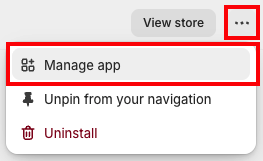
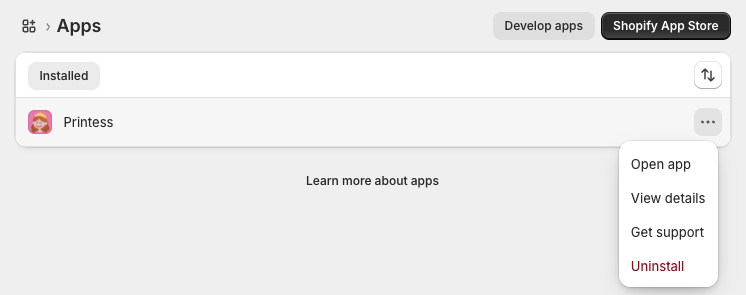
You also need to uninstall the Printess App from your shopify shop. Navigate to the app settings, where you can see all apps of your shop and find the Printess app. The 3 dots open a context menu which allows you to “Uninstall” the app.
If you have added custom code blocks in your stores liquid files, you may need to undo these changes as well.
You need to take both of these actions to cleanly remove Printess from your shopify and vice versa, otherwise a reinstallation might fail!
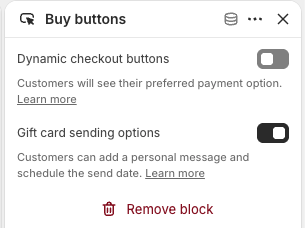
You need to deactivate the Accelerated Buy Buttons, otherwise your customers may buy unedited items without noticing! Simply go to your store, click Edit Theme and switch to the Default Product view by navigating to all products and then selecting one. Here you select the “Buy buttons”.
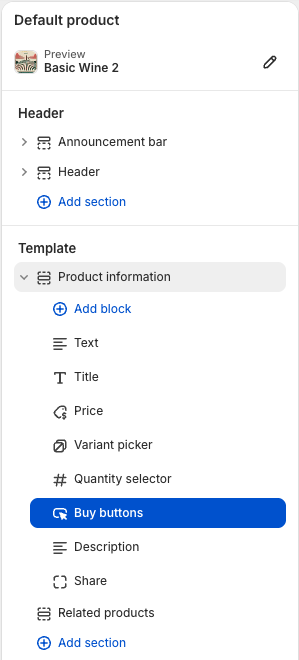
In the menu that opens, you need to deactivate the Dynamic checkout buttons.
If you want to make a shopify product customisable through Printess, you need to go to the Printess Account portal and select the Chapter Shop Integrations.
In order to link a shopify product to Printess, you need to have a published Printess template for it. Learn how to do this with Printess Academy
The Products tab will show you all products in your shopify shop.
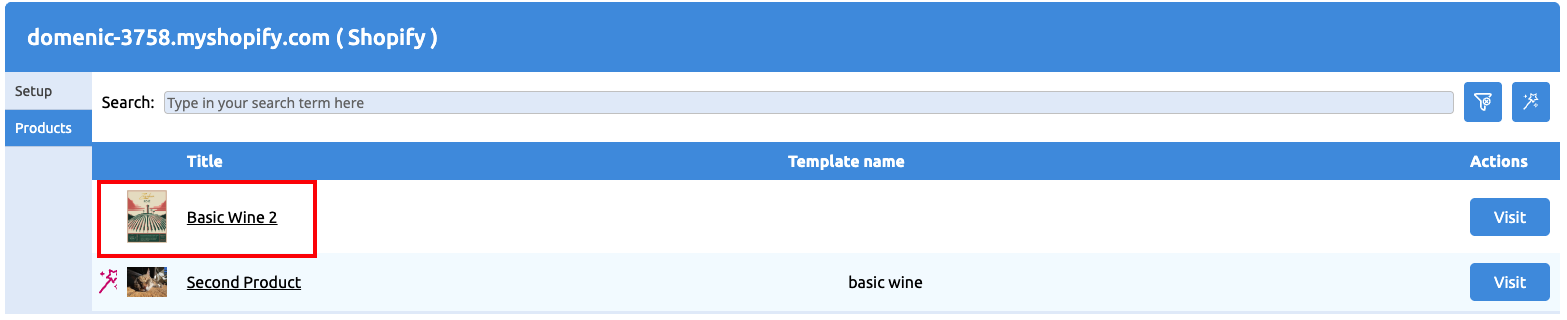
Clicking any product will open a dialog, where you can link your product to a Printess template:
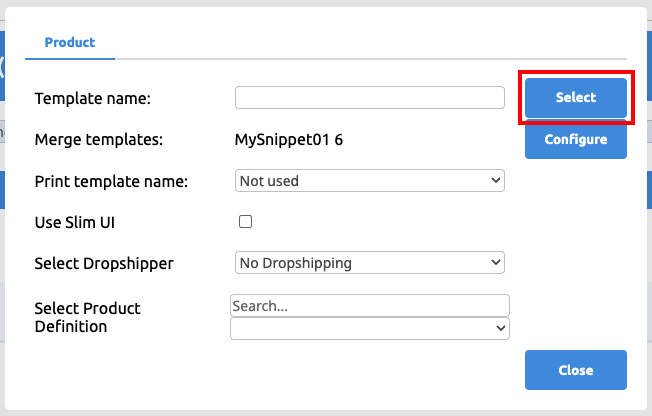
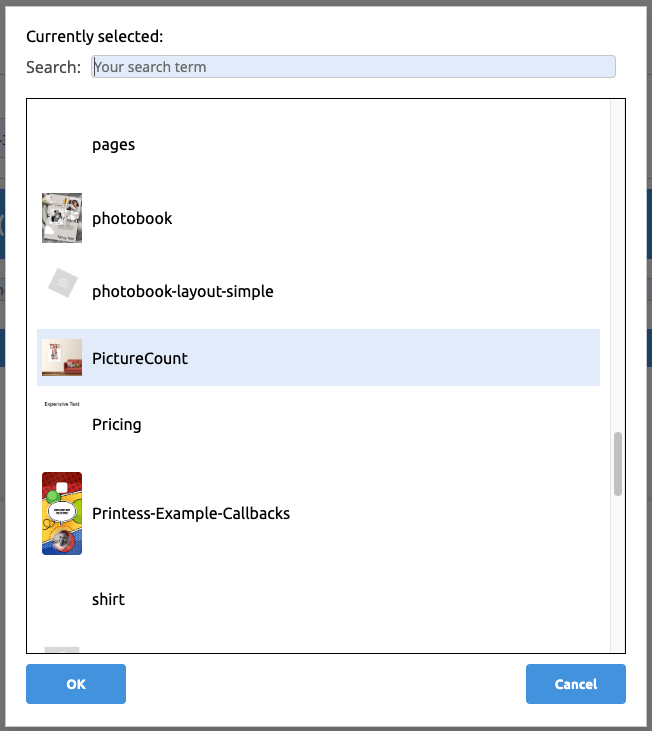
For now, we will ignore all the other, more advanced options in that menu.
After you have selected a Printess template, you can save the product settings and click OK. You will now see a magic wand icon next to your product, which signifies that it is linked to a template and will therefore be customisable through Printess.
This view shows all products from your Shopify store, which means in order to link a product to a Printess template, you need to create the product in Shopify first.
If you want to use discounts through Shopify, it is important to note that Buy X Pay Y discounts do not work with our current Printess integration. You should not exclude any Printess products in your discount.
Shopify may automatically set up a discount if you use their test data to showcase this feature. You may need to check and manually deactivate for Printess products, even though you have not set up any discount yourself.
The Printess shopify integration automatically forwards Shopify product variant options to the editor. Imagine, the product has a Color variant option with the values red, green, blue.
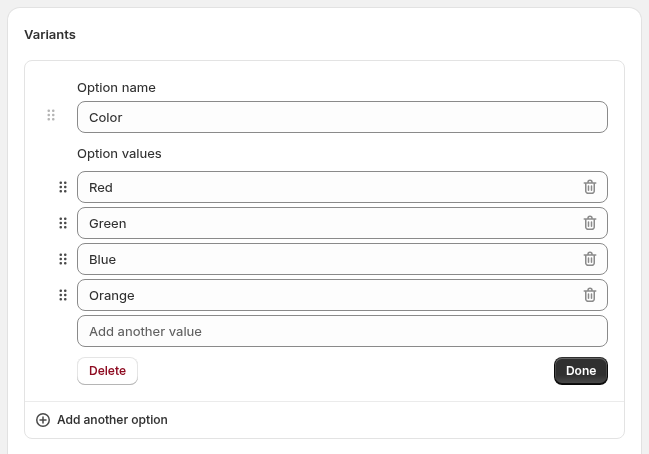
The Printess template needs to have a form field called Color that has the exact same option values as the Shopify option. You can also use form fields that have the same label as the product variant in you shopify setup, as well as options that match the form field value labels. Form field name and the options’ value will take precedent over their label.
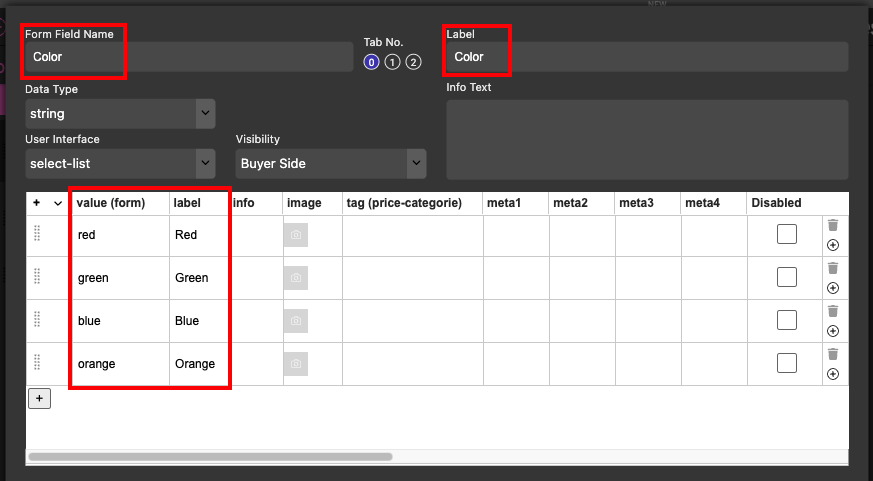
Casing is important for the automatic form field mapping. Make sure that the form field name and option values exactly match the Shopify option name and values. The name of the formfield must also match the name of the HTML input element in your product page. If this is not possible with your shop theme, please contact our support team.
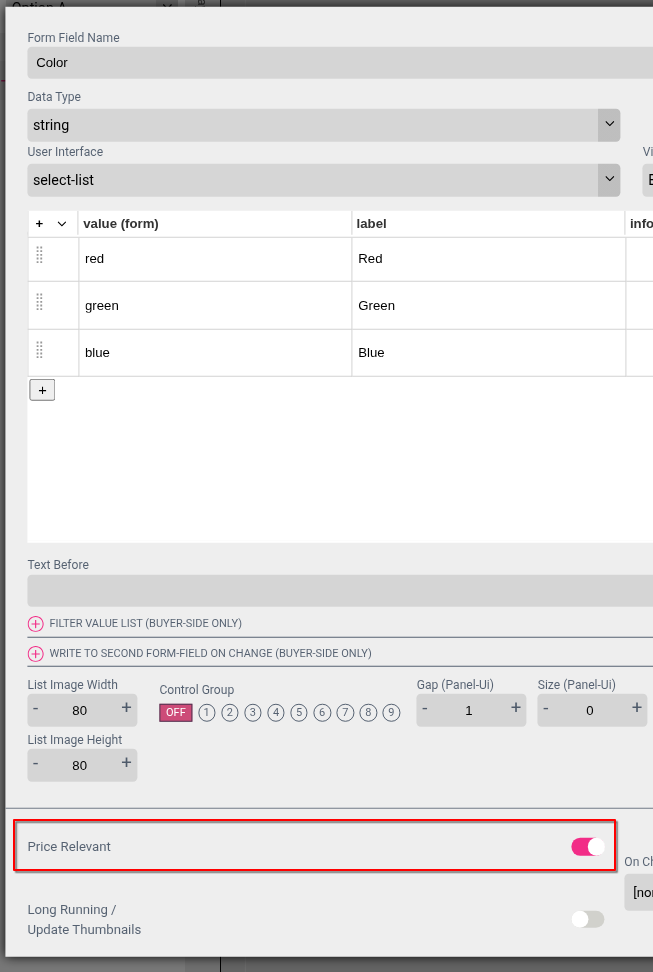
In case the end customer is allowed to change these values during the design editing inside the editor, make sure that value changes done inside the editor are fed back to the shopify shop, ensure that the price relevant option is activated inside the form field configuration.
Printess form field names are restricted to certain characters and do not support white spaces. Sometimes, form field names are already predifined (the DOCUMENT_SIZE form field for eaxample) by the printess editor. In many cases you need to have the ability to freely name your shopify variant options and you definitley do not want to name them DOCUMENT_SIZE. To account for this, instead of mapping your shopify options to Printess form field names, it is also possible to map against the labels of the form field. So instead of Color create a Shopify product variant option called “Cover Color” and rename the variant option values to uppercase characters: Red, Green, Blue. On the Printess template form field modify the labels accordingly:
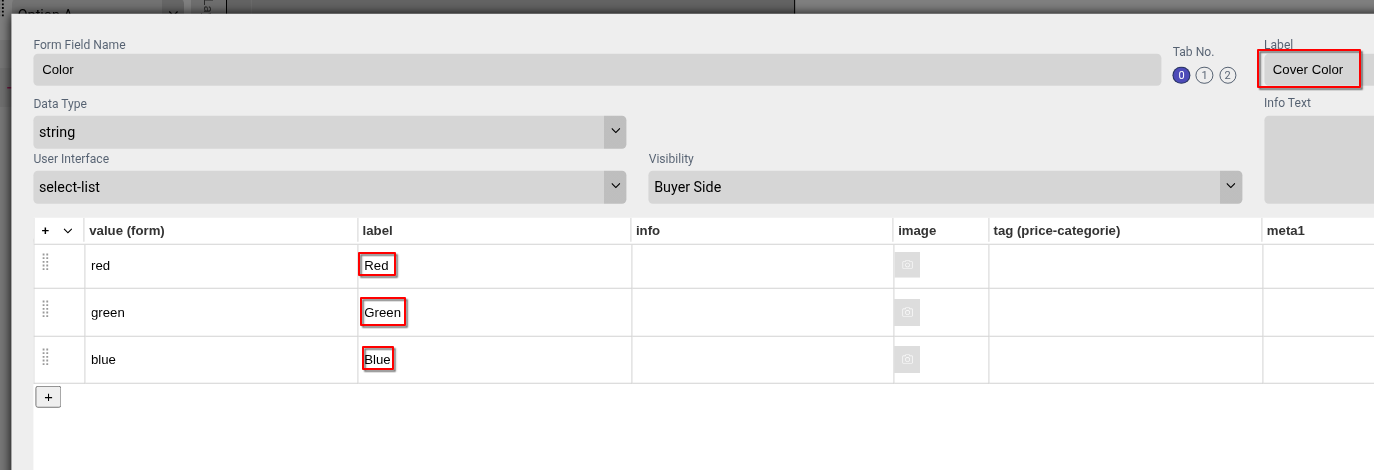
To prevent issues during the automated mapping, you need to ensure on the Printess formfield configuration, that the labels do not match the form field name / values, a shopify option name / value that can not be mapped uniquely to either the name OR the label will cause unforseen issues when trying to write values back to Shopify.
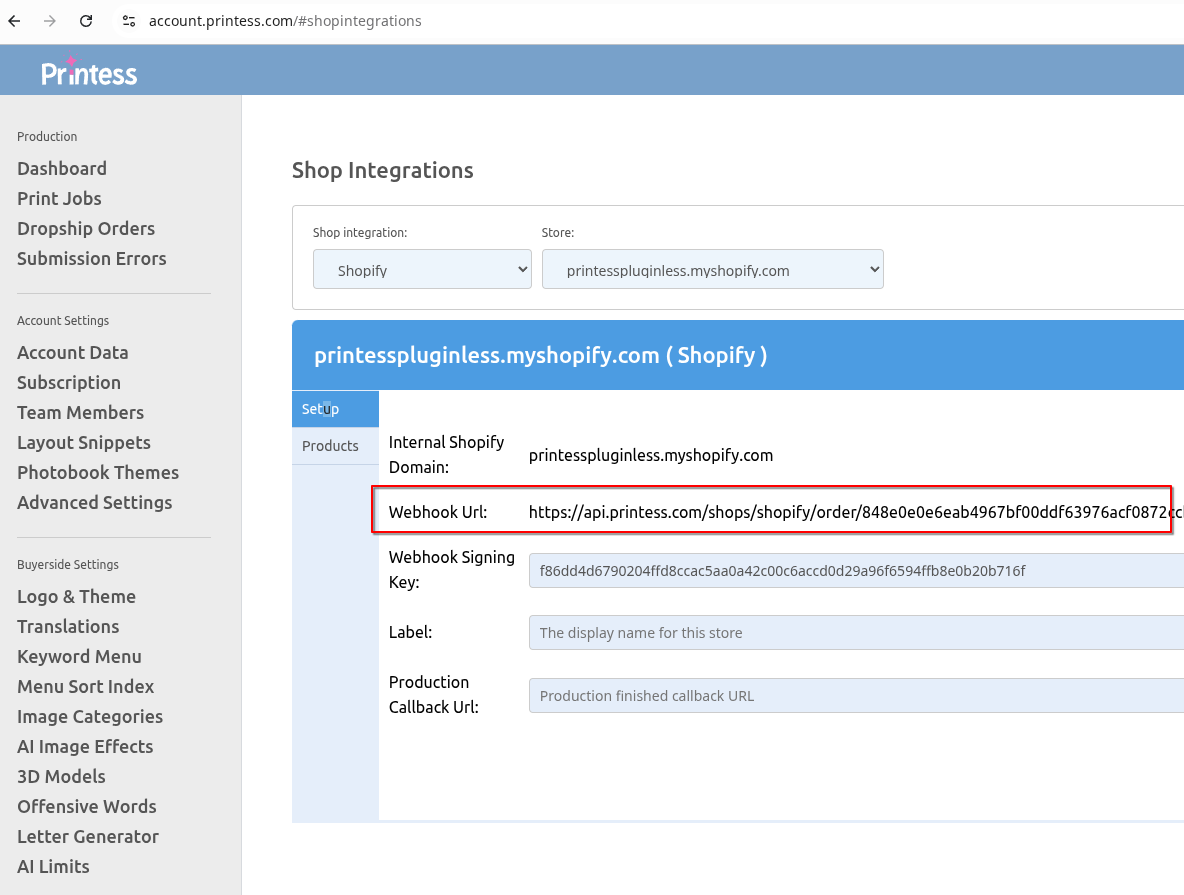
The Setup tab contains general settings for your Shopify integration. Printess learns about your customers orders through a Shopify webhook. The Printess app installs this webhook for you on the Order creation topic and verifies it automatically, so a normal install needs no manual webhook setup. The Webhook URL displayed in the Printess settings of your shop integration lets you check or re-create the webhook manually in Shopify under Settings → Notifications → Webhooks:
The Webhook signing key is optional. You only need it if you want Printess to react to Order paid instead of Order creation: create that webhook yourself in your shopify administration pointing at the URL shown, copy the signing key shopify displays on the bottom of the list of all registered web hooks, and paste it into the Printess settings under “Webhook Signing Key” just underneath the Webhook URL. In that case, also switch on Pause order intake under Production, so orders are not processed twice.
The Products tab will show you all products in your shopify shop. Clicking any product will open a dialog and give you more options, such as linking it to a Printess template or setting up other templates to merge into your base template on load. You need to link a template to your product to load Printess in your shop. Additionally you can select to use the SlimUI for a product here, if you want to use our more lightweight UI.
This view shows all products from your Shopify store, which means in order to link a product to a Printess template, you need to create the product in Shopify first.
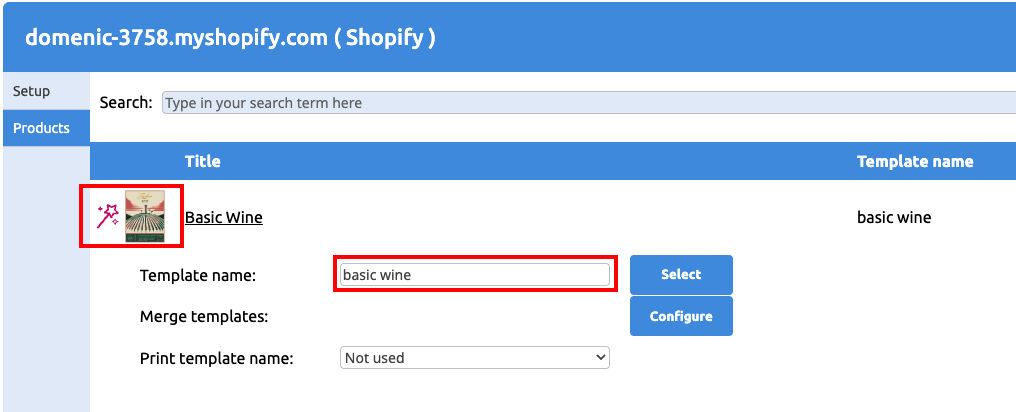
The thumbnail of your product is loaded from shopify, if you want to update it, you need to do it on the shopify product page.
The pink wand next to a product thumbnail indicates that this product is set up with a Printess template and ready to be customised in your shop. If the wand is missing, you might have to check if everything is in order!
Congratulations! If you have reached this point, you should be all set up to use Printess in shopify! If you open a Printess-configured product now, you should see a “Design now” button instead of “Add to Cart”.
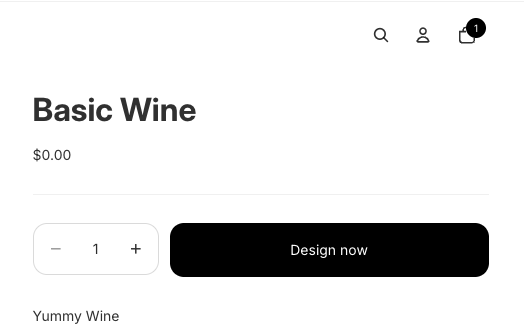
Clicking it will take you to the Printess editor for customisation, and once your product looks just right, you can use the Printess “Add to Basket”-Button in order to place it in your shopify cart.
Once a customer commits to buy an order, shopify can automatically send an email to them. Since they personalised a product through Printess, it`s a good idea to show them the personalised version of it, rather than the default product image.
Unfortunately, the process to achieve this is somewhat tedious, but we will take you through it:
First, you will need to navigate to the email code. Go to the app settings:
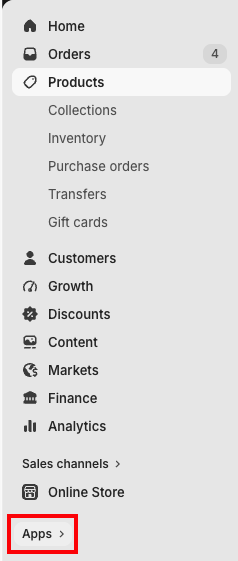
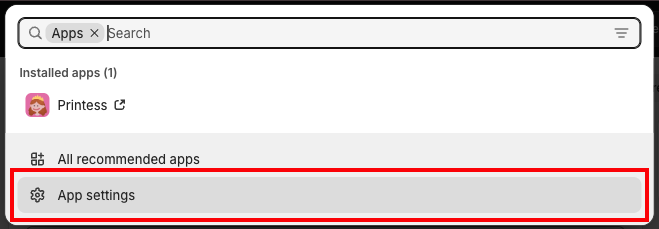
Here you want to go to Notifications, and there choose the Customer notifications.
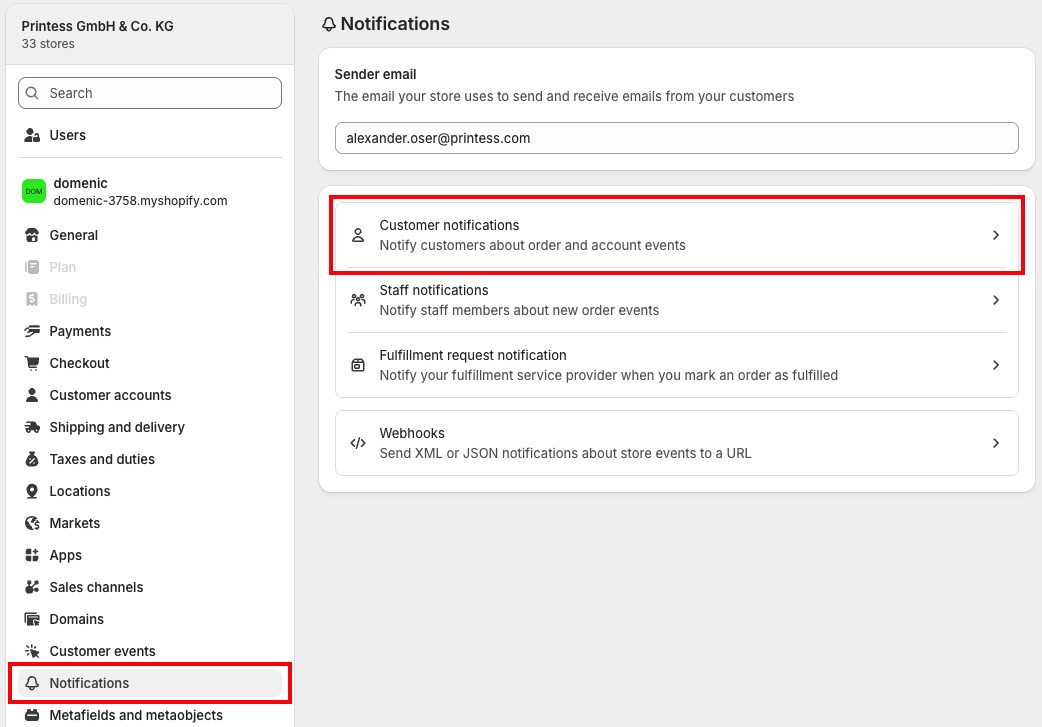
On the new screen you arrive, choose Order confirmation.
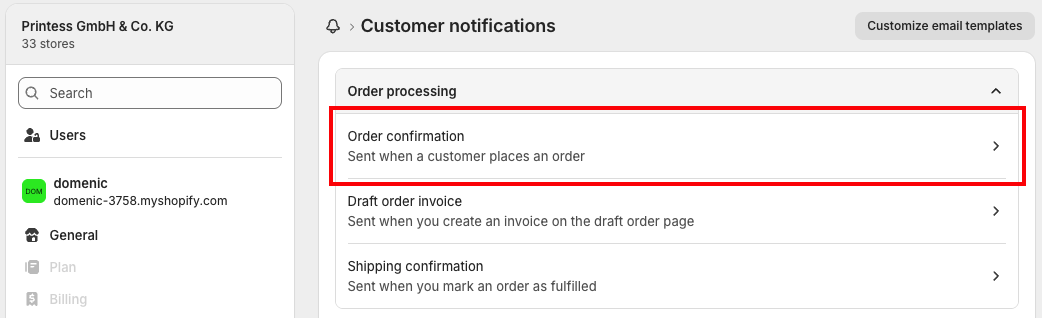
This will bring you to a preview of your “Order confirmed” email. You need to edit the code of this email on the top right.
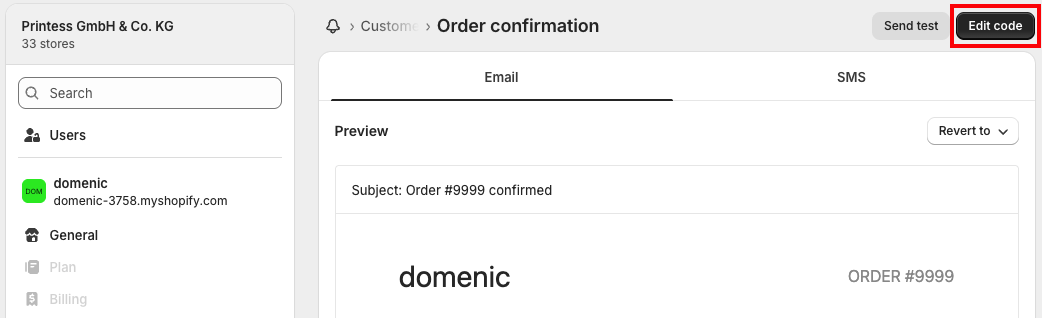
Finally, you are presented with the code that builds your confirmation email. We recommend copying the whole code out of shopify’s editor and using a code editor on your PC (such as VS Code). You can use Cmd + A / Ctrl + A in the editor to select the whole code.
At the bottom of this chapter we have provided you with the full code for this email. If you need no other changes in your order confirmation emails, you can overwrite the existing code with that and it will work out of the box. However, shopify may update their email code at any point and we cannot guarantee our example code to be up to date at all times.
In the code itself, you need to find all instances of preview images and add another block of code to them.
We recommend using Cmd + F / Ctrl + F and look for all instances of <img.
The correct code passages will always start with an if block that checks if an object has an image, such as {% if component.image %} or {% if line.image %}.
The name of the object will be different throughout the code, only the check for image is important

You will need to add some code above and below this code passage, that checks whether the object has a Printess preview, and if so, it displays that instead of the default product image.
Importantly you will need to adapt the code to the code passage you add it to.
Above the {% if component.image %}, add the following code:
{% if component.payload._printessThumbnailUrl != blank %}
  <img src="{{ component.payload._printessThumbnailUrl }}" align="left" width="40" height="40" class="order-list__product-image"/>
{% else %}
Under the {% endif %} of shopify’s code, add another {% endif %} to close our new if-statement.
Now, let’s take a closer look at the code!
The object in the {% if component.payload._printessThumbnailUrl != blank %} needs to have the same name as the original object, as does the source of the img tag src="{{ component.payload._printessThumbnailUrl }}".
Next, you will need to look at the other attributes of shopify’s image tag and make sure they are the same in your newly added img tag, such as align="left" width="40" height="40" class="order-list__product-image" in our example.
This makes sure that our Printess preview image fits the style of the rest of the email.
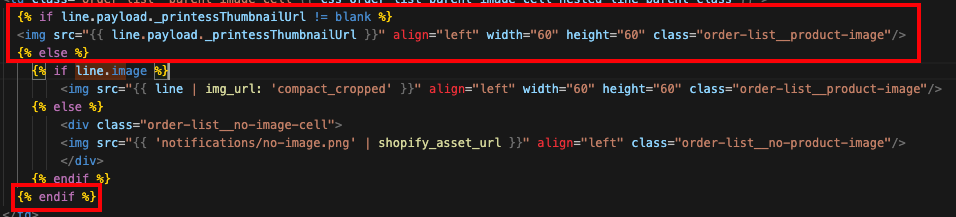
After you have saved your code, you can test it by ordering an example product with your own email. Unfortunately, shopify’s own email testing/preview will not work for this, as these cannot simulate Printess customisation for their mock email. You can set up a test product with Printess customisation that costs nothing and is not a physical item, therefore forgoing shipping, in order to test the Printess preview.
{% assign delivery_method_types = delivery_agreements | map: 'delivery_method_type' | uniq %}
{% assign has_split_cart = false %}
{% assign non_none_count = 0 %}
{% for type in delivery_method_types %}
{% unless type == 'none' %}
{% assign non_none_count = non_none_count | plus: 1 %}
{% endunless %}
{% endfor %}
{% if non_none_count > 1 %}
{% assign has_split_cart = true %}
{% endif %}
{% assign non_none_agreements_count = 0 %}
{% for agreement in delivery_agreements %}
{% unless agreement.delivery_method_type == 'none' %}
{% assign non_none_agreements_count = non_none_agreements_count | plus: 1 %}
{% endunless %}
{% endfor %}
{% capture email_title %}
Thank you for your order!
{% endcapture %}
{% capture email_body %}
{% if has_pending_payment %}
{% if buyer_action_required %}
You’ll get a confirmation email after completing your payment.
{% else %}
Your payment is being processed. You'll get an email when your order is confirmed.
{% endif %}
{% elsif payment_charged_on_fulfillment %}
Hi {{ customer.first_name }}, we received your order. Your payment method will be charged when your order is ready to be fulfilled. We'll notify you when it's on its way.
{% else %}
{% if requires_shipping %}
{% if has_split_cart %}
{% case split_cart_delivery_method %}
{% when 'pick-up' %}
You’ll receive an email when your order is ready for pickup.
{% when 'local' %}
Hi {{ customer.first_name }}, we're getting your order ready for delivery.
{% when 'shipping' %}
We're getting your order ready to be shipped. We will notify you when it has been sent.
{% else %}
We're getting your order ready to be shipped. We will notify you when it has been sent.
{% endcase %}
{% else %}
{% case delivery_method %}
{% when 'pick-up' %}
You’ll receive an email when your order is ready for pickup.
{% when 'local' %}
Hi {{ customer.first_name }}, we're getting your order ready for delivery.
{% else %}
We're getting your order ready to be shipped. We will notify you when it has been sent.
{% endcase %}
{% endif %}
{% if delivery_instructions != blank %}
<p><b>Delivery information:</b> {{ delivery_instructions }}</p>
{% endif %}
{% unless delivery_method_types.size > 1 %}
{% if consolidated_estimated_delivery_time %}
{% if non_none_agreements_count > 1 %}
<h3 class="estimated_delivery__title">Estimated delivery</h3>
<p>{{ consolidated_estimated_delivery_time }}</p>
{% else %}
<p>
Estimated delivery <b>{{ consolidated_estimated_delivery_time }}</b>
</p>
{% endif %}
{% endif %}
{% endunless %}
{% endif %}
{% endif %}
{% assign gift_card_line_items = line_items | where: "gift_card" %}
{% assign found_gift_card_with_recipient_email = false %}
{% for line_item in gift_card_line_items %}
{% if line_item.properties["__shopify_send_gift_card_to_recipient"] and line_item.properties["Recipient email"] %}
{% assign found_gift_card_with_recipient_email = true %}
{% break %}
{% endif %}
{% endfor %}
{% if found_gift_card_with_recipient_email %}
<p>Your gift card recipient will receive an email with their gift card code.</p>
{% elsif gift_card_line_items.first %}
<p>You’ll receive separate emails for any gift cards.</p>
{% endif %}
{% endcapture %}
<!DOCTYPE html>
<html lang="en">
<head>
<title>{{ email_title }}</title>
<meta http-equiv="Content-Type" content="text/html; charset=utf-8">
<meta name="viewport" content="width=device-width">
<link rel="stylesheet" type="text/css" href="/assets/notifications/styles.css">
<style>
.button__cell { background: {{ shop.email_accent_color }}; }
.actions-buttons .button__cell--primary { background-color: {{ shop.email_accent_color }}; }
a, a:hover, a:active, a:visited { color: {{ shop.email_accent_color }}; }
</style>
</head>
<body>
<table class="body">
<tr>
<td>
<table class="header row">
<tr>
<td class="header__cell">
<center>
<table class="container">
<tr>
<td>
<table class="row">
<tr>
<td class="shop-name__cell">
{%- if shop.email_logo_url %}
<img src="{{shop.email_logo_url}}" alt="{{ shop.name }}" width="{{ shop.email_logo_width }}">
{%- else %}
<h1 class="shop-name__text">
<a href="{{shop.url}}">{{ shop.name }}</a>
</h1>
{%- endif %}
</td>
<td>
<table class="order-po-number__container">
<tr>
<td class="order-number__cell">
<span class="order-number__text">
Order {{ order_name }}
</span>
</td>
</tr>
{%- if po_number %}
<tr>
<td class="po-number__cell">
<span class="po-number__text">
PO number #{{ po_number }}
</span>
</td>
</tr>
{%- endif %}
</table>
</td>
</tr>
</table>
</td>
</tr>
</table>
</center>
</td>
</tr>
</table>
<table class="row content">
<tr>
<td class="content__cell">
<center>
<table class="container">
<tr>
<td>
<h2>{{ email_title }}</h2>
<p>{{ email_body }}</p>
{% assign transaction_count = transactions | size %}
{% if transaction_count > 0 %}
{% for transaction in transactions %}
{% if transaction.show_buyer_pending_payment_instructions? %}
<p> {{transaction.buyer_pending_payment_notice}} </p>
<p>
<table class="row">
<tr>
{% for instruction in transaction.buyer_pending_payment_instructions %}
<td>{{ instruction.header }}</td>
{% endfor %}
<td>Amount</td>
</tr>
<tr>
{% for instruction in transaction.buyer_pending_payment_instructions %}
<td>{{ instruction.value }}</td>
{% endfor %}
<td>{{transaction.amount | money}}</td>
</tr>
</table>
</p>
{% endif %}
{% endfor%}
{% endif %}
{% if order_status_url %}
{% if shop_app_tracking_url and shop_app_tracking_button_variant_key %}
{% if shop_app_tracking_button_variant_key == "track_with_shop" %}
<table class="row actions">
<tr>
<td class="empty-line"> </td>
</tr>
<tr>
<td class="actions__cell">
{% capture shop_logo_img %}<img src="{{ 'mailer/shop_logo.png' | cdn_asset_url }}" alt="Shop" width="42" height="17" class="button__shop-logo">{% endcapture %}
<table class="actions-buttons" width="100%" cellpadding="0" cellspacing="0" border="0">
<tr>
<td class="button__cell button__cell--primary" width="50%">
<a href="{{ order_status_url }}" class="button__text">View your order</a>
</td>
<td class="button__cell--separator"></td>
<td class="button__cell button__cell--shop-app" width="50%">
<a href="{{ shop_app_tracking_url }}" class="button__text button__text--shop-app">Track order with {{ shop_logo_img }}</a>
</td>
</tr>
</table>
<div class="actions__group">
{% if shop.url %}
<table class="link secondary-action-cell">
<tr>
<td class="link__cell">or <a href="{{ shop.url }}">Visit our store</a></td>
</tr>
</table>
{% endif %}
</div>
</td>
</tr>
</table>
{% else %}
<table class="row actions">
<tr>
<td class="empty-line"> </td>
</tr>
<tr>
<td class="actions__cell">
{% capture shop_logo_img %}<img src="{{ 'mailer/shop_logo.png' | cdn_asset_url }}" alt="Shop" width="42" height="17" class="button__shop-logo">{% endcapture %}
<table class="actions-buttons" width="100%" cellpadding="0" cellspacing="0" border="0">
<tr>
<td class="button__cell button__cell--primary" width="50%">
<a href="{{ order_status_url }}" class="button__text">View your order</a>
</td>
<td class="button__cell--separator"></td>
<td class="button__cell button__cell--shop-app" width="50%">
<a href="{{ shop_app_tracking_url }}" class="button__text button__text--shop-app">Download to track with {{ shop_logo_img }}</a>
</td>
</tr>
</table>
<div class="actions__group">
{% if shop.url %}
<table class="link secondary-action-cell">
<tr>
<td class="link__cell">or <a href="{{ shop.url }}">Visit our store</a></td>
</tr>
</table>
{% endif %}
</div>
</td>
</tr>
</table>
{% endif %}
{% else %}
<table class="row actions">
<tr>
<td class="empty-line"> </td>
</tr>
<tr>
<td class="actions__cell">
<table cellpadding="0" cellspacing="0" border="0">
<tr>
<td valign="middle">
<table class="button main-action-cell">
<tr>
<td class="button__cell"><a href="{{ order_status_url }}" class="button__text">View your order</a></td>
</tr>
</table>
</td>
<td valign="middle" style="padding-left: 15px; vertical-align: middle;">
{% if shop.url %}
<table class="link secondary-action-cell" style="margin-top: 0; vertical-align: middle;">
<tr>
<td class="link__cell">or <a href="{{ shop.url }}">Visit our store</a></td>
</tr>
</table>
{% endif %}
</td>
</tr>
</table>
</td>
</tr>
</table>
{% endif %}
{% else %}
{% if shop.url %}
<table class="row actions">
<tr>
<td class="actions__cell">
<table class="button main-action-cell">
<tr>
<td class="button__cell"><a href="{{ shop.url }}" class="button__text">Visit our store</a></td>
</tr>
</table>
</td>
</tr>
</table>
{% endif %}
{% endif %}
</td>
</tr>
</table>
</center>
</td>
</tr>
</table>
<table class="row section">
<tr>
<td class="section__cell">
<center>
<table class="container">
<tr>
<td>
<h3>Order summary</h3>
</td>
</tr>
</table>
<table class="container">
<tr>
<td>
{% if delivery_method_types.size > 1 %}
<table class="row">
{% for line in subtotal_line_items %}
{% unless line.delivery_agreement %}
{% if line.groups.size == 0 %}
{% assign legacy_separator = true %}
{% comment %} Skip child add-ons since they will be rendered under the parent line item {% endcomment %}
{% unless line.nested_line_child? %}
{% assign is_parent = false %}
{% assign is_nested_line_parent = line.nested_line_parent? %}
{% if line.bundle_parent? or line.nested_line_parent? %}
{% assign is_parent = true %}
{% endif %}
{% if is_nested_line_parent %}
{% assign css_order_list_cell_nested_line_parent_class = 'order-list__parent-cell' %}
{% assign css_order_list_parent_image_cell_nested_line_parent_class = 'order-list__nested-parent-image-cell' %}
{% endif %}
<tr class="order-list__item">
<td class="order-list__item__cell {{ css_order_list_cell_nested_line_parent_class }}">
<table height="100%">
<td style="padding-bottom: 0px;">
<table height="100%">
<tr valign="top">
{% if false and is_parent %}
<td class="order-list__parent-image-cell {{ css_order_list_parent_image_cell_nested_line_parent_class }}">
{% if line.payload._printessThumbnailUrl != blank %}
<img src="{{ line.payload._printessThumbnailUrl }}" align="left" width="60" height="60" class="order-list__product-image"/>
{% else %}
{% if line.image %}
<img src="{{ line | img_url: 'compact_cropped' }}" align="left" width="60" height="60" class="order-list__product-image"/>
{% else %}
<div class="order-list__no-image-cell">
<img src="{{ 'notifications/no-image.png' | shopify_asset_url }}" align="left" class="order-list__no-product-image"/>
</div>
{% endif %}
{% endif %}
</td>
{% else %}
<td class="order-list__image-cell">
{% if line.payload._printessThumbnailUrl != blank %}
<img src="{{ line.payload._printessThumbnailUrl }}" align="left" width="60" height="60" class="order-list__product-image"/>
{% else %}
{% if line.image %}
<img src="{{ line | img_url: 'compact_cropped' }}" align="left" width="60" height="60" class="order-list__product-image"/>
{% else %}
<div class="order-list__no-image-cell">
<img src="{{ 'notifications/no-image.png' | shopify_asset_url }}" align="left" width="60" height="60" class="order-list__no-product-image"/>
</div>
{% endif %}
{% endif %}
</td>
{% endif %}
</tr>
{% if is_nested_line_parent %}
<tr height="100%">
<td style="padding: 0px;" height="100%">
<table height="100%">
<tr>
<td height="100%" class="nested-line-item-spacer-cell">
<div class="nested-line-item-spacer"></div>
</td>
<td height="100%" class="parent-vertical-line__cell">
<div class="parent-vertical-line__content"></div>
</td>
</tr>
</table>
</td>
</tr>
{% endif %}
</table>
</td>
<td class="order-list__product-description-cell">
{% if line.presentment_title %}
{% assign line_title = line.presentment_title %}
{% elsif line.title %}
{% assign line_title = line.title %}
{% else %}
{% assign line_title = line.product.title %}
{% endif %}
{% if line.quantity < line.quantity %}
{% capture line_display %}
{{ line.quantity }} of {{ line.quantity }}
{% endcapture %}
{% else %}
{% assign line_display = line.quantity %}
{% endif %}
<span class="order-list__item-title">{{ line_title }} × {{ line_display }}</span><br/>
{% if line.variant.title != 'Default Title' and is_parent == false %}
<span class="order-list__item-variant">{{ line.variant.title }}</span><br/>
{% elsif line.variant.title != 'Default Title' and line.nested_line_parent? %}
<span class="order-list__item-variant">{{ line.variant.title }}</span><br/>
{% elsif line.variant.title != 'Default Title' and line.bundle_parent? and false == false %}
<span class="order-list__item-variant">{{ line.variant.title }}</span><br/>
{% endif %}
{% if false %}
{% for child_line in line.bundle_components %}
{% if true %}
{% assign css_class = 'order-list__bundle-item' %}
{% assign css_image_class = 'order-list__image-cell' %}
{% assign css_description_class = 'order-list__product-description-cell' %}
{% else %}
{% assign css_class = 'order-list__deliverable-item_abandoned' %}
{% assign css_image_class = 'order-list__image-cell--nested-line-item' %}
{% assign css_description_class = 'order-list__product-description-cell--nested-line-item' %}
{% if false %}
{% assign css_curved_line_cell_container_class = 'curved-line-cell-container__top-spacer-cell--show-border' %}
{% assign css_hide_vertical_line_class = 'vertical-line__content--hide' %}
{% assign css_curved_line_cell_container_cell__no_padding_class = 'curved-line-cell-container__cell--no-padding' %}
{% endif %}
{% endif %}
<table height="100%">
<tr class="order-list__item">
<td class="{{ css_class }}" height="100%">
<table height="100%">
<td class="{{ css_image_class }}">
{% if child_line.payload._printessThumbnailUrl != blank %}
<img src="{{ child_line.payload._printessThumbnailUrl }}" align="left" width="40" height="40" class="order-list__product-image small"/>
{% else %}
{% if child_line.image %}
<img src="{{ child_line | img_url: 'compact_cropped' }}" align="left" width="40" height="40" class="order-list__product-image small"/>
{% else %}
<div class="order-list__no-image-cell small">
<img src="{{ 'notifications/no-image.png' | shopify_asset_url }}" align="left" width="20" height="20" class="order-list__no-product-image small"/>
</div>
{% endif %}
{% endif %}
</td>
<td class="{{ css_description_class }}">
{% if child_line.product.title %}
{% assign item_title = child_line.product.title %}
{% else %}
{% assign item_title = child_line.title %}
{% endif %}
{% assign item_display = child_line.quantity %}
<span class="order-list__item-title">{{ item_display }} × {{ item_title }}</span><br>
{% if child_line.variant.title != 'Default Title'%}
<span class="order-list__item-variant">{{ child_line.variant.title }}</span><br/>
{% endif %}
{% if child_line.selling_plan_allocation %}
<span class="order-list__item-variant">{{ child_line.selling_plan_allocation.selling_plan.name }}</span>
{% endif %}
</td>
</table>
</td>
</tr>
</table>
{% endfor %}
{% else %}
{% for group in line.groups %}
{% if group.deliverable? %}
<span class="order-list__item-variant">For: {{ group.display_title }}</span><br/>
{% else %}
<span class="order-list__item-variant">Part of: {{ group.display_title }}</span><br/>
{% endif %}
{% endfor %}
{% endif %}
{% if line.gift_card and line.properties["__shopify_send_gift_card_to_recipient"] %}
{% for property in line.properties %}
{% assign property_first_char = property.first | slice: 0 %}
{% if property.last != blank and property_first_char != '_' %}
<div class="order-list__item-property">
<dt>{{ property.first }}:</dt>
<dd>
{% if property.last contains '/uploads/' %}
<a href="{{ property.last }}" class="link" target="_blank">
{{ property.last | split: '/' | last }}
</a>
{% else %}
{{ property.last }}
{% endif %}
</dd>
</div>
{% endif %}
{% endfor %}
{% endif %}
{% if line.selling_plan_allocation %}
<span class="order-list__item-variant">{{ line.selling_plan_allocation.selling_plan.name }}</span><br/>
{% endif %}
{% if line.refunded_quantity > 0 %}
<span class="order-list__item-refunded">Refunded</span>
{% endif %}
{% if line.discount_allocations %}
{% for discount_allocation in line.discount_allocations %}
{% if discount_allocation.discount_application.target_selection != 'all' %}
<p>
<span class="order-list__item-discount-allocation">
<img src="{{ 'notifications/discounttag.png' | shopify_asset_url }}" width="18" height="18" class="discount-tag-icon" />
<span>
{{ discount_allocation.discount_application.title | upcase }}
(-{{ discount_allocation.amount | money }})
</span>
</span>
</p>
{% endif %}
{% endfor %}
{% endif %}
</td>
{% if false and is_parent %}
<td class="order-list__parent-price-cell">
{% else %}
<td class="order-list__price-cell">
{% endif %}
{% if line.original_line_price != line.final_line_price %}
<del class="order-list__item-original-price">{{ line.original_line_price | money }}</del>
{% endif %}
<p class="order-list__item-price">
{% if line.final_line_price > 0 %}
{{ line.final_line_price | money }}
{% if line.unit_price_measurement %}
<div class="order-list__unit-price">
{{- line.unit_price | unit_price_with_measurement: line.unit_price_measurement -}}
</div>
{% endif %}
{% else %}
Free
{% endif %}
</p>
</td>
{% if line.nested_line_parent? %}
{% for child_line in line.nested_lines %}
{% if false %}
{% assign css_class = 'order-list__bundle-item' %}
{% assign css_image_class = 'order-list__image-cell' %}
{% assign css_description_class = 'order-list__product-description-cell' %}
{% else %}
{% assign css_class = 'order-list__deliverable-item_abandoned' %}
{% assign css_image_class = 'order-list__image-cell--nested-line-item' %}
{% assign css_description_class = 'order-list__product-description-cell--nested-line-item' %}
{% if forloop.last %}
{% assign css_curved_line_cell_container_class = 'curved-line-cell-container__top-spacer-cell--show-border' %}
{% assign css_hide_vertical_line_class = 'vertical-line__content--hide' %}
{% assign css_curved_line_cell_container_cell__no_padding_class = 'curved-line-cell-container__cell--no-padding' %}
{% endif %}
{% endif %}
<table height="100%">
<tr class="order-list__item">
<td class="{{ css_class }}" height="100%">
<table height="100%">
<td class="nested-line-item-spacer-cell"style="padding: 1px;">
<div class="nested-line-item-spacer"></div>
</td>
<td class="curved-line-cell-container" valign="top">
<div style="width: 0px;">
<table>
<tr>
<td class="{{ css_curved_line_cell_container_cell__no_padding_class }}" style="mso-padding-right-alt: 10px;">
<div class="curved-line-cell-container__top-spacer {{ css_curved_line_cell_container_class }}"></div>
</td>
</tr>
<tr>
<td class="curved-line-cell-container__curvedLine-cell">
<div class="curved-line-cell-container__curvedLine-cell__curvedLine"></div>
</td>
</tr>
</table>
</div>
</td>
<td class="vertical-line" height="100%">
<div class="vertical-line__content {{ css_hide_vertical_line_class }}"></div>
</td>
<td class="nested-line-item-spacer-cell--right">
<div class="nested-line-item-spacer"></div>
</td>
<td class="{{ css_image_class }}">
{% if child_line.payload._printessThumbnailUrl != blank %}
<img src="{{ child_line.payload._printessThumbnailUrl }}" align="left" width="40" height="40" class="order-list__product-image small"/>
{% else %}
{% if child_line.image %}
<img src="{{ child_line | img_url: 'compact_cropped' }}" align="left" width="40" height="40" class="order-list__product-image small"/>
{% else %}
<div class="order-list__no-image-cell small">
<img src="{{ 'notifications/no-image.png' | shopify_asset_url }}" align="left" width="20" height="20" class="order-list__no-product-image small"/>
</div>
{% endif %}
{% endif %}
</td>
<td class="{{ css_description_class }}">
{% if child_line.product.title %}
{% assign item_title = child_line.product.title %}
{% else %}
{% assign item_title = child_line.title %}
{% endif %}
{% assign item_display = child_line.quantity %}
<span class="order-list__item-title">{{ item_title }} × {{ item_display }}</span><br>
{% if child_line.variant.title != 'Default Title'%}
<span class="order-list__item-variant">{{ child_line.variant.title }}</span><br/>
{% endif %}
{% if child_line.selling_plan_allocation %}
<span class="order-list__item-variant">{{ child_line.selling_plan_allocation.selling_plan.name }}</span>
{% endif %}
</td>
</table>
</td>
</tr>
</table>
{% endfor %}
{% endif %}
</table>
</td>
</tr>
{% endunless %}
{% endif %}
{% endunless %}
{% endfor %}
{% for line_item_group in line_item_groups %}
{% unless line_item_group.components.first.delivery_agreement %}
{% assign legacy_separator = true %}
{% assign final_line_price = 0 %}
{% assign original_line_price = 0 %}
{% assign discount_keys_str = "" %}
{% assign parent_line_item = nil %}
{% if line_item_group.deliverable? == false %}
{% assign line_item_group_class = "order-list__item__cell" %}
{% for component in line_item_group.components %}
{% assign final_line_price = final_line_price | plus: component.final_line_price %}
{% assign original_line_price = original_line_price | plus: component.original_line_price %}
{% for da in component.discount_allocations %}
{% if da.discount_application.target_selection != 'all' %}
{% assign discount_key = da.discount_application.title | append: da.discount_application.type %}
{% assign discount_keys_str = discount_keys_str | append: discount_key | append: "," %}
{% endif %}
{% endfor %}
{% endfor %}
{% endif %}
{% if line_item_group.deliverable? %}
{% assign parent_line_item = line_item_group.parent_sales_line_item %}
{% assign final_line_price = parent_line_item.final_line_price %}
{% assign original_line_price = parent_line_item.original_line_price %}
{% assign line_item_group_class = "order-list__parent_item__cell" %}
{% assign padding_bottom_none_class = "padding-bottom-none" %}
{% endif %}
{% assign discount_keys = discount_keys_str | split: "," | uniq %}
<tr class="order-list__item">
<td class="{{ line_item_group_class }}" style="padding: 15px 0 0px 1px;">
<table height="100%">
<td class="order-list__parent-image-cell">
<table height="100%">
<tr>
<td class="{{ padding_bottom_none_class }}" valign="top">
{% if parent_line_item.payload._printessThumbnailUrl != blank %}
<img src="{{ parent_line_item.payload._printessThumbnailUrl }}" align="left" width="60" height="60" class="order-list__product-image"/>
{% else %}
{% if parent_line_item and parent_line_item.image %}
<img src="{{ parent_line_item | img_url: 'compact_cropped' }}" align="left" width="60" height="60" class="order-list__product-image"/>
{% elsif line_item_group.image %}
<img src="{{ line_item_group | img_url: 'compact_cropped' }}" align="left" width="60" height="60" class="order-list__product-image"/>
{% else %}
<div class="order-list__no-image-cell">
<img src="{{ 'notifications/no-image.png' | shopify_asset_url }}" align="left" width="30" height="30" class="order-list__no-product-image"/>
</div>
{% endif %}
{% endif %}
</td>
</tr>
{% if line_item_group.deliverable? == true %}
<tr height="100%">
<td height="100%" class="parent-vertical-line__cell">
<table height="100%" style="width: auto;">
<tr>
<td height="100%" class="nested-line-item-spacer-cell">
<div style="width: 6px;"></div>
</td>
<td height="100%" class="parent-vertical-line__cell">
<div class="parent-vertical-line__content"></div>
</td>
</tr>
</table>
</td>
</tr>
{% endif %}
</table>
</td>
<td class="order-list__product-description-cell">
<table>
<tr>
<td class="order-list__product-description-cell" colspan="2">
<span class="order-list__item-title">{{ line_item_group.display_title }} × {{ line_item_group.quantity }}</span><br/>
{% if line_item_group.variant and line_item_group.variant.title != 'Default Title' %}
<span class="order-list__item-variant">{{ line_item_group.variant.title }}</span>
{% endif %}
{% if line_item_group.deliverable? %}
{% if parent_line_item.discount_allocations %}
{% for discount_allocation in parent_line_item.discount_allocations %}
{% if discount_allocation.discount_application.target_selection != 'all' %}
<p>
<span class="order-list__item-discount-allocation">
<img src="{{ 'notifications/discounttag.png' | shopify_asset_url }}" width="18" height="18" class="discount-tag-icon" />
<span>
{{ discount_allocation.discount_application.title | upcase }}
(-{{ discount_allocation.amount | money }})
</span>
</span>
</p>
{% endif %}
{% endfor %}
{% endif %}
{% else %}
{% for discount_key in discount_keys %}
{% assign discount_amount = 0 %}
{% for component in line_item_group.components %}
{% for da in component.discount_allocations %}
{% assign key = da.discount_application.title | append: da.discount_application.type %}
{% if da.discount_application.target_selection != 'all' and key == discount_key %}
{% assign discount_amount = discount_amount | plus: da.amount %}
{% assign discount_title = da.discount_application.title %}
{% endif %}
{% endfor %}
{% endfor %}
<p>
<span class="order-list__item-discount-allocation">
<img src="{{ 'notifications/discounttag.png' | shopify_asset_url }}" width="18" height="18" class="discount-tag-icon" />
<span>
{{ discount_title | upcase }}
(-{{ discount_amount | money }})
</span>
</span>
</p>
{% endfor %}
{% endif %}
</td>
<td class="order-list__parent_price-cell">
{% if original_line_price != final_line_price %}
<del class="order-list__item-original-price">{{ original_line_price | money }}</del>
{% endif %}
<p class="order-list__item-price">
{% if final_line_price > 0 %}
{{ final_line_price | money }}
{% else %}
{{ 'notifications.views.mailers.notifications.discount_free' | t }}
{% endif %}
</p>
</td>
</tr>
{% if line_item_group.deliverable? == false %}
{% for component in line_item_group.components %}
{% if true %}
{% assign order_list_item_class = "order-list__bundle-item" %}
{% assign css_image_class = 'order-list__image-cell' %}
{% assign order_list_product_description_class = 'order-list__product-description-cell' %}
{% else %}
{% assign order_list_product_description_class = 'order-list__product-description-cell--nested-line-item' %}
{% if false %}
{% assign css_curved_line_cell_container_class = 'curved-line-cell-container__top-spacer-cell--show-border' %}
{% assign css_hide_vertical_line_class = 'vertical-line__content--hide' %}
{% assign css_curved_line_cell_container_cell__no_padding_class = 'curved-line-cell-container__cell--no-padding' %}
{% endif %}
{% endif %}
<tr height="100%">
<td class="{{ order_list_item_class }} {{ css_image_class }}" valign="top">
{% if component.payload._printessThumbnailUrl != blank %}
<img src="{{ component.payload._printessThumbnailUrl }}" align="left" width="40" height="40" class="order-list__product-image"/>
{% else %}
{% if component.image %}
<img src="{{ component | img_url: 'compact_cropped' }}" align="left" width="40" height="40" class="order-list__product-image"/>
{% else %}
<div class="order-list__no-image-cell small">
<img src="{{ 'notifications/no-image.png' | shopify_asset_url }}" align="left" width="20" height="20" class="order-list__no-product-image small"/>
</div>
{% endif %}
{% endif %}
</td>
<td class="{{ order_list_product_description_class }}" valign="top">
{% if component.product.title %}
{% assign component_title = component.product.title %}
{% else %}
{% assign component_title = component.title %}
{% endif %}
{% if line_item_group.deliverable? %}
<span class="order-list__item-title">{{ component_title }} × {{ component.quantity }}</span>
{% else %}
<span class="order-list__item-title">{{ component.quantity }} × {{ component_title }}</span>
{% endif %}
<br>
{% if component.variant.title != 'Default Title' %}
<span class="order-list__item-variant">{{ component.variant.title }}</span>
{% endif %}
{% if line_item_group.deliverable? %}
{% if component.discount_allocations %}
{% for discount_allocation in component.discount_allocations %}
{% if discount_allocation.discount_application.target_selection != 'all' %}
<p>
<span class="order-list__item-discount-allocation">
<img src="{{ 'notifications/discounttag.png' | shopify_asset_url }}" width="18" height="18" class="discount-tag-icon" />
<span>
{{ discount_allocation.discount_application.title | upcase }}
(-{{ discount_allocation.amount | money }})
</span>
</span>
</p>
{% endif %}
{% endfor %}
{% endif %}
{% endif %}
</td>
{% if line_item_group.deliverable? %}
<td class="order-list__price-cell">
{% if component.original_line_price != component.final_line_price %}
<del class="order-list__item-original-price">{{ component.original_line_price | money }}</del>
{% endif %}
<p class="order-list__item-price">
{% if component.final_line_price > 0 %}
{{ component.final_line_price | money }}
{% else %}
Free
{% endif %}
</p>
</td>
{% endif %}
</tr>
{% endfor %}
{% endif %}
</table>
</td>
</table>
{% if line_item_group.deliverable? %}
<td height="100%">
{% for component in line_item_group.components %}
<tr>
<td class="order-list__deliverable-item" height="100%" style="padding: 0;">
<table height="100%">
{% if false %}
{% assign order_list_item_class = "order-list__bundle-item" %}
{% assign css_image_class = 'order-list__image-cell' %}
{% assign order_list_product_description_class = 'order-list__product-description-cell' %}
{% else %}
{% assign order_list_product_description_class = 'order-list__product-description-cell--nested-line-item' %}
{% if forloop.last %}
{% assign css_curved_line_cell_container_class = 'curved-line-cell-container__top-spacer-cell--show-border' %}
{% assign css_hide_vertical_line_class = 'vertical-line__content--hide' %}
{% assign css_curved_line_cell_container_cell__no_padding_class = 'curved-line-cell-container__cell--no-padding' %}
{% endif %}
{% endif %}
<tr height="100%">
<td class="nested-line-item-spacer-cell" style="padding: 1px;">
<div class="nested-line-item-spacer"></div>
</td>
<td class="curved-line-cell-container" valign="top">
<div style="width: 0px;">
<table>
<tr>
<td class="{{ css_curved_line_cell_container_cell__no_padding_class }}" style="mso-padding-right-alt: 10px;">
<div class="curved-line-cell-container__top-spacer {{ css_curved_line_cell_container_class }}"></div>
</td>
</tr>
<tr>
<td class="curved-line-cell-container__curvedLine-cell">
<div class="curved-line-cell-container__curvedLine-cell__curvedLine"></div>
</td>
</tr>
</table>
</div>
</td>
<td class="vertical-line" height="100%">
<div class="vertical-line__content {{ css_hide_vertical_line_class }}"></div>
</td>
<td class="nested-line-item-spacer-cell--right">
<div class="nested-line-item-spacer"></div>
</td>
<td class="{{ order_list_item_class }} {{ css_image_class }}" valign="top">
{% if component.payload._printessThumbnailUrl != blank %}
<img src="{{ component.payload._printessThumbnailUrl }}" align="left" width="40" height="40" class="order-list__product-image"/>
{% else %}
{% if component.image %}
<img src="{{ component | img_url: 'compact_cropped' }}" align="left" width="40" height="40" class="order-list__product-image"/>
{% else %}
<div class="order-list__no-image-cell small">
<img src="{{ 'notifications/no-image.png' | shopify_asset_url }}" align="left" width="20" height="20" class="order-list__no-product-image small"/>
</div>
{% endif %}
{% endif %}
</td>
<td class="{{ order_list_product_description_class }}" valign="top">
{% if component.product.title %}
{% assign component_title = component.product.title %}
{% else %}
{% assign component_title = component.title %}
{% endif %}
{% if line_item_group.deliverable? %}
<span class="order-list__item-title">{{ component_title }} × {{ component.quantity }}</span>
{% else %}
<span class="order-list__item-title">{{ component.quantity }} × {{ component_title }}</span>
{% endif %}
<br>
{% if component.variant.title != 'Default Title' %}
<span class="order-list__item-variant">{{ component.variant.title }}</span>
{% endif %}
{% if line_item_group.deliverable? %}
{% if component.discount_allocations %}
{% for discount_allocation in component.discount_allocations %}
{% if discount_allocation.discount_application.target_selection != 'all' %}
<p>
<span class="order-list__item-discount-allocation">
<img src="{{ 'notifications/discounttag.png' | shopify_asset_url }}" width="18" height="18" class="discount-tag-icon" />
<span>
{{ discount_allocation.discount_application.title | upcase }}
(-{{ discount_allocation.amount | money }})
</span>
</span>
</p>
{% endif %}
{% endfor %}
{% endif %}
{% endif %}
</td>
{% if line_item_group.deliverable? %}
<td class="order-list__price-cell">
{% if component.original_line_price != component.final_line_price %}
<del class="order-list__item-original-price">{{ component.original_line_price | money }}</del>
{% endif %}
<p class="order-list__item-price">
{% if component.final_line_price > 0 %}
{{ component.final_line_price | money }}
{% else %}
Free
{% endif %}
</p>
</td>
{% endif %}
</tr>
</table>
</td>
</tr>
{% endfor %}
</td>
{% endif %}
</td>
</tr>
{% endunless %}
{% endfor %}
</table>
{% if legacy_separator %}
<hr class="order-list__delivery-method-type-separator">
{% endif %}
{% for delivery_agreement in delivery_agreements %}
{% if delivery_agreement.line_items != blank %}
{% if delivery_agreements.size > 1 %}
<h4 class="order-list__delivery-method-type">
{{ delivery_agreement.delivery_method_name }} items
</h4>
{% if delivery_agreement.delivery_method_type == 'pick-up' %}
{% if delivery_agreement.estimated_delivery_date %}
<p class="order-list__estimated-delivery">
Estimated delivery · <strong>{{ delivery_agreement.estimated_delivery_date }}</strong>
</p>
{% endif %}
<p class="order-list__estimated-delivery">
You’ll receive an email when your order is ready for pickup.
</p>
{% elsif delivery_agreement.delivery_method_type == 'shipping'
or delivery_agreement.delivery_method_type == 'local'
or delivery_agreement.delivery_method_type == 'pickup-point' %}
{% if delivery_agreement.presentment_title %}
{% if delivery_agreement.estimated_delivery_date %}
<p class="order-list__estimated-delivery">
Estimated delivery
</p>
{% endif %}
<p class="order-list__estimated-delivery">
{{ delivery_agreement.presentment_title }}{% if delivery_agreement.estimated_delivery_date %} · {{ delivery_agreement.estimated_delivery_date }}{% endif %}
</p>
{% endif %}
{% endif %}
{% endif %}
<table class="row">
{% for line in delivery_agreement.non_parent_line_items %}
{% if line.groups.size == 0 %}
{% comment %} Skip child add-ons since they will be rendered under the parent line item {% endcomment %}
{% unless line.nested_line_child? %}
{% assign is_parent = false %}
{% assign is_nested_line_parent = line.nested_line_parent? %}
{% if line.bundle_parent? or line.nested_line_parent? %}
{% assign is_parent = true %}
{% endif %}
{% if is_nested_line_parent %}
{% assign css_order_list_cell_nested_line_parent_class = 'order-list__parent-cell' %}
{% assign css_order_list_parent_image_cell_nested_line_parent_class = 'order-list__nested-parent-image-cell' %}
{% endif %}
<tr class="order-list__item">
<td class="order-list__item__cell {{ css_order_list_cell_nested_line_parent_class }}">
<table height="100%">
<td style="padding-bottom: 0px;">
<table height="100%">
<tr valign="top">
{% if false and is_parent %}
<td class="order-list__parent-image-cell {{ css_order_list_parent_image_cell_nested_line_parent_class }}">
{% if line.payload._printessThumbnailUrl != blank %}
<img src="{{ line.payload._printessThumbnailUrl }}" align="left" width="60" height="60" class="order-list__product-image"/>
{% else %}
{% if line.image %}
<img src="{{ line | img_url: 'compact_cropped' }}" align="left" width="60" height="60" class="order-list__product-image"/>
{% else %}
<div class="order-list__no-image-cell">
<img src="{{ 'notifications/no-image.png' | shopify_asset_url }}" align="left" class="order-list__no-product-image"/>
</div>
{% endif %}
{% endif %}
</td>
{% else %}
<td class="order-list__image-cell">
{% if line.payload._printessThumbnailUrl != blank %}
<img src="{{ line.payload._printessThumbnailUrl }}" align="left" width="60" height="60" class="order-list__product-image"/>
{% else %}
{% if line.image %}
<img src="{{ line | img_url: 'compact_cropped' }}" align="left" width="60" height="60" class="order-list__product-image"/>
{% else %}
<div class="order-list__no-image-cell">
<img src="{{ 'notifications/no-image.png' | shopify_asset_url }}" align="left" width="60" height="60" class="order-list__no-product-image"/>
</div>
{% endif %}
{% endif %}
</td>
{% endif %}
</tr>
{% if is_nested_line_parent %}
<tr height="100%">
<td style="padding: 0px;" height="100%">
<table height="100%">
<tr>
<td height="100%" class="nested-line-item-spacer-cell">
<div class="nested-line-item-spacer"></div>
</td>
<td height="100%" class="parent-vertical-line__cell">
<div class="parent-vertical-line__content"></div>
</td>
</tr>
</table>
</td>
</tr>
{% endif %}
</table>
</td>
<td class="order-list__product-description-cell">
{% if line.presentment_title %}
{% assign line_title = line.presentment_title %}
{% elsif line.title %}
{% assign line_title = line.title %}
{% else %}
{% assign line_title = line.product.title %}
{% endif %}
{% if line.quantity < line.quantity %}
{% capture line_display %}
{{ line.quantity }} of {{ line.quantity }}
{% endcapture %}
{% else %}
{% assign line_display = line.quantity %}
{% endif %}
<span class="order-list__item-title">{{ line_title }} × {{ line_display }}</span><br/>
{% if line.variant.title != 'Default Title' and is_parent == false %}
<span class="order-list__item-variant">{{ line.variant.title }}</span><br/>
{% elsif line.variant.title != 'Default Title' and line.nested_line_parent? %}
<span class="order-list__item-variant">{{ line.variant.title }}</span><br/>
{% elsif line.variant.title != 'Default Title' and line.bundle_parent? and false == false %}
<span class="order-list__item-variant">{{ line.variant.title }}</span><br/>
{% endif %}
{% if false %}
{% for child_line in line.bundle_components %}
{% if true %}
{% assign css_class = 'order-list__bundle-item' %}
{% assign css_image_class = 'order-list__image-cell' %}
{% assign css_description_class = 'order-list__product-description-cell' %}
{% else %}
{% assign css_class = 'order-list__deliverable-item_abandoned' %}
{% assign css_image_class = 'order-list__image-cell--nested-line-item' %}
{% assign css_description_class = 'order-list__product-description-cell--nested-line-item' %}
{% if false %}
{% assign css_curved_line_cell_container_class = 'curved-line-cell-container__top-spacer-cell--show-border' %}
{% assign css_hide_vertical_line_class = 'vertical-line__content--hide' %}
{% assign css_curved_line_cell_container_cell__no_padding_class = 'curved-line-cell-container__cell--no-padding' %}
{% endif %}
{% endif %}
<table height="100%">
<tr class="order-list__item">
<td class="{{ css_class }}" height="100%">
<table height="100%">
<td class="{{ css_image_class }}">
{% if child_line.payload._printessThumbnailUrl != blank %}
<img src="{{ child_line.payload._printessThumbnailUrl }}" align="left" width="40" height="40" class="order-list__product-image small"/>
{% else %}
{% if child_line.image %}
<img src="{{ child_line | img_url: 'compact_cropped' }}" align="left" width="40" height="40" class="order-list__product-image small"/>
{% else %}
<div class="order-list__no-image-cell small">
<img src="{{ 'notifications/no-image.png' | shopify_asset_url }}" align="left" width="20" height="20" class="order-list__no-product-image small"/>
</div>
{% endif %}
{% endif %}
</td>
<td class="{{ css_description_class }}">
{% if child_line.product.title %}
{% assign item_title = child_line.product.title %}
{% else %}
{% assign item_title = child_line.title %}
{% endif %}
{% assign item_display = child_line.quantity %}
<span class="order-list__item-title">{{ item_display }} × {{ item_title }}</span><br>
{% if child_line.variant.title != 'Default Title'%}
<span class="order-list__item-variant">{{ child_line.variant.title }}</span><br/>
{% endif %}
{% if child_line.selling_plan_allocation %}
<span class="order-list__item-variant">{{ child_line.selling_plan_allocation.selling_plan.name }}</span>
{% endif %}
</td>
</table>
</td>
</tr>
</table>
{% endfor %}
{% else %}
{% for group in line.groups %}
{% if group.deliverable? %}
<span class="order-list__item-variant">For: {{ group.display_title }}</span><br/>
{% else %}
<span class="order-list__item-variant">Part of: {{ group.display_title }}</span><br/>
{% endif %}
{% endfor %}
{% endif %}
{% if line.gift_card and line.properties["__shopify_send_gift_card_to_recipient"] %}
{% for property in line.properties %}
{% assign property_first_char = property.first | slice: 0 %}
{% if property.last != blank and property_first_char != '_' %}
<div class="order-list__item-property">
<dt>{{ property.first }}:</dt>
<dd>
{% if property.last contains '/uploads/' %}
<a href="{{ property.last }}" class="link" target="_blank">
{{ property.last | split: '/' | last }}
</a>
{% else %}
{{ property.last }}
{% endif %}
</dd>
</div>
{% endif %}
{% endfor %}
{% endif %}
{% if line.selling_plan_allocation %}
<span class="order-list__item-variant">{{ line.selling_plan_allocation.selling_plan.name }}</span><br/>
{% endif %}
{% if line.refunded_quantity > 0 %}
<span class="order-list__item-refunded">Refunded</span>
{% endif %}
{% if line.discount_allocations %}
{% for discount_allocation in line.discount_allocations %}
{% if discount_allocation.discount_application.target_selection != 'all' %}
<p>
<span class="order-list__item-discount-allocation">
<img src="{{ 'notifications/discounttag.png' | shopify_asset_url }}" width="18" height="18" class="discount-tag-icon" />
<span>
{{ discount_allocation.discount_application.title | upcase }}
(-{{ discount_allocation.amount | money }})
</span>
</span>
</p>
{% endif %}
{% endfor %}
{% endif %}
</td>
{% if false and is_parent %}
<td class="order-list__parent-price-cell">
{% else %}
<td class="order-list__price-cell">
{% endif %}
{% if line.original_line_price != line.final_line_price %}
<del class="order-list__item-original-price">{{ line.original_line_price | money }}</del>
{% endif %}
<p class="order-list__item-price">
{% if line.final_line_price > 0 %}
{{ line.final_line_price | money }}
{% if line.unit_price_measurement %}
<div class="order-list__unit-price">
{{- line.unit_price | unit_price_with_measurement: line.unit_price_measurement -}}
</div>
{% endif %}
{% else %}
Free
{% endif %}
</p>
</td>
{% if line.nested_line_parent? %}
{% for child_line in line.nested_lines %}
{% if false %}
{% assign css_class = 'order-list__bundle-item' %}
{% assign css_image_class = 'order-list__image-cell' %}
{% assign css_description_class = 'order-list__product-description-cell' %}
{% else %}
{% assign css_class = 'order-list__deliverable-item_abandoned' %}
{% assign css_image_class = 'order-list__image-cell--nested-line-item' %}
{% assign css_description_class = 'order-list__product-description-cell--nested-line-item' %}
{% if forloop.last %}
{% assign css_curved_line_cell_container_class = 'curved-line-cell-container__top-spacer-cell--show-border' %}
{% assign css_hide_vertical_line_class = 'vertical-line__content--hide' %}
{% assign css_curved_line_cell_container_cell__no_padding_class = 'curved-line-cell-container__cell--no-padding' %}
{% endif %}
{% endif %}
<table height="100%">
<tr class="order-list__item">
<td class="{{ css_class }}" height="100%">
<table height="100%">
<td class="nested-line-item-spacer-cell"style="padding: 1px;">
<div class="nested-line-item-spacer"></div>
</td>
<td class="curved-line-cell-container" valign="top">
<div style="width: 0px;">
<table>
<tr>
<td class="{{ css_curved_line_cell_container_cell__no_padding_class }}" style="mso-padding-right-alt: 10px;">
<div class="curved-line-cell-container__top-spacer {{ css_curved_line_cell_container_class }}"></div>
</td>
</tr>
<tr>
<td class="curved-line-cell-container__curvedLine-cell">
<div class="curved-line-cell-container__curvedLine-cell__curvedLine"></div>
</td>
</tr>
</table>
</div>
</td>
<td class="vertical-line" height="100%">
<div class="vertical-line__content {{ css_hide_vertical_line_class }}"></div>
</td>
<td class="nested-line-item-spacer-cell--right">
<div class="nested-line-item-spacer"></div>
</td>
<td class="{{ css_image_class }}">
{% if child_line.payload._printessThumbnailUrl != blank %}
<img src="{{ child_line.payload._printessThumbnailUrl }}" align="left" width="40" height="40" class="order-list__product-image small"/>
{% else %}
{% if child_line.image %}
<img src="{{ child_line | img_url: 'compact_cropped' }}" align="left" width="40" height="40" class="order-list__product-image small"/>
{% else %}
<div class="order-list__no-image-cell small">
<img src="{{ 'notifications/no-image.png' | shopify_asset_url }}" align="left" width="20" height="20" class="order-list__no-product-image small"/>
</div>
{% endif %}
{% endif %}
</td>
<td class="{{ css_description_class }}">
{% if child_line.product.title %}
{% assign item_title = child_line.product.title %}
{% else %}
{% assign item_title = child_line.title %}
{% endif %}
{% assign item_display = child_line.quantity %}
<span class="order-list__item-title">{{ item_title }} × {{ item_display }}</span><br>
{% if child_line.variant.title != 'Default Title'%}
<span class="order-list__item-variant">{{ child_line.variant.title }}</span><br/>
{% endif %}
{% if child_line.selling_plan_allocation %}
<span class="order-list__item-variant">{{ child_line.selling_plan_allocation.selling_plan.name }}</span>
{% endif %}
</td>
</table>
</td>
</tr>
</table>
{% endfor %}
{% endif %}
</table>
</td>
</tr>
{% endunless %}
{% endif %}
{% endfor %}
{% for line_item_group in delivery_agreement.line_item_groups %}
{% if line_item_group.deliverable? == false %}
{% assign final_line_price = 0 %}
{% assign original_line_price = 0 %}
{% assign discount_keys_str = "" %}
{% assign parent_line_item = nil %}
{% if line_item_group.deliverable? == false %}
{% assign line_item_group_class = "order-list__item__cell" %}
{% for component in line_item_group.components %}
{% assign final_line_price = final_line_price | plus: component.final_line_price %}
{% assign original_line_price = original_line_price | plus: component.original_line_price %}
{% for da in component.discount_allocations %}
{% if da.discount_application.target_selection != 'all' %}
{% assign discount_key = da.discount_application.title | append: da.discount_application.type %}
{% assign discount_keys_str = discount_keys_str | append: discount_key | append: "," %}
{% endif %}
{% endfor %}
{% endfor %}
{% endif %}
{% if line_item_group.deliverable? %}
{% assign parent_line_item = line_item_group.parent_sales_line_item %}
{% assign final_line_price = parent_line_item.final_line_price %}
{% assign original_line_price = parent_line_item.original_line_price %}
{% assign line_item_group_class = "order-list__parent_item__cell" %}
{% assign padding_bottom_none_class = "padding-bottom-none" %}
{% endif %}
{% assign discount_keys = discount_keys_str | split: "," | uniq %}
<tr class="order-list__item">
<td class="{{ line_item_group_class }}" style="padding: 15px 0 0px 1px;">
<table height="100%">
<td class="order-list__parent-image-cell">
<table height="100%">
<tr>
<td class="{{ padding_bottom_none_class }}" valign="top">
{% if child_line.payload._printessThumbnailUrl != blank %}
<img src="{{ child_line.payload._printessThumbnailUrl }}" align="left" width="60" height="60" class="order-list__product-image"/>
{% else %}
{% if parent_line_item and parent_line_item.image %}
<img src="{{ parent_line_item | img_url: 'compact_cropped' }}" align="left" width="60" height="60" class="order-list__product-image"/>
{% elsif line_item_group.image %}
<img src="{{ line_item_group | img_url: 'compact_cropped' }}" align="left" width="60" height="60" class="order-list__product-image"/>
{% else %}
<div class="order-list__no-image-cell">
<img src="{{ 'notifications/no-image.png' | shopify_asset_url }}" align="left" width="30" height="30" class="order-list__no-product-image"/>
</div>
{% endif %}
{% endif %}
</td>
</tr>
{% if line_item_group.deliverable? == true %}
<tr height="100%">
<td height="100%" class="parent-vertical-line__cell">
<table height="100%" style="width: auto;">
<tr>
<td height="100%" class="nested-line-item-spacer-cell">
<div style="width: 6px;"></div>
</td>
<td height="100%" class="parent-vertical-line__cell">
<div class="parent-vertical-line__content"></div>
</td>
</tr>
</table>
</td>
</tr>
{% endif %}
</table>
</td>
<td class="order-list__product-description-cell">
<table>
<tr>
<td class="order-list__product-description-cell" colspan="2">
<span class="order-list__item-title">{{ line_item_group.display_title }} × {{ line_item_group.quantity }}</span><br/>
{% if line_item_group.variant and line_item_group.variant.title != 'Default Title' %}
<span class="order-list__item-variant">{{ line_item_group.variant.title }}</span>
{% endif %}
{% if line_item_group.deliverable? %}
{% if parent_line_item.discount_allocations %}
{% for discount_allocation in parent_line_item.discount_allocations %}
{% if discount_allocation.discount_application.target_selection != 'all' %}
<p>
<span class="order-list__item-discount-allocation">
<img src="{{ 'notifications/discounttag.png' | shopify_asset_url }}" width="18" height="18" class="discount-tag-icon" />
<span>
{{ discount_allocation.discount_application.title | upcase }}
(-{{ discount_allocation.amount | money }})
</span>
</span>
</p>
{% endif %}
{% endfor %}
{% endif %}
{% else %}
{% for discount_key in discount_keys %}
{% assign discount_amount = 0 %}
{% for component in line_item_group.components %}
{% for da in component.discount_allocations %}
{% assign key = da.discount_application.title | append: da.discount_application.type %}
{% if da.discount_application.target_selection != 'all' and key == discount_key %}
{% assign discount_amount = discount_amount | plus: da.amount %}
{% assign discount_title = da.discount_application.title %}
{% endif %}
{% endfor %}
{% endfor %}
<p>
<span class="order-list__item-discount-allocation">
<img src="{{ 'notifications/discounttag.png' | shopify_asset_url }}" width="18" height="18" class="discount-tag-icon" />
<span>
{{ discount_title | upcase }}
(-{{ discount_amount | money }})
</span>
</span>
</p>
{% endfor %}
{% endif %}
</td>
<td class="order-list__parent_price-cell">
{% if original_line_price != final_line_price %}
<del class="order-list__item-original-price">{{ original_line_price | money }}</del>
{% endif %}
<p class="order-list__item-price">
{% if final_line_price > 0 %}
{{ final_line_price | money }}
{% else %}
{{ 'notifications.views.mailers.notifications.discount_free' | t }}
{% endif %}
</p>
</td>
</tr>
{% if line_item_group.deliverable? == false %}
{% for component in line_item_group.components %}
{% if true %}
{% assign order_list_item_class = "order-list__bundle-item" %}
{% assign css_image_class = 'order-list__image-cell' %}
{% assign order_list_product_description_class = 'order-list__product-description-cell' %}
{% else %}
{% assign order_list_product_description_class = 'order-list__product-description-cell--nested-line-item' %}
{% if false %}
{% assign css_curved_line_cell_container_class = 'curved-line-cell-container__top-spacer-cell--show-border' %}
{% assign css_hide_vertical_line_class = 'vertical-line__content--hide' %}
{% assign css_curved_line_cell_container_cell__no_padding_class = 'curved-line-cell-container__cell--no-padding' %}
{% endif %}
{% endif %}
<tr height="100%">
<td class="{{ order_list_item_class }} {{ css_image_class }}" valign="top">
{% if component.payload._printessThumbnailUrl != blank %}
<img src="{{ component.payload._printessThumbnailUrl }}" align="left" width="40" height="40" class="order-list__product-image"/>
{% else %}
{% if component.image %}
<img src="{{ component | img_url: 'compact_cropped' }}" align="left" width="40" height="40" class="order-list__product-image"/>
{% else %}
<div class="order-list__no-image-cell small">
<img src="{{ 'notifications/no-image.png' | shopify_asset_url }}" align="left" width="20" height="20" class="order-list__no-product-image small"/>
</div>
{% endif %}
{% endif %}
</td>
<td class="{{ order_list_product_description_class }}" valign="top">
{% if component.product.title %}
{% assign component_title = component.product.title %}
{% else %}
{% assign component_title = component.title %}
{% endif %}
{% if line_item_group.deliverable? %}
<span class="order-list__item-title">{{ component_title }} × {{ component.quantity }}</span>
{% else %}
<span class="order-list__item-title">{{ component.quantity }} × {{ component_title }}</span>
{% endif %}
<br>
{% if component.variant.title != 'Default Title' %}
<span class="order-list__item-variant">{{ component.variant.title }}</span>
{% endif %}
{% if line_item_group.deliverable? %}
{% if component.discount_allocations %}
{% for discount_allocation in component.discount_allocations %}
{% if discount_allocation.discount_application.target_selection != 'all' %}
<p>
<span class="order-list__item-discount-allocation">
<img src="{{ 'notifications/discounttag.png' | shopify_asset_url }}" width="18" height="18" class="discount-tag-icon" />
<span>
{{ discount_allocation.discount_application.title | upcase }}
(-{{ discount_allocation.amount | money }})
</span>
</span>
</p>
{% endif %}
{% endfor %}
{% endif %}
{% endif %}
</td>
{% if line_item_group.deliverable? %}
<td class="order-list__price-cell">
{% if component.original_line_price != component.final_line_price %}
<del class="order-list__item-original-price">{{ component.original_line_price | money }}</del>
{% endif %}
<p class="order-list__item-price">
{% if component.final_line_price > 0 %}
{{ component.final_line_price | money }}
{% else %}
Free
{% endif %}
</p>
</td>
{% endif %}
</tr>
{% endfor %}
{% endif %}
</table>
</td>
</table>
{% if line_item_group.deliverable? %}
<td height="100%">
{% for component in line_item_group.components %}
<tr>
<td class="order-list__deliverable-item" height="100%" style="padding: 0;">
<table height="100%">
{% if false %}
{% assign order_list_item_class = "order-list__bundle-item" %}
{% assign css_image_class = 'order-list__image-cell' %}
{% assign order_list_product_description_class = 'order-list__product-description-cell' %}
{% else %}
{% assign order_list_product_description_class = 'order-list__product-description-cell--nested-line-item' %}
{% if forloop.last %}
{% assign css_curved_line_cell_container_class = 'curved-line-cell-container__top-spacer-cell--show-border' %}
{% assign css_hide_vertical_line_class = 'vertical-line__content--hide' %}
{% assign css_curved_line_cell_container_cell__no_padding_class = 'curved-line-cell-container__cell--no-padding' %}
{% endif %}
{% endif %}
<tr height="100%">
<td class="nested-line-item-spacer-cell" style="padding: 1px;">
<div class="nested-line-item-spacer"></div>
</td>
<td class="curved-line-cell-container" valign="top">
<div style="width: 0px;">
<table>
<tr>
<td class="{{ css_curved_line_cell_container_cell__no_padding_class }}" style="mso-padding-right-alt: 10px;">
<div class="curved-line-cell-container__top-spacer {{ css_curved_line_cell_container_class }}"></div>
</td>
</tr>
<tr>
<td class="curved-line-cell-container__curvedLine-cell">
<div class="curved-line-cell-container__curvedLine-cell__curvedLine"></div>
</td>
</tr>
</table>
</div>
</td>
<td class="vertical-line" height="100%">
<div class="vertical-line__content {{ css_hide_vertical_line_class }}"></div>
</td>
<td class="nested-line-item-spacer-cell--right">
<div class="nested-line-item-spacer"></div>
</td>
<td class="{{ order_list_item_class }} {{ css_image_class }}" valign="top">
{% if component.payload._printessThumbnailUrl != blank %}
<img src="{{ component.payload._printessThumbnailUrl }}" align="left" width="40" height="40" class="order-list__product-image"/>
{% else %}
{% if component.image %}
<img src="{{ component | img_url: 'compact_cropped' }}" align="left" width="40" height="40" class="order-list__product-image"/>
{% else %}
<div class="order-list__no-image-cell small">
<img src="{{ 'notifications/no-image.png' | shopify_asset_url }}" align="left" width="20" height="20" class="order-list__no-product-image small"/>
</div>
{% endif %}
{% endif %}
</td>
<td class="{{ order_list_product_description_class }}" valign="top">
{% if component.product.title %}
{% assign component_title = component.product.title %}
{% else %}
{% assign component_title = component.title %}
{% endif %}
{% if line_item_group.deliverable? %}
<span class="order-list__item-title">{{ component_title }} × {{ component.quantity }}</span>
{% else %}
<span class="order-list__item-title">{{ component.quantity }} × {{ component_title }}</span>
{% endif %}
<br>
{% if component.variant.title != 'Default Title' %}
<span class="order-list__item-variant">{{ component.variant.title }}</span>
{% endif %}
{% if line_item_group.deliverable? %}
{% if component.discount_allocations %}
{% for discount_allocation in component.discount_allocations %}
{% if discount_allocation.discount_application.target_selection != 'all' %}
<p>
<span class="order-list__item-discount-allocation">
<img src="{{ 'notifications/discounttag.png' | shopify_asset_url }}" width="18" height="18" class="discount-tag-icon" />
<span>
{{ discount_allocation.discount_application.title | upcase }}
(-{{ discount_allocation.amount | money }})
</span>
</span>
</p>
{% endif %}
{% endfor %}
{% endif %}
{% endif %}
</td>
{% if line_item_group.deliverable? %}
<td class="order-list__price-cell">
{% if component.original_line_price != component.final_line_price %}
<del class="order-list__item-original-price">{{ component.original_line_price | money }}</del>
{% endif %}
<p class="order-list__item-price">
{% if component.final_line_price > 0 %}
{{ component.final_line_price | money }}
{% else %}
Free
{% endif %}
</p>
</td>
{% endif %}
</tr>
</table>
</td>
</tr>
{% endfor %}
</td>
{% endif %}
</td>
</tr>
{% else %}
{% if delivery_agreement == line_item_group.parent_sales_line_item.delivery_agreement %}
{% assign final_line_price = 0 %}
{% assign original_line_price = 0 %}
{% assign discount_keys_str = "" %}
{% assign parent_line_item = nil %}
{% if line_item_group.deliverable? == false %}
{% assign line_item_group_class = "order-list__item__cell" %}
{% for component in line_item_group.components %}
{% assign final_line_price = final_line_price | plus: component.final_line_price %}
{% assign original_line_price = original_line_price | plus: component.original_line_price %}
{% for da in component.discount_allocations %}
{% if da.discount_application.target_selection != 'all' %}
{% assign discount_key = da.discount_application.title | append: da.discount_application.type %}
{% assign discount_keys_str = discount_keys_str | append: discount_key | append: "," %}
{% endif %}
{% endfor %}
{% endfor %}
{% endif %}
{% if line_item_group.deliverable? %}
{% assign parent_line_item = line_item_group.parent_sales_line_item %}
{% assign final_line_price = parent_line_item.final_line_price %}
{% assign original_line_price = parent_line_item.original_line_price %}
{% assign line_item_group_class = "order-list__parent_item__cell" %}
{% assign padding_bottom_none_class = "padding-bottom-none" %}
{% endif %}
{% assign discount_keys = discount_keys_str | split: "," | uniq %}
<tr class="order-list__item">
<td class="{{ line_item_group_class }}" style="padding: 15px 0 0px 1px;">
<table height="100%">
<td class="order-list__parent-image-cell">
<table height="100%">
<tr>
<td class="{{ padding_bottom_none_class }}" valign="top">
{% if parent_line_item.payload._printessThumbnailUrl != blank %}
<img src="{{ parent_line_item.payload._printessThumbnailUrl }}" align="left" width="60" height="60" class="order-list__product-image"/>
{% else %}
{% if parent_line_item and parent_line_item.image %}
<img src="{{ parent_line_item | img_url: 'compact_cropped' }}" align="left" width="60" height="60" class="order-list__product-image"/>
{% elsif line_item_group.image %}
<img src="{{ line_item_group | img_url: 'compact_cropped' }}" align="left" width="60" height="60" class="order-list__product-image"/>
{% else %}
<div class="order-list__no-image-cell">
<img src="{{ 'notifications/no-image.png' | shopify_asset_url }}" align="left" width="30" height="30" class="order-list__no-product-image"/>
</div>
{% endif %}
{% endif %}
</td>
</tr>
{% if line_item_group.deliverable? == true %}
<tr height="100%">
<td height="100%" class="parent-vertical-line__cell">
<table height="100%" style="width: auto;">
<tr>
<td height="100%" class="nested-line-item-spacer-cell">
<div style="width: 6px;"></div>
</td>
<td height="100%" class="parent-vertical-line__cell">
<div class="parent-vertical-line__content"></div>
</td>
</tr>
</table>
</td>
</tr>
{% endif %}
</table>
</td>
<td class="order-list__product-description-cell">
<table>
<tr>
<td class="order-list__product-description-cell" colspan="2">
<span class="order-list__item-title">{{ line_item_group.display_title }} × {{ line_item_group.quantity }}</span><br/>
{% if line_item_group.variant and line_item_group.variant.title != 'Default Title' %}
<span class="order-list__item-variant">{{ line_item_group.variant.title }}</span>
{% endif %}
{% if line_item_group.deliverable? %}
{% if parent_line_item.discount_allocations %}
{% for discount_allocation in parent_line_item.discount_allocations %}
{% if discount_allocation.discount_application.target_selection != 'all' %}
<p>
<span class="order-list__item-discount-allocation">
<img src="{{ 'notifications/discounttag.png' | shopify_asset_url }}" width="18" height="18" class="discount-tag-icon" />
<span>
{{ discount_allocation.discount_application.title | upcase }}
(-{{ discount_allocation.amount | money }})
</span>
</span>
</p>
{% endif %}
{% endfor %}
{% endif %}
{% else %}
{% for discount_key in discount_keys %}
{% assign discount_amount = 0 %}
{% for component in line_item_group.components %}
{% for da in component.discount_allocations %}
{% assign key = da.discount_application.title | append: da.discount_application.type %}
{% if da.discount_application.target_selection != 'all' and key == discount_key %}
{% assign discount_amount = discount_amount | plus: da.amount %}
{% assign discount_title = da.discount_application.title %}
{% endif %}
{% endfor %}
{% endfor %}
<p>
<span class="order-list__item-discount-allocation">
<img src="{{ 'notifications/discounttag.png' | shopify_asset_url }}" width="18" height="18" class="discount-tag-icon" />
<span>
{{ discount_title | upcase }}
(-{{ discount_amount | money }})
</span>
</span>
</p>
{% endfor %}
{% endif %}
</td>
<td class="order-list__parent_price-cell">
{% if original_line_price != final_line_price %}
<del class="order-list__item-original-price">{{ original_line_price | money }}</del>
{% endif %}
<p class="order-list__item-price">
{% if final_line_price > 0 %}
{{ final_line_price | money }}
{% else %}
{{ 'notifications.views.mailers.notifications.discount_free' | t }}
{% endif %}
</p>
</td>
</tr>
{% if line_item_group.deliverable? == false %}
{% for component in line_item_group.components %}
{% if true %}
{% assign order_list_item_class = "order-list__bundle-item" %}
{% assign css_image_class = 'order-list__image-cell' %}
{% assign order_list_product_description_class = 'order-list__product-description-cell' %}
{% else %}
{% assign order_list_product_description_class = 'order-list__product-description-cell--nested-line-item' %}
{% if false %}
{% assign css_curved_line_cell_container_class = 'curved-line-cell-container__top-spacer-cell--show-border' %}
{% assign css_hide_vertical_line_class = 'vertical-line__content--hide' %}
{% assign css_curved_line_cell_container_cell__no_padding_class = 'curved-line-cell-container__cell--no-padding' %}
{% endif %}
{% endif %}
<tr height="100%">
<td class="{{ order_list_item_class }} {{ css_image_class }}" valign="top">
{% if component.payload._printessThumbnailUrl != blank %}
<img src="{{ component.payload._printessThumbnailUrl }}" align="left" width="40" height="40" class="order-list__product-image"/>
{% else %}
{% if component.image %}
<img src="{{ component | img_url: 'compact_cropped' }}" align="left" width="40" height="40" class="order-list__product-image"/>
{% else %}
<div class="order-list__no-image-cell small">
<img src="{{ 'notifications/no-image.png' | shopify_asset_url }}" align="left" width="20" height="20" class="order-list__no-product-image small"/>
</div>
{% endif %}
{% endif %}
</td>
<td class="{{ order_list_product_description_class }}" valign="top">
{% if component.product.title %}
{% assign component_title = component.product.title %}
{% else %}
{% assign component_title = component.title %}
{% endif %}
{% if line_item_group.deliverable? %}
<span class="order-list__item-title">{{ component_title }} × {{ component.quantity }}</span>
{% else %}
<span class="order-list__item-title">{{ component.quantity }} × {{ component_title }}</span>
{% endif %}
<br>
{% if component.variant.title != 'Default Title' %}
<span class="order-list__item-variant">{{ component.variant.title }}</span>
{% endif %}
{% if line_item_group.deliverable? %}
{% if component.discount_allocations %}
{% for discount_allocation in component.discount_allocations %}
{% if discount_allocation.discount_application.target_selection != 'all' %}
<p>
<span class="order-list__item-discount-allocation">
<img src="{{ 'notifications/discounttag.png' | shopify_asset_url }}" width="18" height="18" class="discount-tag-icon" />
<span>
{{ discount_allocation.discount_application.title | upcase }}
(-{{ discount_allocation.amount | money }})
</span>
</span>
</p>
{% endif %}
{% endfor %}
{% endif %}
{% endif %}
</td>
{% if line_item_group.deliverable? %}
<td class="order-list__price-cell">
{% if component.original_line_price != component.final_line_price %}
<del class="order-list__item-original-price">{{ component.original_line_price | money }}</del>
{% endif %}
<p class="order-list__item-price">
{% if component.final_line_price > 0 %}
{{ component.final_line_price | money }}
{% else %}
Free
{% endif %}
</p>
</td>
{% endif %}
</tr>
{% endfor %}
{% endif %}
</table>
</td>
</table>
{% if line_item_group.deliverable? %}
<td height="100%">
{% for component in line_item_group.components %}
<tr>
<td class="order-list__deliverable-item" height="100%" style="padding: 0;">
<table height="100%">
{% if false %}
{% assign order_list_item_class = "order-list__bundle-item" %}
{% assign css_image_class = 'order-list__image-cell' %}
{% assign order_list_product_description_class = 'order-list__product-description-cell' %}
{% else %}
{% assign order_list_product_description_class = 'order-list__product-description-cell--nested-line-item' %}
{% if forloop.last %}
{% assign css_curved_line_cell_container_class = 'curved-line-cell-container__top-spacer-cell--show-border' %}
{% assign css_hide_vertical_line_class = 'vertical-line__content--hide' %}
{% assign css_curved_line_cell_container_cell__no_padding_class = 'curved-line-cell-container__cell--no-padding' %}
{% endif %}
{% endif %}
<tr height="100%">
<td class="nested-line-item-spacer-cell" style="padding: 1px;">
<div class="nested-line-item-spacer"></div>
</td>
<td class="curved-line-cell-container" valign="top">
<div style="width: 0px;">
<table>
<tr>
<td class="{{ css_curved_line_cell_container_cell__no_padding_class }}" style="mso-padding-right-alt: 10px;">
<div class="curved-line-cell-container__top-spacer {{ css_curved_line_cell_container_class }}"></div>
</td>
</tr>
<tr>
<td class="curved-line-cell-container__curvedLine-cell">
<div class="curved-line-cell-container__curvedLine-cell__curvedLine"></div>
</td>
</tr>
</table>
</div>
</td>
<td class="vertical-line" height="100%">
<div class="vertical-line__content {{ css_hide_vertical_line_class }}"></div>
</td>
<td class="nested-line-item-spacer-cell--right">
<div class="nested-line-item-spacer"></div>
</td>
<td class="{{ order_list_item_class }} {{ css_image_class }}" valign="top">
{% if component.payload._printessThumbnailUrl != blank %}
<img src="{{ component.payload._printessThumbnailUrl }}" align="left" width="40" height="40" class="order-list__product-image"/>
{% else %}
{% if component.image %}
<img src="{{ component | img_url: 'compact_cropped' }}" align="left" width="40" height="40" class="order-list__product-image"/>
{% else %}
<div class="order-list__no-image-cell small">
<img src="{{ 'notifications/no-image.png' | shopify_asset_url }}" align="left" width="20" height="20" class="order-list__no-product-image small"/>
</div>
{% endif %}
{% endif %}
</td>
<td class="{{ order_list_product_description_class }}" valign="top">
{% if component.product.title %}
{% assign component_title = component.product.title %}
{% else %}
{% assign component_title = component.title %}
{% endif %}
{% if line_item_group.deliverable? %}
<span class="order-list__item-title">{{ component_title }} × {{ component.quantity }}</span>
{% else %}
<span class="order-list__item-title">{{ component.quantity }} × {{ component_title }}</span>
{% endif %}
<br>
{% if component.variant.title != 'Default Title' %}
<span class="order-list__item-variant">{{ component.variant.title }}</span>
{% endif %}
{% if line_item_group.deliverable? %}
{% if component.discount_allocations %}
{% for discount_allocation in component.discount_allocations %}
{% if discount_allocation.discount_application.target_selection != 'all' %}
<p>
<span class="order-list__item-discount-allocation">
<img src="{{ 'notifications/discounttag.png' | shopify_asset_url }}" width="18" height="18" class="discount-tag-icon" />
<span>
{{ discount_allocation.discount_application.title | upcase }}
(-{{ discount_allocation.amount | money }})
</span>
</span>
</p>
{% endif %}
{% endfor %}
{% endif %}
{% endif %}
</td>
{% if line_item_group.deliverable? %}
<td class="order-list__price-cell">
{% if component.original_line_price != component.final_line_price %}
<del class="order-list__item-original-price">{{ component.original_line_price | money }}</del>
{% endif %}
<p class="order-list__item-price">
{% if component.final_line_price > 0 %}
{{ component.final_line_price | money }}
{% else %}
Free
{% endif %}
</p>
</td>
{% endif %}
</tr>
</table>
</td>
</tr>
{% endfor %}
</td>
{% endif %}
</td>
</tr>
{% else %}
{% for component in line_item_group.components %}
{% comment %} Skip child add-ons since they will be rendered under the parent line item {% endcomment %}
{% unless component.nested_line_child? %}
{% assign is_parent = false %}
{% assign is_nested_line_parent = component.nested_line_parent? %}
{% if component.bundle_parent? or component.nested_line_parent? %}
{% assign is_parent = true %}
{% endif %}
{% if is_nested_line_parent %}
{% assign css_order_list_cell_nested_line_parent_class = 'order-list__parent-cell' %}
{% assign css_order_list_parent_image_cell_nested_line_parent_class = 'order-list__nested-parent-image-cell' %}
{% endif %}
<tr class="order-list__item">
<td class="order-list__item__cell {{ css_order_list_cell_nested_line_parent_class }}">
<table height="100%">
<td style="padding-bottom: 0px;">
<table height="100%">
<tr valign="top">
{% if false and is_parent %}
<td class="order-list__parent-image-cell {{ css_order_list_parent_image_cell_nested_line_parent_class }}">
{% if component.payload._printessThumbnailUrl != blank %}
<img src="{{ component.payload._printessThumbnailUrl }}" align="left" width="60" height="60" class="order-list__product-image"/>
{% else %}
{% if component.image %}
<img src="{{ component | img_url: 'compact_cropped' }}" align="left" width="60" height="60" class="order-list__product-image"/>
{% else %}
<div class="order-list__no-image-cell">
<img src="{{ 'notifications/no-image.png' | shopify_asset_url }}" align="left" class="order-list__no-product-image"/>
</div>
{% endif %}
{% endif %}
</td>
{% else %}
<td class="order-list__image-cell">
{% if component.payload._printessThumbnailUrl != blank %}
<img src="{{ component.payload._printessThumbnailUrl }}" align="left" width="60" height="60" class="order-list__product-image"/>
{% else %}
{% if component.image %}
<img src="{{ component | img_url: 'compact_cropped' }}" align="left" width="60" height="60" class="order-list__product-image"/>
{% else %}
<div class="order-list__no-image-cell">
<img src="{{ 'notifications/no-image.png' | shopify_asset_url }}" align="left" width="60" height="60" class="order-list__no-product-image"/>
</div>
{% endif %}
{% endif %}
</td>
{% endif %}
</tr>
{% if is_nested_line_parent %}
<tr height="100%">
<td style="padding: 0px;" height="100%">
<table height="100%">
<tr>
<td height="100%" class="nested-line-item-spacer-cell">
<div class="nested-line-item-spacer"></div>
</td>
<td height="100%" class="parent-vertical-line__cell">
<div class="parent-vertical-line__content"></div>
</td>
</tr>
</table>
</td>
</tr>
{% endif %}
</table>
</td>
<td class="order-list__product-description-cell">
{% if component.presentment_title %}
{% assign line_title = component.presentment_title %}
{% elsif component.title %}
{% assign line_title = component.title %}
{% else %}
{% assign line_title = component.product.title %}
{% endif %}
{% if line.quantity < component.quantity %}
{% capture line_display %}
{{ line.quantity }} of {{ component.quantity }}
{% endcapture %}
{% else %}
{% assign line_display = component.quantity %}
{% endif %}
<span class="order-list__item-title">{{ line_title }} × {{ line_display }}</span><br/>
{% if component.variant.title != 'Default Title' and is_parent == false %}
<span class="order-list__item-variant">{{ component.variant.title }}</span><br/>
{% elsif component.variant.title != 'Default Title' and component.nested_line_parent? %}
<span class="order-list__item-variant">{{ component.variant.title }}</span><br/>
{% elsif component.variant.title != 'Default Title' and component.bundle_parent? and false == false %}
<span class="order-list__item-variant">{{ component.variant.title }}</span><br/>
{% endif %}
{% if false %}
{% for child_line in component.bundle_components %}
{% if true %}
{% assign css_class = 'order-list__bundle-item' %}
{% assign css_image_class = 'order-list__image-cell' %}
{% assign css_description_class = 'order-list__product-description-cell' %}
{% else %}
{% assign css_class = 'order-list__deliverable-item_abandoned' %}
{% assign css_image_class = 'order-list__image-cell--nested-line-item' %}
{% assign css_description_class = 'order-list__product-description-cell--nested-line-item' %}
{% if false %}
{% assign css_curved_line_cell_container_class = 'curved-line-cell-container__top-spacer-cell--show-border' %}
{% assign css_hide_vertical_line_class = 'vertical-line__content--hide' %}
{% assign css_curved_line_cell_container_cell__no_padding_class = 'curved-line-cell-container__cell--no-padding' %}
{% endif %}
{% endif %}
<table height="100%">
<tr class="order-list__item">
<td class="{{ css_class }}" height="100%">
<table height="100%">
<td class="{{ css_image_class }}">
{% if child_line.payload._printessThumbnailUrl != blank %}
<img src="{{ child_line.payload._printessThumbnailUrl }}" align="left" width="40" height="40" class="order-list__product-image small"/>
{% else %}
{% if child_line.image %}
<img src="{{ child_line | img_url: 'compact_cropped' }}" align="left" width="40" height="40" class="order-list__product-image small"/>
{% else %}
<div class="order-list__no-image-cell small">
<img src="{{ 'notifications/no-image.png' | shopify_asset_url }}" align="left" width="20" height="20" class="order-list__no-product-image small"/>
</div>
{% endif %}
{% endif %}
</td>
<td class="{{ css_description_class }}">
{% if child_line.product.title %}
{% assign item_title = child_line.product.title %}
{% else %}
{% assign item_title = child_line.title %}
{% endif %}
{% assign item_display = child_line.quantity %}
<span class="order-list__item-title">{{ item_display }} × {{ item_title }}</span><br>
{% if child_line.variant.title != 'Default Title'%}
<span class="order-list__item-variant">{{ child_line.variant.title }}</span><br/>
{% endif %}
{% if child_line.selling_plan_allocation %}
<span class="order-list__item-variant">{{ child_line.selling_plan_allocation.selling_plan.name }}</span>
{% endif %}
</td>
</table>
</td>
</tr>
</table>
{% endfor %}
{% else %}
{% for group in component.groups %}
{% if group.deliverable? %}
<span class="order-list__item-variant">For: {{ group.display_title }}</span><br/>
{% else %}
<span class="order-list__item-variant">Part of: {{ group.display_title }}</span><br/>
{% endif %}
{% endfor %}
{% endif %}
{% if component.gift_card and component.properties["__shopify_send_gift_card_to_recipient"] %}
{% for property in component.properties %}
{% assign property_first_char = property.first | slice: 0 %}
{% if property.last != blank and property_first_char != '_' %}
<div class="order-list__item-property">
<dt>{{ property.first }}:</dt>
<dd>
{% if property.last contains '/uploads/' %}
<a href="{{ property.last }}" class="link" target="_blank">
{{ property.last | split: '/' | last }}
</a>
{% else %}
{{ property.last }}
{% endif %}
</dd>
</div>
{% endif %}
{% endfor %}
{% endif %}
{% if component.selling_plan_allocation %}
<span class="order-list__item-variant">{{ component.selling_plan_allocation.selling_plan.name }}</span><br/>
{% endif %}
{% if component.refunded_quantity > 0 %}
<span class="order-list__item-refunded">Refunded</span>
{% endif %}
{% if component.discount_allocations %}
{% for discount_allocation in component.discount_allocations %}
{% if discount_allocation.discount_application.target_selection != 'all' %}
<p>
<span class="order-list__item-discount-allocation">
<img src="{{ 'notifications/discounttag.png' | shopify_asset_url }}" width="18" height="18" class="discount-tag-icon" />
<span>
{{ discount_allocation.discount_application.title | upcase }}
(-{{ discount_allocation.amount | money }})
</span>
</span>
</p>
{% endif %}
{% endfor %}
{% endif %}
</td>
{% if false and is_parent %}
<td class="order-list__parent-price-cell">
{% else %}
<td class="order-list__price-cell">
{% endif %}
{% if component.original_line_price != component.final_line_price %}
<del class="order-list__item-original-price">{{ component.original_line_price | money }}</del>
{% endif %}
<p class="order-list__item-price">
{% if component.final_line_price > 0 %}
{{ component.final_line_price | money }}
{% if component.unit_price_measurement %}
<div class="order-list__unit-price">
{{- component.unit_price | unit_price_with_measurement: component.unit_price_measurement -}}
</div>
{% endif %}
{% else %}
Free
{% endif %}
</p>
</td>
{% if component.nested_line_parent? %}
{% for child_line in component.nested_lines %}
{% if false %}
{% assign css_class = 'order-list__bundle-item' %}
{% assign css_image_class = 'order-list__image-cell' %}
{% assign css_description_class = 'order-list__product-description-cell' %}
{% else %}
{% assign css_class = 'order-list__deliverable-item_abandoned' %}
{% assign css_image_class = 'order-list__image-cell--nested-line-item' %}
{% assign css_description_class = 'order-list__product-description-cell--nested-line-item' %}
{% if forloop.last %}
{% assign css_curved_line_cell_container_class = 'curved-line-cell-container__top-spacer-cell--show-border' %}
{% assign css_hide_vertical_line_class = 'vertical-line__content--hide' %}
{% assign css_curved_line_cell_container_cell__no_padding_class = 'curved-line-cell-container__cell--no-padding' %}
{% endif %}
{% endif %}
<table height="100%">
<tr class="order-list__item">
<td class="{{ css_class }}" height="100%">
<table height="100%">
<td class="nested-line-item-spacer-cell"style="padding: 1px;">
<div class="nested-line-item-spacer"></div>
</td>
<td class="curved-line-cell-container" valign="top">
<div style="width: 0px;">
<table>
<tr>
<td class="{{ css_curved_line_cell_container_cell__no_padding_class }}" style="mso-padding-right-alt: 10px;">
<div class="curved-line-cell-container__top-spacer {{ css_curved_line_cell_container_class }}"></div>
</td>
</tr>
<tr>
<td class="curved-line-cell-container__curvedLine-cell">
<div class="curved-line-cell-container__curvedLine-cell__curvedLine"></div>
</td>
</tr>
</table>
</div>
</td>
<td class="vertical-line" height="100%">
<div class="vertical-line__content {{ css_hide_vertical_line_class }}"></div>
</td>
<td class="nested-line-item-spacer-cell--right">
<div class="nested-line-item-spacer"></div>
</td>
<td class="{{ css_image_class }}">
{% if child_line.payload._printessThumbnailUrl != blank %}
<img src="{{ child_line.payload._printessThumbnailUrl }}" align="left" width="40" height="40" class="order-list__product-image small"/>
{% else %}
{% if child_line.image %}
<img src="{{ child_line | img_url: 'compact_cropped' }}" align="left" width="40" height="40" class="order-list__product-image small"/>
{% else %}
<div class="order-list__no-image-cell small">
<img src="{{ 'notifications/no-image.png' | shopify_asset_url }}" align="left" width="20" height="20" class="order-list__no-product-image small"/>
</div>
{% endif %}
{% endif %}
</td>
<td class="{{ css_description_class }}">
{% if child_line.product.title %}
{% assign item_title = child_line.product.title %}
{% else %}
{% assign item_title = child_line.title %}
{% endif %}
{% assign item_display = child_line.quantity %}
<span class="order-list__item-title">{{ item_title }} × {{ item_display }}</span><br>
{% if child_line.variant.title != 'Default Title'%}
<span class="order-list__item-variant">{{ child_line.variant.title }}</span><br/>
{% endif %}
{% if child_line.selling_plan_allocation %}
<span class="order-list__item-variant">{{ child_line.selling_plan_allocation.selling_plan.name }}</span>
{% endif %}
</td>
</table>
</td>
</tr>
</table>
{% endfor %}
{% endif %}
</table>
</td>
</tr>
{% endunless %}
{% endfor %}
{% endif %}
{% endif %}
{% endfor %}
</table>
{% unless forloop.last %}
<hr class="order-list__delivery-method-type-separator">
{% endunless %}
{% endif %}
{% endfor %}
{% else %}
<table class="row">
{% for line in subtotal_line_items %}
{% if line.groups.size == 0 %}
{% comment %} Skip child add-ons since they will be rendered under the parent line item {% endcomment %}
{% unless line.nested_line_child? %}
{% assign is_parent = false %}
{% assign is_nested_line_parent = line.nested_line_parent? %}
{% if line.bundle_parent? or line.nested_line_parent? %}
{% assign is_parent = true %}
{% endif %}
{% if is_nested_line_parent %}
{% assign css_order_list_cell_nested_line_parent_class = 'order-list__parent-cell' %}
{% assign css_order_list_parent_image_cell_nested_line_parent_class = 'order-list__nested-parent-image-cell' %}
{% endif %}
<tr class="order-list__item">
<td class="order-list__item__cell {{ css_order_list_cell_nested_line_parent_class }}">
<table height="100%">
<td style="padding-bottom: 0px;">
<table height="100%">
<tr valign="top">
{% if false and is_parent %}
<td class="order-list__parent-image-cell {{ css_order_list_parent_image_cell_nested_line_parent_class }}">
{% if line.payload._printessThumbnailUrl != blank %}
<img src="{{ line.payload._printessThumbnailUrl }}" align="left" width="60" height="60" class="order-list__product-image"/>
{% else %}
{% if line.image %}
<img src="{{ line | img_url: 'compact_cropped' }}" align="left" width="60" height="60" class="order-list__product-image"/>
{% else %}
<div class="order-list__no-image-cell">
<img src="{{ 'notifications/no-image.png' | shopify_asset_url }}" align="left" class="order-list__no-product-image"/>
</div>
{% endif %}
{% endif %}
</td>
{% else %}
<td class="order-list__image-cell">
{% if line.payload._printessThumbnailUrl != blank %}
<img src="{{ line.payload._printessThumbnailUrl }}" align="left" width="60" height="60" class="order-list__product-image"/>
{% else %}
{% if line.image %}
<img src="{{ line | img_url: 'compact_cropped' }}" align="left" width="60" height="60" class="order-list__product-image"/>
{% else %}
<div class="order-list__no-image-cell">
<img src="{{ 'notifications/no-image.png' | shopify_asset_url }}" align="left" width="60" height="60" class="order-list__no-product-image"/>
</div>
{% endif %}
{% endif %}
</td>
{% endif %}
</tr>
{% if is_nested_line_parent %}
<tr height="100%">
<td style="padding: 0px;" height="100%">
<table height="100%">
<tr>
<td height="100%" class="nested-line-item-spacer-cell">
<div class="nested-line-item-spacer"></div>
</td>
<td height="100%" class="parent-vertical-line__cell">
<div class="parent-vertical-line__content"></div>
</td>
</tr>
</table>
</td>
</tr>
{% endif %}
</table>
</td>
<td class="order-list__product-description-cell">
{% if line.presentment_title %}
{% assign line_title = line.presentment_title %}
{% elsif line.title %}
{% assign line_title = line.title %}
{% else %}
{% assign line_title = line.product.title %}
{% endif %}
{% if line.quantity < line.quantity %}
{% capture line_display %}
{{ line.quantity }} of {{ line.quantity }}
{% endcapture %}
{% else %}
{% assign line_display = line.quantity %}
{% endif %}
<span class="order-list__item-title">{{ line_title }} × {{ line_display }}</span><br/>
{% if line.variant.title != 'Default Title' and is_parent == false %}
<span class="order-list__item-variant">{{ line.variant.title }}</span><br/>
{% elsif line.variant.title != 'Default Title' and line.nested_line_parent? %}
<span class="order-list__item-variant">{{ line.variant.title }}</span><br/>
{% elsif line.variant.title != 'Default Title' and line.bundle_parent? and false == false %}
<span class="order-list__item-variant">{{ line.variant.title }}</span><br/>
{% endif %}
{% if false %}
{% for child_line in line.bundle_components %}
{% if true %}
{% assign css_class = 'order-list__bundle-item' %}
{% assign css_image_class = 'order-list__image-cell' %}
{% assign css_description_class = 'order-list__product-description-cell' %}
{% else %}
{% assign css_class = 'order-list__deliverable-item_abandoned' %}
{% assign css_image_class = 'order-list__image-cell--nested-line-item' %}
{% assign css_description_class = 'order-list__product-description-cell--nested-line-item' %}
{% if false %}
{% assign css_curved_line_cell_container_class = 'curved-line-cell-container__top-spacer-cell--show-border' %}
{% assign css_hide_vertical_line_class = 'vertical-line__content--hide' %}
{% assign css_curved_line_cell_container_cell__no_padding_class = 'curved-line-cell-container__cell--no-padding' %}
{% endif %}
{% endif %}
<table height="100%">
<tr class="order-list__item">
<td class="{{ css_class }}" height="100%">
<table height="100%">
<td class="{{ css_image_class }}">
{% if child_line.payload._printessThumbnailUrl != blank %}
<img src="{{ child_line.payload._printessThumbnailUrl }}" align="left" width="40" height="40" class="order-list__product-image small"/>
{% else %}
{% if child_line.image %}
<img src="{{ child_line | img_url: 'compact_cropped' }}" align="left" width="40" height="40" class="order-list__product-image small"/>
{% else %}
<div class="order-list__no-image-cell small">
<img src="{{ 'notifications/no-image.png' | shopify_asset_url }}" align="left" width="20" height="20" class="order-list__no-product-image small"/>
</div>
{% endif %}
{% endif %}
</td>
<td class="{{ css_description_class }}">
{% if child_line.product.title %}
{% assign item_title = child_line.product.title %}
{% else %}
{% assign item_title = child_line.title %}
{% endif %}
{% assign item_display = child_line.quantity %}
<span class="order-list__item-title">{{ item_display }} × {{ item_title }}</span><br>
{% if child_line.variant.title != 'Default Title'%}
<span class="order-list__item-variant">{{ child_line.variant.title }}</span><br/>
{% endif %}
{% if child_line.selling_plan_allocation %}
<span class="order-list__item-variant">{{ child_line.selling_plan_allocation.selling_plan.name }}</span>
{% endif %}
</td>
</table>
</td>
</tr>
</table>
{% endfor %}
{% else %}
{% for group in line.groups %}
{% if group.deliverable? %}
<span class="order-list__item-variant">For: {{ group.display_title }}</span><br/>
{% else %}
<span class="order-list__item-variant">Part of: {{ group.display_title }}</span><br/>
{% endif %}
{% endfor %}
{% endif %}
{% if line.gift_card and line.properties["__shopify_send_gift_card_to_recipient"] %}
{% for property in line.properties %}
{% assign property_first_char = property.first | slice: 0 %}
{% if property.last != blank and property_first_char != '_' %}
<div class="order-list__item-property">
<dt>{{ property.first }}:</dt>
<dd>
{% if property.last contains '/uploads/' %}
<a href="{{ property.last }}" class="link" target="_blank">
{{ property.last | split: '/' | last }}
</a>
{% else %}
{{ property.last }}
{% endif %}
</dd>
</div>
{% endif %}
{% endfor %}
{% endif %}
{% if line.selling_plan_allocation %}
<span class="order-list__item-variant">{{ line.selling_plan_allocation.selling_plan.name }}</span><br/>
{% endif %}
{% if line.refunded_quantity > 0 %}
<span class="order-list__item-refunded">Refunded</span>
{% endif %}
{% if line.discount_allocations %}
{% for discount_allocation in line.discount_allocations %}
{% if discount_allocation.discount_application.target_selection != 'all' %}
<p>
<span class="order-list__item-discount-allocation">
<img src="{{ 'notifications/discounttag.png' | shopify_asset_url }}" width="18" height="18" class="discount-tag-icon" />
<span>
{{ discount_allocation.discount_application.title | upcase }}
(-{{ discount_allocation.amount | money }})
</span>
</span>
</p>
{% endif %}
{% endfor %}
{% endif %}
</td>
{% if false and is_parent %}
<td class="order-list__parent-price-cell">
{% else %}
<td class="order-list__price-cell">
{% endif %}
{% if line.original_line_price != line.final_line_price %}
<del class="order-list__item-original-price">{{ line.original_line_price | money }}</del>
{% endif %}
<p class="order-list__item-price">
{% if line.final_line_price > 0 %}
{{ line.final_line_price | money }}
{% if line.unit_price_measurement %}
<div class="order-list__unit-price">
{{- line.unit_price | unit_price_with_measurement: line.unit_price_measurement -}}
</div>
{% endif %}
{% else %}
Free
{% endif %}
</p>
</td>
{% if line.nested_line_parent? %}
{% for child_line in line.nested_lines %}
{% if false %}
{% assign css_class = 'order-list__bundle-item' %}
{% assign css_image_class = 'order-list__image-cell' %}
{% assign css_description_class = 'order-list__product-description-cell' %}
{% else %}
{% assign css_class = 'order-list__deliverable-item_abandoned' %}
{% assign css_image_class = 'order-list__image-cell--nested-line-item' %}
{% assign css_description_class = 'order-list__product-description-cell--nested-line-item' %}
{% if forloop.last %}
{% assign css_curved_line_cell_container_class = 'curved-line-cell-container__top-spacer-cell--show-border' %}
{% assign css_hide_vertical_line_class = 'vertical-line__content--hide' %}
{% assign css_curved_line_cell_container_cell__no_padding_class = 'curved-line-cell-container__cell--no-padding' %}
{% endif %}
{% endif %}
<table height="100%">
<tr class="order-list__item">
<td class="{{ css_class }}" height="100%">
<table height="100%">
<td class="nested-line-item-spacer-cell"style="padding: 1px;">
<div class="nested-line-item-spacer"></div>
</td>
<td class="curved-line-cell-container" valign="top">
<div style="width: 0px;">
<table>
<tr>
<td class="{{ css_curved_line_cell_container_cell__no_padding_class }}" style="mso-padding-right-alt: 10px;">
<div class="curved-line-cell-container__top-spacer {{ css_curved_line_cell_container_class }}"></div>
</td>
</tr>
<tr>
<td class="curved-line-cell-container__curvedLine-cell">
<div class="curved-line-cell-container__curvedLine-cell__curvedLine"></div>
</td>
</tr>
</table>
</div>
</td>
<td class="vertical-line" height="100%">
<div class="vertical-line__content {{ css_hide_vertical_line_class }}"></div>
</td>
<td class="nested-line-item-spacer-cell--right">
<div class="nested-line-item-spacer"></div>
</td>
<td class="{{ css_image_class }}">
{% if child_line.payload._printessThumbnailUrl != blank %}
<img src="{{ child_line.payload._printessThumbnailUrl }}" align="left" width="40" height="40" class="order-list__product-image small"/>
{% else %}
{% if child_line.image %}
<img src="{{ child_line | img_url: 'compact_cropped' }}" align="left" width="40" height="40" class="order-list__product-image small"/>
{% else %}
<div class="order-list__no-image-cell small">
<img src="{{ 'notifications/no-image.png' | shopify_asset_url }}" align="left" width="20" height="20" class="order-list__no-product-image small"/>
</div>
{% endif %}
{% endif %}
</td>
<td class="{{ css_description_class }}">
{% if child_line.product.title %}
{% assign item_title = child_line.product.title %}
{% else %}
{% assign item_title = child_line.title %}
{% endif %}
{% assign item_display = child_line.quantity %}
<span class="order-list__item-title">{{ item_title }} × {{ item_display }}</span><br>
{% if child_line.variant.title != 'Default Title'%}
<span class="order-list__item-variant">{{ child_line.variant.title }}</span><br/>
{% endif %}
{% if child_line.selling_plan_allocation %}
<span class="order-list__item-variant">{{ child_line.selling_plan_allocation.selling_plan.name }}</span>
{% endif %}
</td>
</table>
</td>
</tr>
</table>
{% endfor %}
{% endif %}
</table>
</td>
</tr>
{% endunless %}
{% endif %}
{% endfor %}
{% for line_item_group in line_item_groups %}
{% assign final_line_price = 0 %}
{% assign original_line_price = 0 %}
{% assign discount_keys_str = "" %}
{% assign parent_line_item = nil %}
{% if line_item_group.deliverable? == false %}
{% assign line_item_group_class = "order-list__item__cell" %}
{% for component in line_item_group.components %}
{% assign final_line_price = final_line_price | plus: component.final_line_price %}
{% assign original_line_price = original_line_price | plus: component.original_line_price %}
{% for da in component.discount_allocations %}
{% if da.discount_application.target_selection != 'all' %}
{% assign discount_key = da.discount_application.title | append: da.discount_application.type %}
{% assign discount_keys_str = discount_keys_str | append: discount_key | append: "," %}
{% endif %}
{% endfor %}
{% endfor %}
{% endif %}
{% if line_item_group.deliverable? %}
{% assign parent_line_item = line_item_group.parent_sales_line_item %}
{% assign final_line_price = parent_line_item.final_line_price %}
{% assign original_line_price = parent_line_item.original_line_price %}
{% assign line_item_group_class = "order-list__parent_item__cell" %}
{% assign padding_bottom_none_class = "padding-bottom-none" %}
{% endif %}
{% assign discount_keys = discount_keys_str | split: "," | uniq %}
<tr class="order-list__item">
<td class="{{ line_item_group_class }}" style="padding: 15px 0 0px 1px;">
<table height="100%">
<td class="order-list__parent-image-cell">
<table height="100%">
<tr>
<td class="{{ padding_bottom_none_class }}" valign="top">
{% if parent_line_item.payload._printessThumbnailUrl != blank %}
<img src="{{ parent_line_item.payload._printessThumbnailUrl }}" align="left" width="60" height="60" class="order-list__product-image"/>
{% else %}
{% if parent_line_item and parent_line_item.image %}
<img src="{{ parent_line_item | img_url: 'compact_cropped' }}" align="left" width="60" height="60" class="order-list__product-image"/>
{% elsif line_item_group.image %}
<img src="{{ line_item_group | img_url: 'compact_cropped' }}" align="left" width="60" height="60" class="order-list__product-image"/>
{% else %}
<div class="order-list__no-image-cell">
<img src="{{ 'notifications/no-image.png' | shopify_asset_url }}" align="left" width="30" height="30" class="order-list__no-product-image"/>
</div>
{% endif %}
{% endif %}
</td>
</tr>
{% if line_item_group.deliverable? == true %}
<tr height="100%">
<td height="100%" class="parent-vertical-line__cell">
<table height="100%" style="width: auto;">
<tr>
<td height="100%" class="nested-line-item-spacer-cell">
<div style="width: 6px;"></div>
</td>
<td height="100%" class="parent-vertical-line__cell">
<div class="parent-vertical-line__content"></div>
</td>
</tr>
</table>
</td>
</tr>
{% endif %}
</table>
</td>
<td class="order-list__product-description-cell">
<table>
<tr>
<td class="order-list__product-description-cell" colspan="2">
<span class="order-list__item-title">{{ line_item_group.display_title }} × {{ line_item_group.quantity }}</span><br/>
{% if line_item_group.variant and line_item_group.variant.title != 'Default Title' %}
<span class="order-list__item-variant">{{ line_item_group.variant.title }}</span>
{% endif %}
{% if line_item_group.deliverable? %}
{% if parent_line_item.discount_allocations %}
{% for discount_allocation in parent_line_item.discount_allocations %}
{% if discount_allocation.discount_application.target_selection != 'all' %}
<p>
<span class="order-list__item-discount-allocation">
<img src="{{ 'notifications/discounttag.png' | shopify_asset_url }}" width="18" height="18" class="discount-tag-icon" />
<span>
{{ discount_allocation.discount_application.title | upcase }}
(-{{ discount_allocation.amount | money }})
</span>
</span>
</p>
{% endif %}
{% endfor %}
{% endif %}
{% else %}
{% for discount_key in discount_keys %}
{% assign discount_amount = 0 %}
{% for component in line_item_group.components %}
{% for da in component.discount_allocations %}
{% assign key = da.discount_application.title | append: da.discount_application.type %}
{% if da.discount_application.target_selection != 'all' and key == discount_key %}
{% assign discount_amount = discount_amount | plus: da.amount %}
{% assign discount_title = da.discount_application.title %}
{% endif %}
{% endfor %}
{% endfor %}
<p>
<span class="order-list__item-discount-allocation">
<img src="{{ 'notifications/discounttag.png' | shopify_asset_url }}" width="18" height="18" class="discount-tag-icon" />
<span>
{{ discount_title | upcase }}
(-{{ discount_amount | money }})
</span>
</span>
</p>
{% endfor %}
{% endif %}
</td>
<td class="order-list__parent_price-cell">
{% if original_line_price != final_line_price %}
<del class="order-list__item-original-price">{{ original_line_price | money }}</del>
{% endif %}
<p class="order-list__item-price">
{% if final_line_price > 0 %}
{{ final_line_price | money }}
{% else %}
{{ 'notifications.views.mailers.notifications.discount_free' | t }}
{% endif %}
</p>
</td>
</tr>
{% if line_item_group.deliverable? == false %}
{% for component in line_item_group.components %}
{% if true %}
{% assign order_list_item_class = "order-list__bundle-item" %}
{% assign css_image_class = 'order-list__image-cell' %}
{% assign order_list_product_description_class = 'order-list__product-description-cell' %}
{% else %}
{% assign order_list_product_description_class = 'order-list__product-description-cell--nested-line-item' %}
{% if false %}
{% assign css_curved_line_cell_container_class = 'curved-line-cell-container__top-spacer-cell--show-border' %}
{% assign css_hide_vertical_line_class = 'vertical-line__content--hide' %}
{% assign css_curved_line_cell_container_cell__no_padding_class = 'curved-line-cell-container__cell--no-padding' %}
{% endif %}
{% endif %}
<tr height="100%">
<td class="{{ order_list_item_class }} {{ css_image_class }}" valign="top">
{% if component.payload._printessThumbnailUrl != blank %}
<img src="{{ component.payload._printessThumbnailUrl }}" align="left" width="40" height="40" class="order-list__product-image"/>
{% else %}
{% if component.image %}
<img src="{{ component | img_url: 'compact_cropped' }}" align="left" width="40" height="40" class="order-list__product-image"/>
{% else %}
<div class="order-list__no-image-cell small">
<img src="{{ 'notifications/no-image.png' | shopify_asset_url }}" align="left" width="20" height="20" class="order-list__no-product-image small"/>
</div>
{% endif %}
{% endif %}
</td>
<td class="{{ order_list_product_description_class }}" valign="top">
{% if component.product.title %}
{% assign component_title = component.product.title %}
{% else %}
{% assign component_title = component.title %}
{% endif %}
{% if line_item_group.deliverable? %}
<span class="order-list__item-title">{{ component_title }} × {{ component.quantity }}</span>
{% else %}
<span class="order-list__item-title">{{ component.quantity }} × {{ component_title }}</span>
{% endif %}
<br>
{% if component.variant.title != 'Default Title' %}
<span class="order-list__item-variant">{{ component.variant.title }}</span>
{% endif %}
{% if line_item_group.deliverable? %}
{% if component.discount_allocations %}
{% for discount_allocation in component.discount_allocations %}
{% if discount_allocation.discount_application.target_selection != 'all' %}
<p>
<span class="order-list__item-discount-allocation">
<img src="{{ 'notifications/discounttag.png' | shopify_asset_url }}" width="18" height="18" class="discount-tag-icon" />
<span>
{{ discount_allocation.discount_application.title | upcase }}
(-{{ discount_allocation.amount | money }})
</span>
</span>
</p>
{% endif %}
{% endfor %}
{% endif %}
{% endif %}
</td>
{% if line_item_group.deliverable? %}
<td class="order-list__price-cell">
{% if component.original_line_price != component.final_line_price %}
<del class="order-list__item-original-price">{{ component.original_line_price | money }}</del>
{% endif %}
<p class="order-list__item-price">
{% if component.final_line_price > 0 %}
{{ component.final_line_price | money }}
{% else %}
Free
{% endif %}
</p>
</td>
{% endif %}
</tr>
{% endfor %}
{% endif %}
</table>
</td>
</table>
{% if line_item_group.deliverable? %}
<td height="100%">
{% for component in line_item_group.components %}
<tr>
<td class="order-list__deliverable-item" height="100%" style="padding: 0;">
<table height="100%">
{% if false %}
{% assign order_list_item_class = "order-list__bundle-item" %}
{% assign css_image_class = 'order-list__image-cell' %}
{% assign order_list_product_description_class = 'order-list__product-description-cell' %}
{% else %}
{% assign order_list_product_description_class = 'order-list__product-description-cell--nested-line-item' %}
{% if forloop.last %}
{% assign css_curved_line_cell_container_class = 'curved-line-cell-container__top-spacer-cell--show-border' %}
{% assign css_hide_vertical_line_class = 'vertical-line__content--hide' %}
{% assign css_curved_line_cell_container_cell__no_padding_class = 'curved-line-cell-container__cell--no-padding' %}
{% endif %}
{% endif %}
<tr height="100%">
<td class="nested-line-item-spacer-cell" style="padding: 1px;">
<div class="nested-line-item-spacer"></div>
</td>
<td class="curved-line-cell-container" valign="top">
<div style="width: 0px;">
<table>
<tr>
<td class="{{ css_curved_line_cell_container_cell__no_padding_class }}" style="mso-padding-right-alt: 10px;">
<div class="curved-line-cell-container__top-spacer {{ css_curved_line_cell_container_class }}"></div>
</td>
</tr>
<tr>
<td class="curved-line-cell-container__curvedLine-cell">
<div class="curved-line-cell-container__curvedLine-cell__curvedLine"></div>
</td>
</tr>
</table>
</div>
</td>
<td class="vertical-line" height="100%">
<div class="vertical-line__content {{ css_hide_vertical_line_class }}"></div>
</td>
<td class="nested-line-item-spacer-cell--right">
<div class="nested-line-item-spacer"></div>
</td>
<td class="{{ order_list_item_class }} {{ css_image_class }}" valign="top">
{% if component.payload._printessThumbnailUrl != blank %}
<img src="{{ component.payload._printessThumbnailUrl }}" align="left" width="40" height="40" class="order-list__product-image"/>
{% else %}
{% if component.image %}
<img src="{{ component | img_url: 'compact_cropped' }}" align="left" width="40" height="40" class="order-list__product-image"/>
{% else %}
<div class="order-list__no-image-cell small">
<img src="{{ 'notifications/no-image.png' | shopify_asset_url }}" align="left" width="20" height="20" class="order-list__no-product-image small"/>
</div>
{% endif %}
{% endif %}
</td>
<td class="{{ order_list_product_description_class }}" valign="top">
{% if component.product.title %}
{% assign component_title = component.product.title %}
{% else %}
{% assign component_title = component.title %}
{% endif %}
{% if line_item_group.deliverable? %}
<span class="order-list__item-title">{{ component_title }} × {{ component.quantity }}</span>
{% else %}
<span class="order-list__item-title">{{ component.quantity }} × {{ component_title }}</span>
{% endif %}
<br>
{% if component.variant.title != 'Default Title' %}
<span class="order-list__item-variant">{{ component.variant.title }}</span>
{% endif %}
{% if line_item_group.deliverable? %}
{% if component.discount_allocations %}
{% for discount_allocation in component.discount_allocations %}
{% if discount_allocation.discount_application.target_selection != 'all' %}
<p>
<span class="order-list__item-discount-allocation">
<img src="{{ 'notifications/discounttag.png' | shopify_asset_url }}" width="18" height="18" class="discount-tag-icon" />
<span>
{{ discount_allocation.discount_application.title | upcase }}
(-{{ discount_allocation.amount | money }})
</span>
</span>
</p>
{% endif %}
{% endfor %}
{% endif %}
{% endif %}
</td>
{% if line_item_group.deliverable? %}
<td class="order-list__price-cell">
{% if component.original_line_price != component.final_line_price %}
<del class="order-list__item-original-price">{{ component.original_line_price | money }}</del>
{% endif %}
<p class="order-list__item-price">
{% if component.final_line_price > 0 %}
{{ component.final_line_price | money }}
{% else %}
Free
{% endif %}
</p>
</td>
{% endif %}
</tr>
</table>
</td>
</tr>
{% endfor %}
</td>
{% endif %}
</td>
</tr>
{% endfor %}
</table>
{% endif %}
<table class="row subtotal-lines">
<tr>
<td class="subtotal-spacer"></td>
<td>
<table class="row subtotal-table">
{% assign total_order_discount_amount = 0 %}
{% assign has_shipping_discount = false %}
{% assign epsilon = 0.00001 %}
{% for discount_application in discount_applications %}
{% if discount_application.target_selection == 'all' and discount_application.target_type == 'line_item' %}
{% assign order_discount_count = order_discount_count | plus: 1 %}
{% assign total_order_discount_amount = total_order_discount_amount | plus: discount_application.total_allocated_amount %}
{% endif %}
{% if discount_application.target_type == 'shipping_line' %}
{% assign has_shipping_discount = true %}
{% assign shipping_discount_title = discount_application.title %}
{% assign discount_value_price = discount_application.total_allocated_amount %}
{% assign shipping_amount_minus_discount_value_price = shipping_price | minus: discount_value_price %}
{% assign shipping_amount_minus_discount_value_price_abs = shipping_amount_minus_discount_value_price | abs %}
{% assign discount_application_value_type = discount_application.value_type | strip %}
{% if shipping_amount_minus_discount_value_price_abs < epsilon or discount_application_value_type == 'percentage' and discount_application.value == 100 %}
{% assign free_shipping = true %}
{% else %}
{% assign discounted_shipping_price = shipping_amount_minus_discount_value_price %}
{% endif %}
{% endif %}
{% endfor %}
<tr class="subtotal-line">
<td class="subtotal-line__title">
<p>
<span>Subtotal</span>
</p>
</td>
<td class="subtotal-line__value">
<strong>{{ subtotal_price | plus: total_order_discount_amount | money }}</strong>
</td>
</tr>
{% if order_discount_count > 0 %}
{% if order_discount_count == 1 %}
<tr class="subtotal-line">
<td class="subtotal-line__title">
<p>
<span>Order discount</span>
</p>
</td>
<td class="subtotal-line__value">
<strong>-{{ total_order_discount_amount | money }}</strong>
</td>
</tr>
{% endif %}
{% if order_discount_count > 1 %}
<tr class="subtotal-line">
<td class="subtotal-line__title">
<p>
<span>Order discounts</span>
</p>
</td>
<td class="subtotal-line__value">
<strong>-{{ total_order_discount_amount | money }}</strong>
</td>
</tr>
{% endif %}
{% for discount_application in discount_applications %}
{% if discount_application.target_selection == 'all' and discount_application.target_type != 'shipping_line' %}
<tr class="subtotal-line">
<td class="subtotal-line__title">
<p>
<span class="subtotal-line__discount">
<img src="{{ 'notifications/discounttag.png' | shopify_asset_url }}" width="18" height="18" class="discount-tag-icon" />
<span class="subtotal-line__discount-title">
{{ discount_application.title }} (-{{ discount_application.total_allocated_amount | money }})
</span>
</span>
</p>
</td>
</tr>
{% endif %}
{% endfor %}
{% endif %}
{% unless retail_delivery_only %}
{% assign shipping_type_total = 0 %}
{% assign shipping_type_original_total = 0 %}
{% for method in shipping_methods %}
{% assign shipping_type_total = shipping_type_total | plus: method.price_with_discounts %}
{% assign shipping_type_original_total = shipping_type_original_total | plus: method.original_price %}
{% endfor %}
{% assign pickup_type_total = 0 %}
{% for method in pickup_methods %}
{% assign pickup_type_total = pickup_type_total | plus: method.price_with_discounts %}
{% endfor %}
{% assign render_fallback_delivery_subtotal = false %}
{% if shipping_methods.size == 0 and pickup_methods.size == 0 %}
{% assign render_fallback_delivery_subtotal = true %}
{% endif %}
{% if delivery_method_for_subtotal == 'pick-up' and pickup_methods.size == 0 %}
{% assign render_fallback_delivery_subtotal = true %}
{% endif %}
{% if shipping_methods.size > 0 and render_fallback_delivery_subtotal != true %}
{% if has_shipping_discount %}
{% if free_shipping == true or shipping_type_total == 0 %}
<tr class="subtotal-line">
<td class="subtotal-line__title">
<p>
<span>Shipping</span>
</p>
</td>
<td class="subtotal-line__value">
<del>{% if shipping_type_original_total != 0 %}{{ shipping_type_original_total | money }}{% endif %} </del>
<strong>Free</strong>
</td>
</tr>
{% else %}
<tr class="subtotal-line">
<td class="subtotal-line__title">
<p>
<span>Shipping</span>
</p>
</td>
<td class="subtotal-line__value">
<strong>{{ shipping_type_total | money }}</strong>
</td>
</tr>
{% endif %}
<tr class="subtotal-line">
<td class="subtotal-line__title">
<p>
<span class="subtotal-line__discount">
<img src="{{ 'notifications/discounttag.png' | shopify_asset_url }}" width="18" height="18" class="discount-tag-icon" />
<span class="subtotal-line__discount-title">
{{ shipping_discount_title }}
{% if discount_value_price != 0 %}
(-{{ discount_value_price | money }})
{% endif %}
</span>
</span>
</p>
</td>
</tr>
{% else %}
<tr class="subtotal-line">
<td class="subtotal-line__title">
<p>
<span>Shipping</span>
</p>
</td>
<td class="subtotal-line__value">
<strong>{{ shipping_type_total | money }}</strong>
</td>
</tr>
{% endif %}
{% endif %}
{% if pickup_methods.size > 0 %}
<tr class="subtotal-line">
<td class="subtotal-line__title">
<p>
<span>Pickup</span>
</p>
</td>
<td class="subtotal-line__value">
<strong>{{ pickup_type_total | money }}</strong>
</td>
</tr>
{% if has_shipping_discount and shipping_methods.size == 0 %}
<tr class="subtotal-line">
<td class="subtotal-line__title">
<p>
<span class="subtotal-line__discount">
<img src="{{ 'notifications/discounttag.png' | shopify_asset_url }}" width="18" height="18" class="discount-tag-icon" />
<span class="subtotal-line__discount-title">
{{ shipping_discount_title }}
{% if discount_value_price != 0 %}
(-{{ discount_value_price | money }})
{% endif %}
</span>
</span>
</p>
</td>
</tr>
{% endif %}
{% endif %}
{% if render_fallback_delivery_subtotal %}
{%- capture fallback_delivery_title -%}
{%- if delivery_method_for_subtotal == 'pick-up' -%}
Pickup
{%- else -%}
Shipping
{%- endif -%}
{%- endcapture -%}
{% if has_shipping_discount %}
{% if free_shipping == true or shipping_price == 0 %}
<tr class="subtotal-line">
<td class="subtotal-line__title">
<p>
<span>{{ fallback_delivery_title }}</span>
</p>
</td>
<td class="subtotal-line__value">
<del>{% if shipping_price != 0 %}{{ shipping_price | money }}{% endif %} </del>
<strong>Free</strong>
</td>
</tr>
{% else %}
<tr class="subtotal-line">
<td class="subtotal-line__title">
<p>
<span>{{ fallback_delivery_title }}</span>
</p>
</td>
<td class="subtotal-line__value">
<strong>{{ discounted_shipping_price | money }}</strong>
</td>
</tr>
{% endif %}
<tr class="subtotal-line">
<td class="subtotal-line__title">
<p>
<span class="subtotal-line__discount">
<img src="{{ 'notifications/discounttag.png' | shopify_asset_url }}" width="18" height="18" class="discount-tag-icon" />
<span class="subtotal-line__discount-title">
{{ shipping_discount_title }}
{% if discount_value_price != 0 %}
(-{{ discount_value_price | money }})
{% endif %}
</span>
</span>
</p>
</td>
</tr>
{% else %}
<tr class="subtotal-line">
<td class="subtotal-line__title">
<p>
<span>{{ fallback_delivery_title }}</span>
</p>
</td>
<td class="subtotal-line__value">
<strong>{{ shipping_price | money }}</strong>
</td>
</tr>
{% endif %}
{% endif %}
{% endunless %}
{% if total_duties %}
<tr class="subtotal-line">
<td class="subtotal-line__title">
<p>
<span>Duties</span>
</p>
</td>
<td class="subtotal-line__value">
<strong>{{ total_duties | money }}</strong>
</td>
</tr>
{% endif %}
<tr class="subtotal-line">
<td class="subtotal-line__title">
<p>
<span>Taxes</span>
</p>
</td>
<td class="subtotal-line__value">
<strong>{{ tax_price | money }}</strong>
</td>
</tr>
{% if total_tip and total_tip > 0 %}
<tr class="subtotal-line">
<td class="subtotal-line__title">
<p>
<span>Tip</span>
</p>
</td>
<td class="subtotal-line__value">
<strong>{{ total_tip | money }}</strong>
</td>
</tr>
{% endif %}
</table>
{% assign transaction_size = 0 %}
{% assign transaction_amount = 0 %}
{% assign net_transaction_amount_rounding = 0 %}
{% assign authorized_amount = 0 %}
{% assign has_refunds = false %}
{% assign shopify_pay_captured = false %}
{% assign shop_cash_offers_captured = false %}
{% for transaction in transactions %}
{% if transaction.kind == "sale" or transaction.kind == "capture" %}
{% if transaction.status == "success" %}
{% if transaction.payment_details.credit_card_company %}
{% assign shopify_pay_captured = true %}
{% endif %}
{% if transaction.gateway == "shop_cash" or transaction.gateway == "shop_offer" %}
{% assign shop_cash_offers_captured = true %}
{% endif %}
{% assign transaction_size = transaction_size | plus: 1 %}
{% assign transaction_amount = transaction_amount | plus: transaction.amount %}
{% if transaction.amount_rounding != nil %}
{% assign net_transaction_amount_rounding = net_transaction_amount_rounding | plus: transaction.amount_rounding %}
{% endif %}
{% endif %}
{% elsif transaction.kind == "authorization" %}
{% if transaction.status == "success" %}
{% assign authorized_amount = authorized_amount | plus: transaction.amount %}
{% endif %}
{% elsif transaction.kind == "refund" or transaction.kind == "change" %}
{% if transaction.status == "success" or transaction.status == "pending" %}
{% assign transaction_size = transaction_size | plus: 1 %}
{% assign transaction_amount = transaction_amount | minus: transaction.amount %}
{% assign has_refunds = true %}
{% if transaction.amount_rounding != nil %}
{% assign net_transaction_amount_rounding = net_transaction_amount_rounding | minus: transaction.amount_rounding %}
{% endif %}
{% endif %}
{% endif %}
{% endfor %}
{% # Add shop cash/offer transactions to totals if shopify pay is captured and shop cash/offer is not captured yet %}
{% if shopify_pay_captured == true and shop_cash_offers_captured == false %}
{% for transaction in transactions %}
{% if transaction.status == "success" %}
{% if transaction.kind == "authorization" and transaction.gateway == "shop_cash" or transaction.gateway == "shop_offer" %}
{% assign transaction_size = transaction_size | plus: 1 %}
{% assign transaction_amount = transaction_amount | plus: transaction.amount %}
{% if transaction.amount_rounding != nil %}
{% assign net_transaction_amount_rounding = net_transaction_amount_rounding | plus: transaction.amount_rounding %}
{% endif %}
{% endif %}
{% endif %}
{% endfor %}
{% endif %}
<table class="row subtotal-table subtotal-table--total">
{% if payment_terms and payment_terms.automatic_capture_at_fulfillment == false or b2b? %}
{% assign next_payment = payment_terms.next_payment %}
{% assign due_at_date = next_payment.due_at | date: "%b %d, %Y" %}
{% if net_transaction_amount_rounding != 0 %}
<tr class="subtotal-line">
<td class="subtotal-line__title">
<p>
<span>Total</span>
</p>
</td>
<td class="subtotal-line__value">
<strong>{{ total_price | money_with_currency }}</strong>
</td>
</tr>
{% if total_discounts > 0 %}
<tr class="subtotal-line">
<td></td>
<td class="subtotal-line__value total-discount">
You saved <span class="total-discount--amount">{{ total_discounts | money }}</span>
</td>
</tr>
{% endif %}
<tr><td colspan="2" class="subtotal-table__line"></td></tr>
<div class="subtotal-line__value-small">
<tr class="subtotal-line">
<td class="subtotal-line__title">
<p>
<span>Cash rounding</span>
</p>
</td>
<td class="subtotal-line__value">
<strong>{% if net_transaction_amount_rounding < 0 %}-{% endif %} {{ net_transaction_amount_rounding | abs | money }}</strong>
</td>
</tr>
</div>
<tr><td colspan="2" class="subtotal-table__line"></td></tr>
{% endif %}
<tr class="subtotal-line">
<td class="subtotal-line__title">
<p>
<span>Total paid today</span>
</p>
</td>
<td class="subtotal-line__value">
<strong>{{ transaction_amount | plus: net_transaction_amount_rounding | money_with_currency }}</strong>
</td>
</tr>
<div class="payment-terms">
{% assign next_amount_due = total_price %}
{% if next_payment %}
{% assign next_amount_due = next_payment.amount_due %}
{% elsif total_outstanding > 0 %}
{% assign next_amount_due = total_outstanding %}
{% endif %}
{% if payment_terms.type == 'receipt' %}
<tr class="subtotal-line">
<td class="subtotal-line__title">
<p>
<span>Total due on receipt</span>
</p>
</td>
<td class="subtotal-line__value">
<strong>{{ next_amount_due | money_with_currency }}</strong>
</td>
</tr>
{% elsif payment_terms.type == 'fulfillment' %}
<tr class="subtotal-line">
<td class="subtotal-line__title">
<p>
<span>Total due on fulfillment</span>
</p>
</td>
<td class="subtotal-line__value">
<strong>{{ next_amount_due | money_with_currency }}</strong>
</td>
</tr>
{% else %}
<tr class="subtotal-line">
<td class="subtotal-line__title">
<p>
<span>Total due {{ due_at_date }}</span>
</p>
</td>
<td class="subtotal-line__value">
<strong>{{ next_amount_due | money_with_currency }}</strong>
</td>
</tr>
{% endif %}
</div>
{% if total_discounts > 0 and net_transaction_amount_rounding == 0 %}
<tr class="subtotal-line">
<td></td>
<td class="subtotal-line__value total-discount">
You saved <span class="total-discount--amount">{{ total_discounts | money }}</span>
</td>
</tr>
{% endif %}
{% else %}
<tr class="subtotal-line">
<td class="subtotal-line__title">
<p>
<span>Total</span>
</p>
</td>
<td class="subtotal-line__value">
<strong>{{ total_price | money_with_currency }}</strong>
</td>
</tr>
{% if total_discounts > 0 %}
<tr class="subtotal-line">
<td></td>
<td class="subtotal-line__value total-discount">
You saved <span class="total-discount--amount">{{ total_discounts | money }}</span>
</td>
</tr>
{% endif %}
{% if net_transaction_amount_rounding != 0 %}
<tr><td colspan="2" class="subtotal-table__line"></td></tr>
<div class="subtotal-line__value-small">
<tr class="subtotal-line">
<td class="subtotal-line__title">
<p>
<span>Cash rounding</span>
</p>
</td>
<td class="subtotal-line__value">
<strong>{% if net_transaction_amount_rounding < 0 %}-{% endif %} {{ net_transaction_amount_rounding | abs | money }}</strong>
</td>
</tr>
</div>
{% if financial_status == 'paid' %}
<tr class="subtotal-line">
<td class="subtotal-line__title">
<p>
<span>Paid</span>
<br>
<small>{{ order.transactions | map: 'gateway_display_name' | uniq | join: ', ' }}</small>
</p>
</td>
<td class="subtotal-line__value">
<strong>{{ transaction_amount | plus: net_transaction_amount_rounding | money_with_currency }}</strong>
</td>
</tr>
{% endif %}
{% endif %}
{% if transaction_amount != total_price and payment_terms == nil%}
{% if transaction_amount == 0 and authorized_amount > 0 and has_refunds == false %}
{% else %}
<div class="payment-terms">
<tr class="subtotal-line">
<td class="subtotal-line__title">
<p>
<span>Total paid today</span>
</p>
</td>
<td class="subtotal-line__value">
<strong>{{ transaction_amount | plus: net_transaction_amount_rounding | money_with_currency }}</strong>
</td>
</tr>
</div>
{% endif %}
{% endif %}
{% endif %}
</table>
{% unless payment_terms %}
{% if transaction_size > 1 or transaction_amount < total_price %}
<table class="row subtotal-table">
<tr><td colspan="2" class="subtotal-table__line"></td></tr>
<tr><td colspan="2" class="subtotal-table__small-space"></td></tr>
{% for transaction in transactions %}
{% assign amount_rounding = 0 %}
{% if transaction.amount_rounding != 0 %}
{% assign amount_rounding = transaction.amount_rounding %}
{% endif %}
{% if transaction.status == "success" and transaction.kind == "capture" or transaction.kind == "sale" %}
{% if transaction.payment_details.gift_card_last_four_digits %}
{% capture transaction_name %}Gift card (ending with {{ transaction.payment_details.gift_card_last_four_digits }}){% endcapture %}
{% elsif transaction.payment_details.credit_card_company %}
{% capture transaction_name %}{{ transaction.payment_details.credit_card_company }} (ending in {{ transaction.payment_details.credit_card_last_four_digits }}){% endcapture %}
{% else %}
{% capture transaction_name %}{{ transaction.gateway_display_name }}{% endcapture %}
{% endif %}
<tr class="subtotal-line">
<td class="subtotal-line__title">
<p>
<span>{{transaction_name}}</span>
</p>
</td>
<td class="subtotal-line__value">
<strong>{{ transaction.amount | plus: amount_rounding | money }}</strong>
</td>
</tr>
{% elsif shopify_pay_captured and shop_cash_offers_captured == false and transaction.kind == "authorization" and transaction.gateway == "shop_cash" or transaction.gateway == "shop_offer" %}
{% capture transaction_name %}{{ transaction.gateway_display_name }}{% endcapture %}
<tr class="subtotal-line">
<td class="subtotal-line__title">
<p>
<span>{{transaction_name}}</span>
</p>
</td>
<td class="subtotal-line__value">
<strong>{{ transaction.amount | plus: amount_rounding | money }}</strong>
</td>
</tr>
{% endif %}
{% if transaction.kind == 'refund' and transaction.gateway != "shop_offer" %}
{% if transaction.payment_details.gift_card_last_four_digits %}
{% assign refund_method_title = transaction.payment_details.type %}
{% elsif transaction.payment_details.local_payment %}
{% assign refund_method_title = transaction.payment_details.payment_method_name %}
{% elsif transaction.payment_details.credit_card_company %}
{% assign refund_method_title = transaction.payment_details.credit_card_company %}
{% else %}
{% assign refund_method_title = transaction.gateway_display_name %}
{% endif %}
{% if transaction.gateway == 'shopify_store_credit' %}
{% assign link_url = routes.account_profile_url %}
{% capture link_text %}View{% endcapture %}
{% else %}
{% assign link_url = nil %}
{% assign link_text = nil %}
{% endif %}
<tr class="subtotal-line">
<td class="subtotal-line__title">
<p>
<span>Refund</span>
<br>
<small>{{ refund_method_title | replace: '_', ' ' | capitalize }}</small>
<a href="{{ link_url }}" class="small">{{ link_text }}</a>
</p>
</td>
<td class="subtotal-line__value">
<strong>{{ transaction.amount | plus: amount_rounding | times: -1 | money }}</strong>
</td>
</tr>
{% endif %}
{% endfor %}
</table>
{% endif %}
{% endunless %}
</td>
</tr>
</table>
</td>
</tr>
</table>
</center>
</td>
</tr>
</table>
<table class="row section">
<tr>
<td class="section__cell">
<center>
<table class="container">
<tr>
<td>
<h3>Customer information</h3>
</td>
</tr>
</table>
<table class="container">
<tr>
<td>
<table class="row">
<tr>
{% if requires_shipping and shipping_address %}
<td class="customer-info__item">
<h4>Shipping address</h4>
{{ shipping_address | format_address }}
</td>
{% endif %}
{% if billing_address %}
<td class="customer-info__item">
<h4>Billing address</h4>
{{ billing_address | format_address }}
</td>
{% endif %}
</tr>
</table>
<table class="row">
<tr>
{% if company_location %}
<td class="customer-info__item">
<h4>Location</h4>
<p>
{{ company_location.name }}
</p>
</td>
{% endif %}
{% capture payment_section_body %}
{% if payment_terms and payment_terms.automatic_capture_at_fulfillment == false %}
{% assign due_date = payment_terms.next_payment.due_at | default: nil %}
{% if payment_terms.type == 'receipt' or payment_terms.type == 'fulfillment' and payment_terms.next_payment.due_at == nil %}
{{ payment_terms.translated_name }}<br>
{% else %}
{{ payment_terms.translated_name }}: Due {{ due_date | date: format: 'date' }}<br>
{% endif %}
{% endif %}
{% if transactions.size > 0 %}
{% for transaction in transactions %}
{% if transaction.status == "success" or transaction.status == "pending" %}
{% if transaction.kind == "capture" or transaction.kind == "sale" %}
{% if transaction.payment_details.gift_card_last_four_digits %}
<img src="{{ transaction.payment_details.payment_icon_source | payment_type_img_url }}" class="customer-info__item-credit" height="24">
ending with {{ transaction.payment_details.gift_card_last_four_digits }}<br>
{% elsif transaction.payment_details.type == "shop_pay_installments" and transaction.payment_details.credit_card_company == "unknown" %}
<img src="{{ 'notifications/shop-pay.svg' | shopify_asset_url }}" class="customer-info__item-shop-pay">
<br>
<span>Paid with Shop Pay installments</span><br>
{% elsif transaction.payment_details.type == "card" %}
<img src="{{ transaction.payment_details.credit_card_company | payment_icon_png_url }}" class="customer-info__item-credit" height="24" alt="{{ transaction.payment_details.credit_card_company }}">
<span>ending with {{ transaction.payment_details.credit_card_last_four_digits }}</span><br>
{% if transaction.first_installment_amount %}
<span>{{ transaction.first_installment_amount | money }}/month for {{ transaction.installment_count }} months</span><br>
{% endif %}
{% elsif transaction.gateway_display_name == "Gift card" %}
<img src="{{ transaction.gateway_icon_source | payment_type_img_url }}" class="customer-info__item-credit" height="24">
ending with {{ transaction.payment_details.gift_card.last_four_characters | upcase }}<br>
    Gift card balance - <b>{{ transaction.payment_details.gift_card.balance | money }}</b>
{% elsif transaction.payment_details.local_payment? %}
<img src="{{ transaction.payment_details.payment_icon_source | payment_type_img_url }}" class="customer-info__item-credit" height="24">
<span>{{ transaction.payment_details.payment_method_display_name }}</span><br>
{% elsif transaction.gateway_display_name != "Shop Cash" and transaction.gateway != "shop_offer" %}
{{ transaction.gateway_display_name }}<br>
{% endif %}
{% elsif transaction.kind == "authorization" and transaction.gateway_display_name == "Shop Cash" %}
<span>Shop Cash</span><br>
{% endif %}
{% endif %}
{% endfor %}
{% endif %}
{% endcapture %}
{% assign show_payment_section = false %}
{% if b2b? %}{% assign show_payment_section = true %}{% endif %}
{% assign payment_section_body_stripped = payment_section_body | strip %}
{% if payment_section_body_stripped != "" %}{% assign show_payment_section = true %}{% endif %}
{% if show_payment_section %}
<td class="customer-info__item">
<h4>Payment</h4>
<p class="customer-info__item-content">
{{ payment_section_body }}
</p>
</td>
{% endif %}
</tr>
<tr>
{% if requires_shipping and shipping_address %}
{% if shipping_methods.size > 0 %}
<td class="customer-info__item">
<h4>Shipping method</h4>
{%- assign unique_shipping_titles = shipping_methods | map: 'title' | uniq -%}
<p>
{%- if unique_shipping_titles.size == 1 and delivery_promise_branded_shipping_line -%}
{{ delivery_promise_branded_shipping_line }}
{%- else -%}
{%- for shipping_title in unique_shipping_titles -%}
{{ shipping_title }}{% unless forloop.last %}<br>{% endunless %}
{%- endfor -%}
{%- endif -%}
</p>
</td>
{% elsif shipping_method %}
<td class="customer-info__item">
<h4>Shipping method</h4>
<p>
{% if delivery_promise_branded_shipping_line %}
{{ delivery_promise_branded_shipping_line }}
{% else %}
{{ shipping_method.title }}
{% endif %}
</p>
</td>
{% endif %}
{% endif %}
</tr>
</table>
</td>
</tr>
</table>
</center>
</td>
</tr>
</table>
<table class="row footer">
<tr>
<td class="footer__cell">
<center>
<table class="container">
<tr>
<td>
<p class="disclaimer__subtext">If you have any questions, reply to this email or contact us at <a href="mailto:{{ shop.email }}">{{ shop.email }}</a></p>
</td>
</tr>
</table>
</center>
</td>
</tr>
</table>
<img src="{{ 'notifications/spacer.png' | shopify_asset_url }}" class="spacer" height="1" />
</td>
</tr>
</table>
</body>
</html>
{%- if billing_address.country_code == 'DE' or billing_address.country_code == 'DK' -%}
{%- if shop.terms_of_service.body != blank -%}
{{ shop.terms_of_service | attach_as_pdf: "Terms of service" }}
{%- endif -%}
{%- if shop.refund_policy.body != blank -%}
{{ shop.refund_policy | attach_as_pdf: "Refund policy" }}
{%- endif -%}
{%- endif -%}
After you have configured your product and someone has ordered it, Printess produces the necessary print files. You can find these production shops and their resulting print files in your account portal, in the Chapter Print Jobs.
Here you can see your print jobs with some information. Since your orders are coming in from shopify, you should activate the column “External Order ID”, so you can track your sales. You do this by clicking select columns, checking the box for External Order ID and clicking Change Table Settings to accept the change.
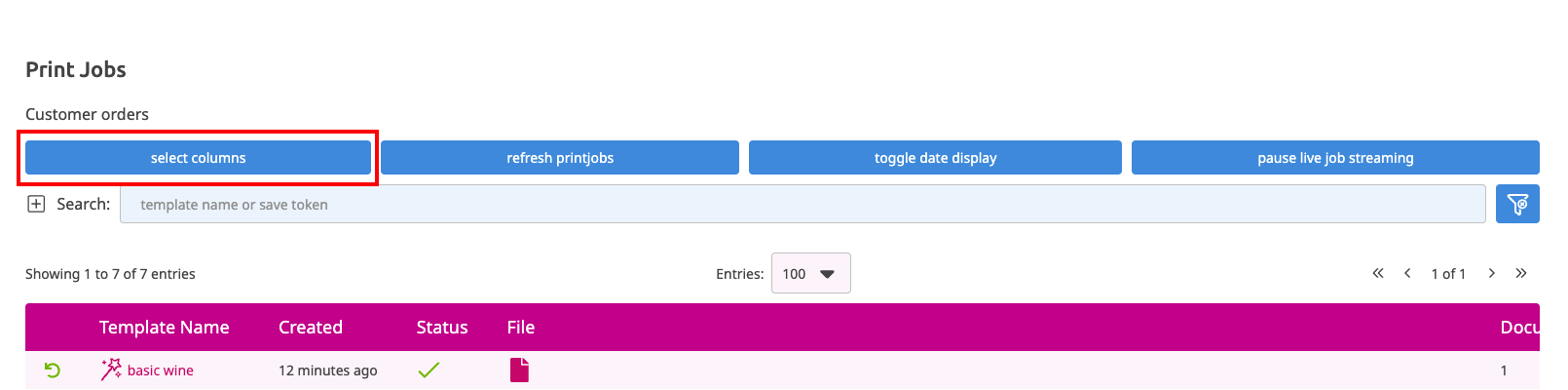
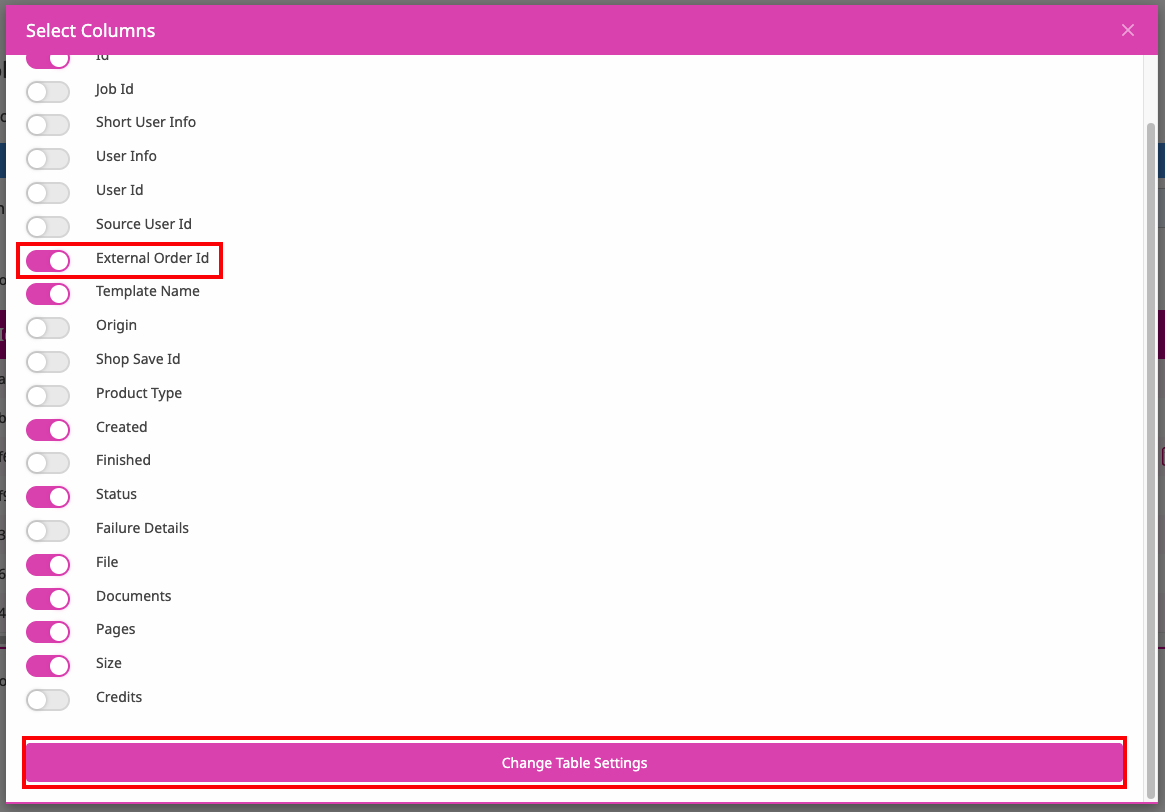
Clicking icons in the File column open print files associated with the produced template. These are the files you need to make the items your customers ordered. If you want to check the work your customer has done, you can look at the template in the state that was produced by clicking the template name.

You can find more in depth information about Print Jobs here
You can automatically send your shopify orders to a production partner through the Printess Dropshipping settings.
For this you can set a dropshipping ID in your product’s metafields:
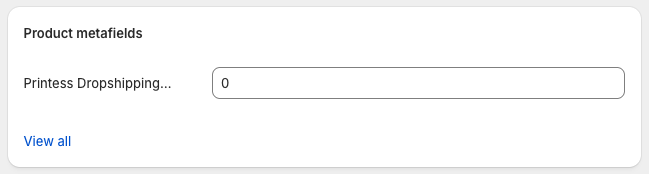
If you want to define the dropshipping IDs in Printess, simply put 0 as the ID in shopify and the Printess dropshipping integration will instead use the one specified in your product template.
The shopify integration is writing additional information about the order and its contents to the template at the time of production. Order properties like the order id, the order name (the display name of the order) or the order recipient name are written into form fields named orderId, orderName, itemQuantity, itemSku etc. In case you want to use one of these values inside your documents, you have to make sure that the template has form fields with specific names. These values will then be set at the time of the PDF creation. The predefined form field names are:
itemQuantity
itemSku
orderId
orderName
lineItemId
productName
productType
variantId
variantName
orderDate
saveToken
shippingMethod

CustomerFirstName
CustomerLastName
CustomerName
CustomerAddress1
CustomerAddress2
CustomerCity
CustomerCompany
CustomerCountry
CustomerCountryCode
CustomerPhone
CustomerProvince
CustomerProvinceCode
CustomerZip

ShippingFirstName
ShippingLastName
ShippingName
ShippingAddress1
ShippingAddress2
ShippingCity
ShippingCompany
ShippingCountry
ShippingCountryCode
ShippingPhone
ShippingProvince
ShippingProvinceCode
ShippingZip

BillingFirstName
BillingLastName
BillingName
BillingAddress1
BillingAddress2
BillingCity
BillingCompany
BillingCountry
BillingCountryCode
BillingPhone
BillingProvince
BillingProvinceCode
BillingZip
If your integration is configured to add all order items to form fields, the form fields OrderProductNames, OrderDropshipProductNames and OrderNonDropshipProductNames are written as well.
The Customer- prefixed values representing available information of the shop customer that ordered the product. The Shipping- prefixed values represent the shipping destination (Address) that was provided by the customer. The Billing- prefixed values represent the personal information of the invoice recipient. In case your printer requires an additional page in your document that contains the recipients name / address and the item sku, quantity for content validation at the time of packaging, you could create these 5 form fields
itemQuantity
itemSku
ShippingName
ShippingAddress1
ShippingAddress2
ShippingZip
ShippingCity
that can then be used for example as variables inside text items on your template’s documents.
CustomerName, ShippingName, BillingName are values automatically created by the Printess backend and consist of a combination of the first and the last name (${Firstname} ${LastName}).
Allowed characters for form field names are pretty limited. For example, Spaces, periods, hyphen etc are not allowed. Therefore, in some rare cases (Using of data table, custom integrations) it is not possible to create a form field that has the exact same name that would be required to pull in a specific value into your template. In these cases, you will need to provide a form field mapping that mapps the names used by the shopify integration to the corresponding form field name. The Form field mapping is a simple dictionary lookup with key and value pairs where the keys are the extern names (like CustomerName or ShippingCountry) and the values are the names of the corresponding Printess template form field names. To make this configuration readable by our system, it must be JSON formated.
Example:
{
  "ShippingName": "Recipient",
  "ShippingAddress1": "Street",
  "ShippingAddress2": "Apartment",
  "ShippingZip": "PostalCode",
  "ShippingCity": "City"
}
The above example maps the recipient address that is provided by the Printess backend to a printess tempalte that contains the following form fields: “Recipient”, “Street”, “Apartment”, “PostalCode”, “City”. In this example, mappings would be obsolote by using the same form field names as the names provided by the printess backend. However in some customer specific integrations like Etsy or Amazon the mappings become mandatory in case the incoming variales contain space or other non numeric characters (Rule of thumb a-Z and 0-9 are allowed as long as the first character is alphanumeric and not a number). If your integration for example writes the following variables:
Customer First Name
Customer Last Name
Customer Address1
Customer Address2
Customer Zip
Customer City
These variable names can not be represented as form field names and therefore must be mapped. One example mapping could be:
{
  "Customer First Name": "Firstname",
  "Customer Last Name": "Lastname",
  "Customer Address1": "Address1",
  "Customer Address2": "Address2",
  "Customer Zip": "Zip",
  "Customer City": "City"
}
Your custom integration might have specific variables. For Amazon integrations for example, all personalization values are prefixed with properties. Like propertiesSurname and propertiesName. In these cases, no mapping is required. However, in case the amazon personalization value contains spaces like “Nick name” or the resulting “propertiesNick name” the mapping gets mandatory.
Another scenario where mappings becomes mandatory is using a data table form field. Lets assume a form field table is ised with the following columns: Firstname, Lastname, Address1, Address2, Zip and City a mapping is required that tells the printess backend to write into these table columns. This is done by prefixing all values with form.data.. So instead of Firstname we have to provide the value form.data.Firstname:
{
  "CustomerFirstName": "form.data.Firstname",
  "CustomerLastName": "form.data.Lastname",
  "CustomerAddress1": "form.data.Address1",
  "CustomerAddress2": "form.data.Address2",
  "CustomerZip": "form.data.Zip",
  "CustomerCity": "form.data.City"
}
or in case of above mentioned properties prefixed values:
{
  "propertiesName": "form.data.Name",
  "propertiesSurname": "form.data.Surname",
}
or with spaces in the keys like “propertiesFirst Name”:
{
  "propertiesFirst Name": "form.data.Firstname",
  "propertiesLast Name": "form.data.Lastname",
}
To provide these mappings to the printess backend, a new shopify product metafield is required. (See Creation of required product meta fields). Use Formfield Mappings as display name (or any other) and printess.formFieldMappings as namespace and key. The description could be Json object containing template mappings for printess. Choose Single line text as data type. Now, every product in your shopify configuration has a new field Formfield Mappings where the mapping can be provided. In order to provide the mapping to this field, the json object needs to be reformatted into one line. Instead of
{
  "CustomerFirstName": "form.data.Firstname",
  "CustomerLastName": "form.data.Lastname",
  "CustomerAddress1": "form.data.Address1",
  "CustomerAddress2": "form.data.Address2",
  "CustomerZip": "form.data.Zip",
  "CustomerCity": "form.data.City"
}
All new lines need to be removed and everything brought into one line:
{"CustomerFirstName": "form.data.Firstname", "CustomerLastName": "form.data.Lastname", "CustomerAddress1": "form.data.Address1", "CustomerAddress2": "form.data.Address2", "CustomerZip": "form.data.Zip","CustomerCity": "form.data.City"}
This can then be provided to your product configuration.
Almost every decision the Shopify integration makes can be intercepted by a plugin before it takes effect: which price is displayed, whether the editor may open, what is written onto the cart line item, even where the product and variant data come from. A plugin is a plain JavaScript object whose properties are named after the moments you want to take part in. You register it once, the integration calls it at the right time, and your return value replaces or augments what the integration would have done on its own.
This chapter is the developer reference for that system. It covers how to register a plugin, what the integration guarantees, and what each of the 46 hooks receives and is expected to return.
The authoritative type definition is printess-plugins.d.ts in the public Shopify plugin
repository: https://github.com/PrintessEditor/Printess-Shopify-Plugin. The types it imports from
printess-editor.d.ts (iMergeTemplate, iFormFieldProperty, IShopData,
iExternalBookSettings) are documented in the
Printess JavaScript API reference.
If you are working with an AI coding agent, point it at AI-AGENT-PLUGIN-GUIDE.md in the same repository. It is a condensed, machine-oriented version of this chapter with exact dispatch sites, combination rules and known pitfalls.
The integration ships two buyer-facing editors, and they are separate implementations with separate plugin dispatch code. This is the single most important thing to understand before writing a plugin.
| PanelUI | SlimUI | |
|---|---|---|
| What it is | Full-page design editor that hides the shop page while open | Inline editor rendered into the product page itself |
| Implemented in | printessEditor.ts + printess-shopify.ts |
printess-shopify-slimui.ts |
| Plugin dispatch | Full PrintessPluginHost, all hooks wired |
Hand-written dispatch for 9 hooks only |
Both editors are handed the same registered plugins, but they do not call the same hooks. PanelUI
drives all 46. SlimUI invokes only the nine hooks it needs. A hook that the active editor
does not call simply never fires — silently, with no warning in the console and no error. Writing a
onSaveAsync handler and testing it on a SlimUI product is the most common way to conclude, wrongly,
that the plugin system is broken.
Every hook in this chapter is therefore tagged with where it is live:
Whether a product is personalisable at all, and which of the two editors it gets, is decided before either editor loads — from the product’s metafields and tags, with no plugin involvement. You cannot influence that choice from a plugin; your plugins are collected and handed to whichever editor is loaded.
If the merchant has enabled Has Full Editor for a SlimUI product, clicking that button loads the
PanelUI integration on top of the SlimUI page. From that click onwards the PanelUI hooks become live
for that session. Two hooks do not fire on this bridge path even so: onInitialized (the
save-token integration used by the bridge does not emit it) and getVariantPersonalizationTypeAsync.
There are two entry points, and the difference between them is timing.
window.initPrintessPlugins() — the reliable one. You define the function and Printess calls it
while booting, before any integration object exists. Load order cannot break it, which makes it
the correct choice for anything that fires early — onInitialized, getEditorSettings,
getTemplateNameAsync, doAllowOpenAsync. Return a single plugin or an array of them.
window.initPrintessPlugins = function () {
  return [
    {
      onInitialized(integration, type) {
        // type is "editor", "slimui" or "integration"
        console.log("Printess ready:", type);
      }
    }
  ];
};
registerPrintessPlugin(plugin) — the late one. This global function is created by the Printess
app’s own scripts, so it does not exist until those have loaded. Calling it from a script that runs
earlier throws a ReferenceError. The plugin list is read lazily on every hook
dispatch, so a late registration still affects every hook that fires afterwards — it just cannot
affect the ones that already ran.
registerPrintessPlugin({
  async doAllowAddToBasketAsync(context, params) {
    return confirm("Add this personalisation to your cart?");
  }
});
Place your plugin script in the theme after the Printess app block, or guard the call with
if (typeof registerPrintessPlugin === "function") { … }. When in doubt use
window.initPrintessPlugins — it cannot lose a race.
You may register any number of plugins. All of them run, in registration order.
Every hook receives an IPluginContext as its first argument.
interface IPluginContext {
  integration: IIntegration                   // the live integration object
  type: "editor" | "slimui" | ""              // "editor" in PanelUI, "slimui" in SlimUI
  product: IPrintessProduct                   // current product
  variant: IPrintessProductVariant | null     // selected variant, if any
}
context.integration is the integration itself, which exposes save(), setFormFieldValue(),
uploadImageAsync(), getImageInfoForUrl(), getGraphQlApi() and getIntegrationButton().
product and variant are accessor objects rather than plain data. Both offer getId(),
getLabel(), getPrice(), getTemplateName(), getMergeTemplates() and
getPrintTemplateName(). The product adds getProductOptions(), getSettings(),
getDropshipProductDefinitionId(), getUrl(variant) and getThumbnailUrl(variant); the variant
adds getVariantOptions() and getSettings().
context.type tells you which editor is calling — "editor" in PanelUI, "slimui" in SlimUI. Branch on
it when one plugin serves both and a hook needs to behave differently in each.
Understanding this section is what separates a plugin that works from one that mysteriously has no effect.
Hooks come in three shapes:
Notifications — names beginning with on. Every plugin’s handler is awaited in turn and the
return value is ignored. Use them to observe, log, or push data to your own backend.
Gatekeepers — names beginning with doAllow. Return false to block the action.
Value filters — names beginning with get, render, map or unmap. The integration threads a
value through the plugins: each handler receives the value produced so far as its second argument and
returns the next value. Read that argument and pass it through when you do not want to change it,
rather than rebuilding it from scratch — otherwise you discard what the integration and any earlier
plugin contributed.
registerPrintessPlugin({
  // currentPrice is the selected variant's price. Add to it, don't replace it.
  async getPriceInCentAsync(context, currentPrice, params) {
    return currentPrice + 250;
  }
});
In PanelUI, one group of hooks runs the integration first and your plugin last, so your value is final. This is the group intended for overriding:
getPriceInCentAsync, renderPriceAsync, getOldPriceInCentAsync, supportsSavingAsync,
userIsLoggedInAsync, getFormFieldsAsync, getProductAsync, getCurrentVariantAsync,
getUserIdAsync, getVariantByProductOptionsAsync, getEditorSettings, getTemplateNameAsync.
For every other hook the Shopify integration itself takes part in the chain as a plugin, and runs last.
unmapFormFieldAsync and getPhotobookSettingsAsync are value filters that the Shopify integration
implements itself and where it runs after your plugin, so it can overwrite what you returned.
Verify the result in the browser instead of assuming your value survives.
In SlimUI this problem does not arise: its dispatch loops over the registered plugins only, so your plugin is the sole participant in the chain.
A throwing plugin is skipped, not fatal. Every dispatch is wrapped in try/catch. The error is
written to console.error and the chain continues with the previous value. A broken hook therefore
fails invisibly from the shop’s point of view — check the browser console first.
Returning undefined means “no opinion”. The integration only accepts a value that passes that
hook’s type check, so undefined leaves the chain untouched. Several hooks are stricter still:
renderPriceAsync and getTemplateNameAsync ignore empty strings, getPriceCategoryLabelsAsync
ignores empty arrays, getFormFieldPropertiesAsync requires an array, and
getVariantPersonalizationTypeAsync ignores anything that is not one of its four literal values.
async is optional. The integration resolves whatever you hand back, so returning a plain value
works even where the signature says Promise.
Use this table to check, before writing any code, that the hook you need actually fires in the editor your product uses. Every hook the interface declares is dispatched by at least one of them.
| Hook | PanelUI | SlimUI |
|---|---|---|
onInitialized |
yes | yes |
doAllowAddToBasketAsync |
yes | yes |
getPriceInCentAsync |
yes | yes |
getTemplateNameAsync |
yes | yes |
mapFormFielsdAsync |
yes | yes |
unmapFormFieldAsync |
yes | yes |
doAllowReplaceBasketItemAsync |
– | yes |
onThumbnailsChangedAsync |
– | yes |
onProgressIndicatorAsync |
– | yes |
doAllowOpenAsync |
yes | – |
doAllowCloseAsync |
yes | – |
doAllowSaveAsync |
yes | – |
onOpenAsync |
yes | – |
onCloseAsync |
yes | – |
onSaveAsync |
yes | – |
onAddToBasketAsync |
yes | – |
onFormfieldChangedAsync |
yes | – |
onPageCountChangedAsync |
yes | – |
onPrintedRecordCountChangedAsync |
yes | – |
onLoadButtonClickedAsync |
yes | – |
onLoginAsync |
yes | – |
onTabClose |
yes | – |
onError |
yes | – |
renderPriceAsync |
yes | – |
getOldPriceInCentAsync |
yes | – |
getPriceCategoryLabelsAsync |
yes | – |
getPricingDisplayValuesAsync |
yes | – |
getPriceInformationAsync |
yes | – |
getFormFieldsAsync |
yes | – |
getFormFieldMappingsAsync |
yes | – |
getFormFieldPropertiesAsync |
yes | – |
getFormFieldsAsPropertiesAsync |
yes | – |
getProductAsync |
yes | – |
getCurrentVariantAsync |
yes | – |
getVariantByProductOptionsAsync |
yes | – |
getVariantPersonalizationTypeAsync |
yes | – |
getPhotobookSettingsAsync |
yes | – |
getEditorSettings |
yes | – |
getAttachParametersAsync |
yes | – |
getTranslationKeyAsync |
yes | – |
getCustomLoader |
yes | – |
getBasketIdAsync |
yes | – |
getUserIdAsync |
yes | – |
supportsSavingAsync |
yes | – |
userIsLoggedInAsync |
yes | – |
getShopSaveDataAsync |
yes | – |
Notification hooks let you observe the editing session. All of them are awaited, and their return value is discarded — throwing inside one does not stop the action, it is only logged.
onInitialized — PanelUI + SlimUI. The first hook to fire, and the only reliable way to learn
which editor you are in. Note it is synchronous.
onInitialized(integration: IIntegration, type: "integration" | "editor" | "slimui"): void
onOpenAsync — PanelUI. The editor is opening with the template and form field values shown.
Fires after doAllowOpenAsync has permitted it.
onOpenAsync(context, params: {
  templateName: string,                       // template name or save token being opened
  formFields: INameValuePair[],               // values pushed into the editor
  mergeTemplates: iMergeTemplate[],
  formFieldProperties: iFormFieldProperty[]
}): Promise<void>
onCloseAsync — PanelUI. The editor is closing. isAddToBasket distinguishes a checkout from
a cancel.
onCloseAsync(context, params: {
  saveToken: string, thumbnailUrl: string, isAddToBasket: boolean
}): Promise<void>
onSaveAsync — PanelUI. The buyer saved their design. If you want to implement saving
yourself, this is where you store saveToken and thumbnailUrl in your own system, so you can
offer the design back to the buyer later.
onSaveAsync(context, params: {
  saveToken: string,          // the new save token
  thumbnailUrl: string,       // preview image of the saved design
  previousSaveToken: string,  // token from the previous save in this session
  originalSaveToken: string   // token or template name the session started from
}): Promise<void>
onAddToBasketAsync — PanelUI. The line item is being created. Unlike the gatekeeper you
cannot cancel here, but propertyValuesToWrite is still mutable, so this is a convenient place to
attach extra cart line item properties.
onAddToBasketAsync(context, params: {
  saveToken: string,
  thumbnailUrl: string,
  propertyValuesToWrite: Record<string, string>,   // mutate to add cart properties
  previousSaveToken: string,
  originalSaveToken: string,
  variant: IPrintessProductVariant
}): Promise<void>
onFormfieldChangedAsync — PanelUI. A form field value changed. newVariant is set when the
change also switched the Shopify variant.
This hook fires only for form fields marked price relevant. A change to any other form field never reaches the integration, so the hook stays silent — this is the usual reason a handler that looks correct is never called.
onFormfieldChangedAsync(context, params: {
  formFieldName: string, formFieldValue: string,
  formFieldLabel: string, formFieldValueLabel: string,
  formFieldTag: string,
  formFields: INameValuePair[],
  newVariant?: IPrintessProductVariant | null
}): Promise<void>
onPageCountChangedAsync and onPrintedRecordCountChangedAsync — PanelUI. Fire when a
photo book gains or loses pages, or when the printed record count of a table-driven template changes.
Both matter mainly for price recalculation.
onPageCountChangedAsync(context, params: { pageCount: number }): Promise<void>
onPrintedRecordCountChangedAsync(context, params: { printedRecordCount: number }): Promise<void>
onThumbnailsChangedAsync — SlimUI. New preview images were rendered for the product gallery.
Use it to mirror the personalised previews somewhere else on the page.
onThumbnailsChangedAsync(context, params: { thumbnails: string[] }): Promise<void>
onProgressIndicatorAsync — SlimUI. SlimUI wants a busy indicator shown or hidden. Implement
it to drive your theme’s own spinner instead.
onProgressIndicatorAsync(context, params: { show: boolean }): Promise<void>
onLoadButtonClickedAsync — PanelUI. The buyer pressed the load button to resume a saved
design.
onLoadButtonClickedAsync(context, params: {
  previousSaveToken: string, originalSaveToken: string
}): Promise<void>
onLoginAsync — PanelUI. The buyer needs to log in or register before they can continue —
usually because they tried to save their design while signed out. This is a request, not a report:
no login has happened yet. When saving is enabled in the Shopify app the integration handles it
for you, redirecting to the configured login or registration page and returning the buyer to the
product page with their design restored. Implement this hook only if you sign buyers in yourself.
onLoginAsync(context, params: {
  saveToken: string, thumbnailUrl: string,
  displayName: string,
  shopSaveData: IShopData,
  type: "register" | "login"
}): Promise<void>
onTabClose — PanelUI. Attached to the browser’s tab-close event. Synchronous, and subject to
the same browser restrictions as any beforeunload handler — do not expect an async request to
complete. Registering this hook is what causes the integration to install the handler at all.
onTabClose(context, e: Event): void
onError — PanelUI. The integration reported an error. Synchronous; useful for forwarding to
your own monitoring.
onError(context, params: { errorMessage: string, params?: Record<string, any> | null }): void
Each of these returns a boolean. Returning false blocks the action; returning undefined abstains.
doAllowOpenAsync — PanelUI. Runs before the editor opens, and is the natural place to require
a login or an age confirmation.
doAllowOpenAsync(context, params: {
  templateName: string,
  formFields: INameValuePair[],
  mergeTemplates: iMergeTemplate[],
  formFieldProperties: iFormFieldProperty[]
}): Promise<boolean>
doAllowOpenAsync behaves differently from the other gatekeepers: it does not stop at the first
false. Every plugin runs and the last one to return a boolean decides. With more than one
plugin implementing it, a later plugin returning true silently overrides an earlier false. All
other doAllow… hooks stop at the first false.
doAllowSaveAsync — PanelUI. Runs before a save is committed.
doAllowSaveAsync(context, params: {
  saveToken: string, thumbnailUrl: string,
  previousSaveToken: string, originalSaveToken: string
}): Promise<boolean>
doAllowCloseAsync — PanelUI. Runs before the editor closes; use it for an
“are you sure, your changes are unsaved” prompt.
doAllowCloseAsync(context, params: {
  saveToken: string, thumbnailUrl: string, isAddToBasket: boolean
}): Promise<boolean>
doAllowAddToBasketAsync — PanelUI + SlimUI. Runs before the cart line item is created.
Returning false stops the add-to-cart and the redirect to the cart that follows it. As with
onAddToBasketAsync, propertyValuesToWrite can be modified here.
doAllowAddToBasketAsync(context, params: {
  saveToken: string,
  thumbnailUrl: string,
  propertyValuesToWrite: Record<string, string>,   // mutable
  previousSaveToken: string,
  originalSaveToken: string
}): Promise<boolean>
doAllowReplaceBasketItemAsync — SlimUI only. Runs when an existing cart line item is about to
be replaced after re-editing it from the cart.
doAllowReplaceBasketItemAsync(context, params: {
  quantity: number, properties: Record<string, string>
}): Promise<boolean>
Printess prices are handled in cents as integers throughout. All pricing hooks share the same
params object describing what the buyer has configured so far, and all of them except
getPriceInCentAsync are PanelUI only — SlimUI recalculates its price through getPriceInCentAsync
alone.
params: {
  currentFormFieldValues?: { name: string, value: string }[],
  numberOfPages?: number,          // photo books
  pureRecordCount?: number,        // table-driven templates, all records
  printedRecordCount?: number      // table-driven templates, printed records only
}
Every pricing hook affects the price displayed inside the editor and nothing else. None of them changes what the cart charges. A plugin that returns a higher price produces an editor that promises one figure and a cart that charges another.
Making the cart agree is a separate job. If you change the displayed price you must also ship
your own cart transform function that puts the same amount into the cart, using a lineExpand
operation to carry each surcharge as an additional line item. The plugin hook and the cart transform
are two halves of one feature and they have to agree.
Whether the add-on items appear as their own rows depends on the theme. Shopify’s default themes do not render bundle component lines in the cart, so the shopper sees one line at the correct total — the surcharge is included in the price charged, it is simply not itemised there. The individual add-on lines do show up on the checkout screen and on the customer’s order detail page.
Before writing a pricing plugin at all, check whether the integration’s built-in pricing engine
already covers your case. Surcharges are configured per product in the price configuration UI of the
Printess account portal, which stores them in the product’s additionalPrices metafield — so you
can also write that metafield directly if you prefer. Enable useAdditionalPricing in the shop
settings to activate it. Printess then handles both halves for you: it adds the surcharge to the price shown in the editor, and its own
printess-additional-options cart transform function applies the same surcharge to the cart.
You only need getPriceInCentAsync when you run your own cart transform and therefore have to
make the editor display match it.
getPriceInCentAsync — PanelUI + SlimUI. Sets the current price shown in the editor. This is
the main price hook and the one to reach for first.
currentPrice is the price of the currently selected variant in cents — not a Printess
calculation. The one exception is the built-in pricing engine: when the product has an
additionalPrices configuration and useAdditionalPricing is enabled, the integration runs before
your plugin and has already added its surcharges, so what you receive is
variant price + built-in surcharges. Either way, add to or subtract from currentPrice rather than
replacing it. Your plugin runs last, so your figure is the one displayed.
getPriceInCentAsync(context, currentPrice: number, params): Promise<number>
Returning a value here does not change the basket item price. Pair it with a cart transform function, as described above.
renderPriceAsync — PanelUI. Turns a cent value into the display string, giving you full control
over currency formatting. priceToRender is the amount, currentValue the string produced so far.
Returning an empty string is ignored. Called a second time for the old price when there is one.
renderPriceAsync(context, priceToRender: number, currentValue: string, params): Promise<string>
getOldPriceInCentAsync — PanelUI. Sets the struck-through reference price — the “was” figure
next to the current one. Return null to show no struck-through price at all.
Where getPriceInCentAsync supplies the current, effective price, this hook supplies the undiscounted
figure shown beside it. Out of the box the integration mirrors Shopify: if the variant
has a compare-at price set, the editor strikes it through and shows the variant price as current,
exactly as the product page does — a compare-at price of 70 and a variant price of 65 renders as
70 65.
Implement this hook when that default is not what you want: when you run your own discounting instead of Shopify’s compare-at price, or when you want to strike through a different figure from the one configured on the product.
getOldPriceInCentAsync(context, oldPrice: number | null, params): Promise<number | null>
The value the editor passes in is discarded and the chain starts at null. The integration then runs
first and fills in the variant’s compare-at price, so the oldPrice your plugin receives is that
compare-at price — or null when the variant has none. It is never the current price.
getPriceCategoryLabelsAsync — PanelUI. Returns the labels for graduated or category pricing.
Only a non-empty array is accepted; an empty array leaves the previous value in place.
getPriceCategoryLabelsAsync(context, currentValue: INameValuePair[], params): Promise<INameValuePair[]>
getPriceInformationAsync — PanelUI. Supplies the legal text and links shown next to the price.
getPriceInformationAsync(context, currentInfo: IPriceInformation, params): Promise<IPriceInformation>
// IPriceInformation: { legalNotice?: string, productName?: string, infoUrl?: string }
getPricingDisplayValuesAsync — PanelUI. The last stop before the price block is rendered, with
every display value in one object. Use it when you need to change several of them coherently.
getPricingDisplayValuesAsync(context, currentValue: IPricingInfo, params: any): Promise<IPricingInfo>
// IPricingInfo extends IPriceInformation with:
//   price: string, oldPrice?: string, priceCategoryLabels?: Record<string, string>
Form field mappings connect Printess form fields to Shopify variant options, so that choosing a value in the editor selects the matching variant and vice versa. Several hooks let you intervene in that translation.
A form field only reaches the shop if it is marked price relevant in the Printess form field configuration. The editor reports a value change to the integration for those fields and no others, so a form field without the option can be changed in the editor and the Shopify variant will not follow — no mapping and no hook in this section can compensate for it. See Connecting Product Variants with Form Fields.
interface IFormFieldMapping { formField: string; values: Record<string, string> }
getFormFieldsAsync — PanelUI. Returns the form field values handed to the editor. Your plugin
runs last, so this is a dependable place to inject or rewrite values — for example prefilling the
logged-in customer’s name.
getFormFieldsAsync(context, formFields: INameValuePair[]): Promise<INameValuePair[]>
getFormFieldMappingsAsync — PanelUI. Supplies the mapping table itself, as an alternative to
configuring it in the product metafield.
getFormFieldMappingsAsync(context, currentValue?: Record<string, IFormFieldMapping> | null)
  : Promise<Record<string, IFormFieldMapping> | null>
mapFormFielsdAsync — PanelUI + SlimUI. Maps Shopify option values onto Printess form field
values, in bulk. The spelling of this hook is misspelled in the interface and must be reproduced
exactly. In SlimUI the mappings parameter is always an empty object, because SlimUI never resolves
the configured mappings — derive what you need from context there.
mapFormFielsdAsync(context, currentValue: INameValuePair[], params: {
  mappings: Record<string, IFormFieldMapping> | null
}): Promise<INameValuePair[]>
unmapFormFieldAsync — PanelUI + SlimUI. The reverse direction, one field at a time: translates
a Printess form field value back into the Shopify option value used for variant selection and
pricing. In SlimUI mappings is again always empty.
unmapFormFieldAsync(context, currentValue: INameValuePair, params: {
  formFieldName: string, formFieldValue: string,
  formFieldLabel: string, formFieldValueLabel: string,
  mappings: Record<string, IFormFieldMapping> | null
}): Promise<INameValuePair>
getFormFieldPropertiesAsync — PanelUI. Adjusts form field configuration rather than values —
validation patterns, mandatory flags, character limits, visibility conditions, list entries. This is
the hook for adding or removing list entries dynamically. Only an array is accepted.
getFormFieldPropertiesAsync(context, currentValue?: iFormFieldProperty[] | null)
  : Promise<iFormFieldProperty[]>
getFormFieldsAsPropertiesAsync — PanelUI. Decides which form field values are copied onto the
cart line item as visible properties. Accepts either an array or a JSON string, which the integration
parses for you; a bare string is treated as a single field name.
getFormFieldsAsPropertiesAsync(context, currentValue?: ISaveFormFieldAsPropertyEntry[] | string | null)
  : Promise<ISaveFormFieldAsPropertyEntry[] | string | null>
// ISaveFormFieldAsPropertyEntry: { formfieldName: string, propertyName: string, defaultValue: string }
These hooks replace the integration’s own data sources. They are the most powerful part of the system and the easiest to break a shop with, so change only what you must and pass everything else through.
getProductAsync — PanelUI. Supplies the product object. If the final value is null the
integration throws and the editor does not open.
getProductAsync(context, currentValue?: IPrintessProduct | null): Promise<IPrintessProduct>
getCurrentVariantAsync — PanelUI. Supplies the selected variant. Also throws if the final
value is null.
getCurrentVariantAsync(context, currentValue?: IPrintessProductVariant | null)
  : Promise<IPrintessProductVariant>
getVariantByProductOptionsAsync — PanelUI. Resolves a set of option values to a variant, used
when a form field change should switch the variant. Return null when nothing matches.
getVariantByProductOptionsAsync(context, options: INameValuePair[],
  currentVariant?: IPrintessProductVariant | null): Promise<IPrintessProductVariant | null>
getTemplateNameAsync — PanelUI + SlimUI. Chooses which Printess template or save token is
opened, so you can swap templates based on locale, customer group or anything else. Empty strings are
ignored.
getTemplateNameAsync(context, currentValue: string): Promise<string>
getVariantPersonalizationTypeAsync — PanelUI. Decides per variant whether it is personalisable
and which buttons appear. Values outside the four listed below are ignored.
getVariantPersonalizationTypeAsync(context, variant: IPrintessProductVariant,
  currentValue: TVariantPersonalizationOption): Promise<TVariantPersonalizationOption>
// "none"        – not personalisable
// "personalize" – show the Design Now button
// "directAdd"   – add to cart without personalising
// "both"        – show both buttons
getPhotobookSettingsAsync — PanelUI. Overrides the photo book configuration (page count
limits, steps, cover handling). See iExternalBookSettings in the JavaScript API reference.
getPhotobookSettingsAsync(context, currentValue: iExternalBookSettings | null)
  : Promise<iExternalBookSettings | null>
getEditorSettings — PanelUI. Supplies the editor’s own configuration. Unlike every other value
filter this one is synchronous and the results are merged key by key across plugins, so you
can return only the keys you care about. It is called very early, including once during construction
before a product exists.
getEditorSettings(context, currentValue?: IEditorSettings | null): IEditorSettings
// IEditorSettings: hidePriceInEditor?, displayProductName?, editorDomain?, editorVersion?,
//   apiDomain?, shopToken?, translationKey?, theme?, shopDomain?,
//   usePageCountInsteadOfPrintedRecordCount?
getEditorSettings is the one hook that can stop the integration dead: if the merged result has no
shopToken, the integration throws during construction. Never return an object that clears it.
getAttachParametersAsync — PanelUI. Extra parameters passed to the editor when it attaches.
getAttachParametersAsync(context): Promise<Record<string, any>>
getAttachParametersAsync does not merge. Each plugin that returns an object replaces the whole
result, so the last one to answer wins outright. With more than one plugin contributing attach
parameters, combine them in a single plugin.
getTranslationKeyAsync — PanelUI. Chooses the translation key, letting you override the
editor’s language independently of the shop locale. Empty strings are ignored.
getTranslationKeyAsync(context, currentLanguage: string): Promise<string>
getCustomLoader — PanelUI. Replaces the loading animation with your own. Synchronous, and the
first plugin to return a non-null value wins — later plugins are not consulted.
getCustomLoader(context): { hide: () => void, show: () => void } | null
These hooks let you take over the save-and-resume feature, so designs can live in your own customer account system instead of the built-in one. All of them are PanelUI only.
supportsSavingAsync — Whether the save and load UI is offered at all. The chain starts at
false and stops at the first false, so every participating plugin must agree before saving is
enabled.
supportsSavingAsync(context): Promise<boolean>
userIsLoggedInAsync — Whether a customer is signed in. Same first-false-wins behaviour.
userIsLoggedInAsync(context): Promise<boolean>
getShopSaveDataAsync — The payload stored alongside a saved design. data is free-form and yours
to use.
getShopSaveDataAsync(context, currentValue: IShopData | null): Promise<IShopData | null>
// IShopData: { shopId: string, shopUserId: string, product: IProduct, data?: unknown }
getUserIdAsync — The customer identifier used to scope saved designs.
getUserIdAsync(context, currentValue?: string | null): Promise<string | null>
getBasketIdAsync — The basket identifier. The integration generates one when every plugin
returns nothing.
getBasketIdAsync(context, currentValue?: string | null): Promise<string | null>
Require a login before the editor opens. printessSettings is the global settings object the
Shopify app writes onto the page.
window.initPrintessPlugins = function () {
  return {
    async doAllowOpenAsync(context, params) {
      if (printessSettings.customerIsLoggedIn !== true) {
        window.location.href = "/account/login?return_url=" + encodeURIComponent(location.pathname);
        return false;
      }
      return true;
    }
  };
};
Add a surcharge to the displayed price and format it yourself. Remember that this changes the editor display only — the matching cart transform function is what makes the cart charge it. If the built-in pricing engine can express your surcharge, prefer it and skip this plugin entirely.
registerPrintessPlugin({
  async getPriceInCentAsync(context, currentPrice, params) {
    const pages = params.numberOfPages || 0;
    return currentPrice + (pages > 24 ? 500 : 0);
  },
  async renderPriceAsync(context, priceToRender, currentValue, params) {
    return new Intl.NumberFormat("de-DE", { style: "currency", currency: "EUR" })
      .format(priceToRender / 100);
  }
});
Write custom properties onto the cart line item. Mutating propertyValuesToWrite is what makes
the values appear on the line item; a property whose name starts with an underscore stays hidden from
the buyer.
registerPrintessPlugin({
  async onAddToBasketAsync(context, params) {
    params.propertyValuesToWrite["Design reference"] = params.saveToken.substring(0, 8);
    params.propertyValuesToWrite["_internalProductId"] = context.product.getId();
  }
});
Prefill form fields from the logged-in customer.
registerPrintessPlugin({
  async getFormFieldsAsync(context, formFields) {
    if (!printessSettings.customerIsLoggedIn) return formFields;
    const withoutName = formFields.filter((f) => f.name !== "CustomerName");
    return [...withoutName, { name: "CustomerName", value: printessSettings.customerName || "" }];
  }
});
Behave differently in each editor. getTemplateNameAsync fires in both, so branch on
context.type.
registerPrintessPlugin({
  async getTemplateNameAsync(context, currentValue) {
    return context.type === "slimui" ? currentValue + "-simple" : currentValue;
  }
});
Work through these in order — the first three explain almost every report of a plugin being ignored.
onSaveAsync is not one of them.registerPrintessPlugin only exists once the Printess app’s
scripts have loaded, and any hook that fires before you register is missed. Move to
window.initPrintessPlugins and the problem disappears.try/catch, so a throwing
handler is logged and skipped rather than surfaced.undefined from a forgotten return, an empty string from renderPriceAsync, and
an empty array from getPriceCategoryLabelsAsync.unmapFormFieldAsync and getPhotobookSettingsAsync the
Shopify integration runs after your plugin and may replace your value. For
getAttachParametersAsync, another plugin’s object replaces yours entirely.mapFormFielsdAsync really is spelled that way, getEditorSettings has no Async suffix, and
onInitialized, onError, onTabClose and getCustomLoader are synchronous.